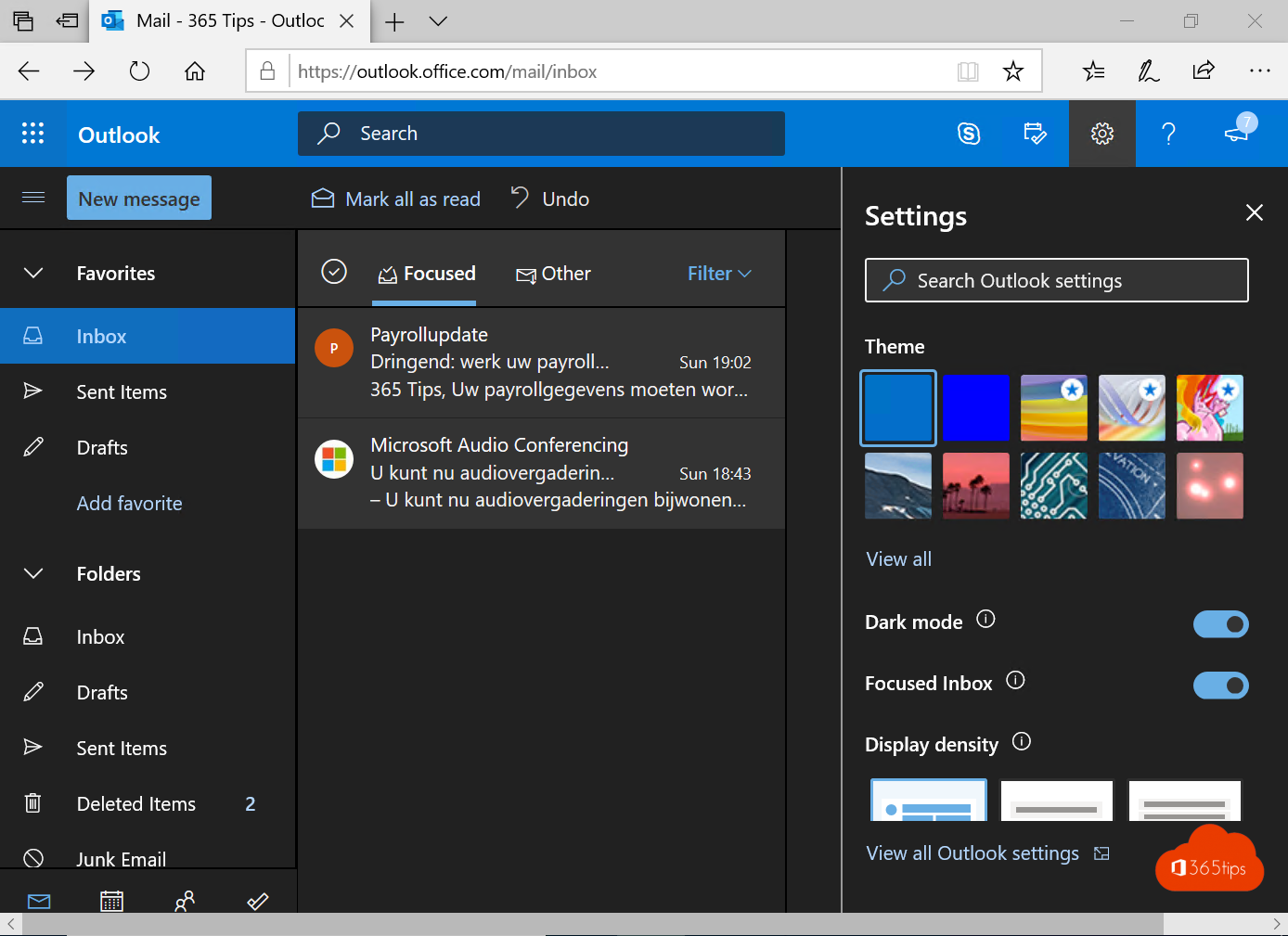
Dark mode is easier on your eyes, especially in the evening, and saves battery on laptops with an OLED screen. Outlook has a full dark mode, including for the content of your emails. This article shows how to turn it on in the new Outlook, on the web, in classic Outlook and on your phone.
In the new Outlook and on the web
- Select Settings > General > Appearance.
- Choose Dark, or Use system setting to follow Windows or macOS.
- Optionally pick a theme for the colour of the bars.
You can also switch quickly with the moon icon or the Dark mode toggle at the top, if it's shown.

White background for one email
In dark mode, Outlook also darkens the background of emails. Prefer reading a message on white? Select the sun icon (Switch background) in the open message. It only applies to that message.
In classic Outlook
- Go to File > Office Account.
- Under Office Theme, choose Black or Use system setting.
This theme applies to all Office apps on your PC: Word and Excel turn dark too.
On your phone
In the Outlook app, tap your profile picture > Settings > Appearance and choose Dark or System.
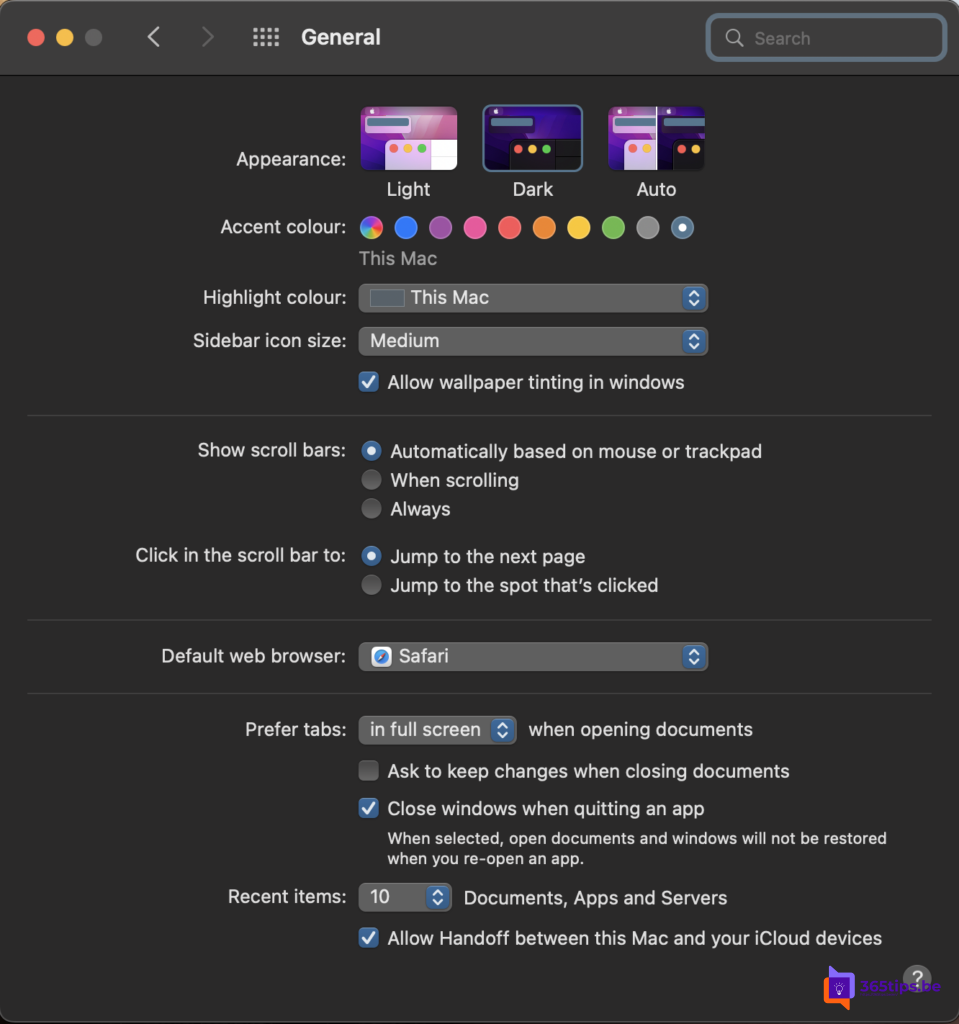
Windows dark too?
If you choose Use system setting, Outlook follows Windows. Read dark mode in Windows 11.
Read also
How to turn on dark mode in Windows 11
Set up or change your email signature in Outlook
Turn off Focused Inbox in Outlook, per user or for everyone
Nederlandstalige versie: Donkere modus inschakelen in Outlook op het web, Windows en mobiel