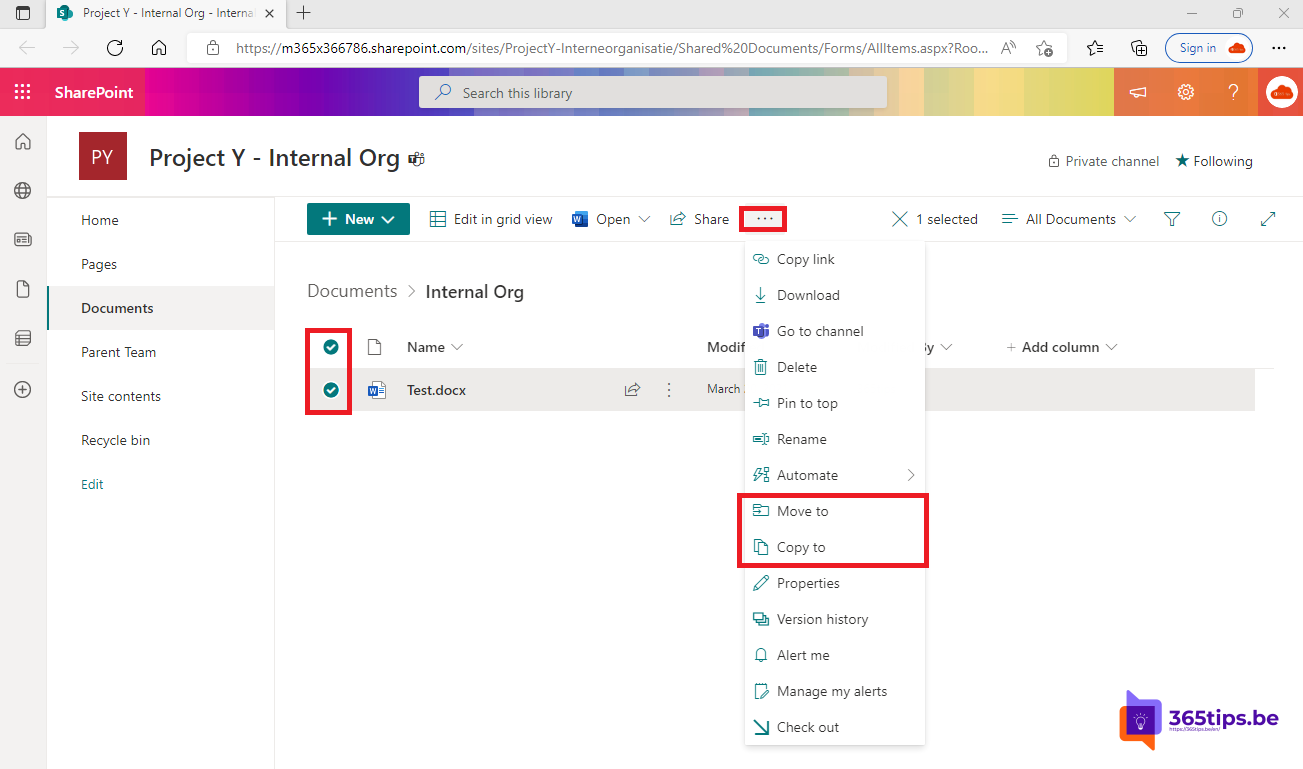
A document in the wrong channel, or a folder that needs to go to another SharePoint site? With Move to and Copy to you handle it in the browser, without downloading and re-uploading. When moving, even the version history is kept. This article shows how.
In Teams
- Open the channel and select the Files tab.
- Select the file or folder.
- Select More options (...) > Move to or Copy to.
- Choose the destination: a folder in the same channel, another team, a SharePoint site or your OneDrive.
- Select Move here or Copy here.

In SharePoint and OneDrive
Select the file and choose Move to or Copy to at the top. You can select multiple files or folders at once. The right pane shows progress.
Move or copy?
| Move | Copy | |
|---|---|---|
| Original | Disappears from the old location | Stays put |
| Version history | Kept | Only the latest version |
| Links and permissions | Old links usually stop working | New copy with its own links |
Tips and limits
- When moving to another site, files take on the permissions of the new location.
- Very large folders are better moved in parts. There's a limit on items and size per operation.
- You need edit rights on both locations.
- Prefer File Explorer? Sync the library and drag files. Note: version history is lost that way.
- Moved or deleted something by mistake? Read restore deleted files. See also version history.
Read also
Restore an earlier version with version history in OneDrive and SharePoint
How to restore deleted files in Microsoft Teams and SharePoint
Add a SharePoint page, site or list to Microsoft Teams
Nederlandstalige versie: Bestanden of mappen verplaatsen of kopiëren in SharePoint en Teams
More in English
▸Restore an earlier version with version history in OneDrive and SharePointView and restore earlier versions of files in OneDrive, SharePoint, Teams and the Office apps, and learn how…
▸Restore deleted OneDrive files up to 93 days after deletionGet deleted files back from the OneDrive recycle bin or second-stage recycle bin, or restore your whole…
▸Share and send large files securely with OneDriveShare files up to 250 GB securely with OneDrive. Choose who gets access and set an expiration date, password…
▸Block specific file types from OneDrive syncStop OneDrive from uploading .pst, .ost or .iso files. Via the SharePoint admin center, PowerShell, Intune or…