Your mailboxes are already in Exchange Online, but your distribution groups are still managed in your on-premises Active Directory? Then only IT can change the members. By migrating the groups to Microsoft 365, you hand that management to the owners themselves. This article explains why and how to approach it.
Why migrate distribution groups?
- Delegate management: owners add or remove members themselves, without a ticket to IT.
- Less on-premises dependency: one step closer to decommissioning your Exchange servers.
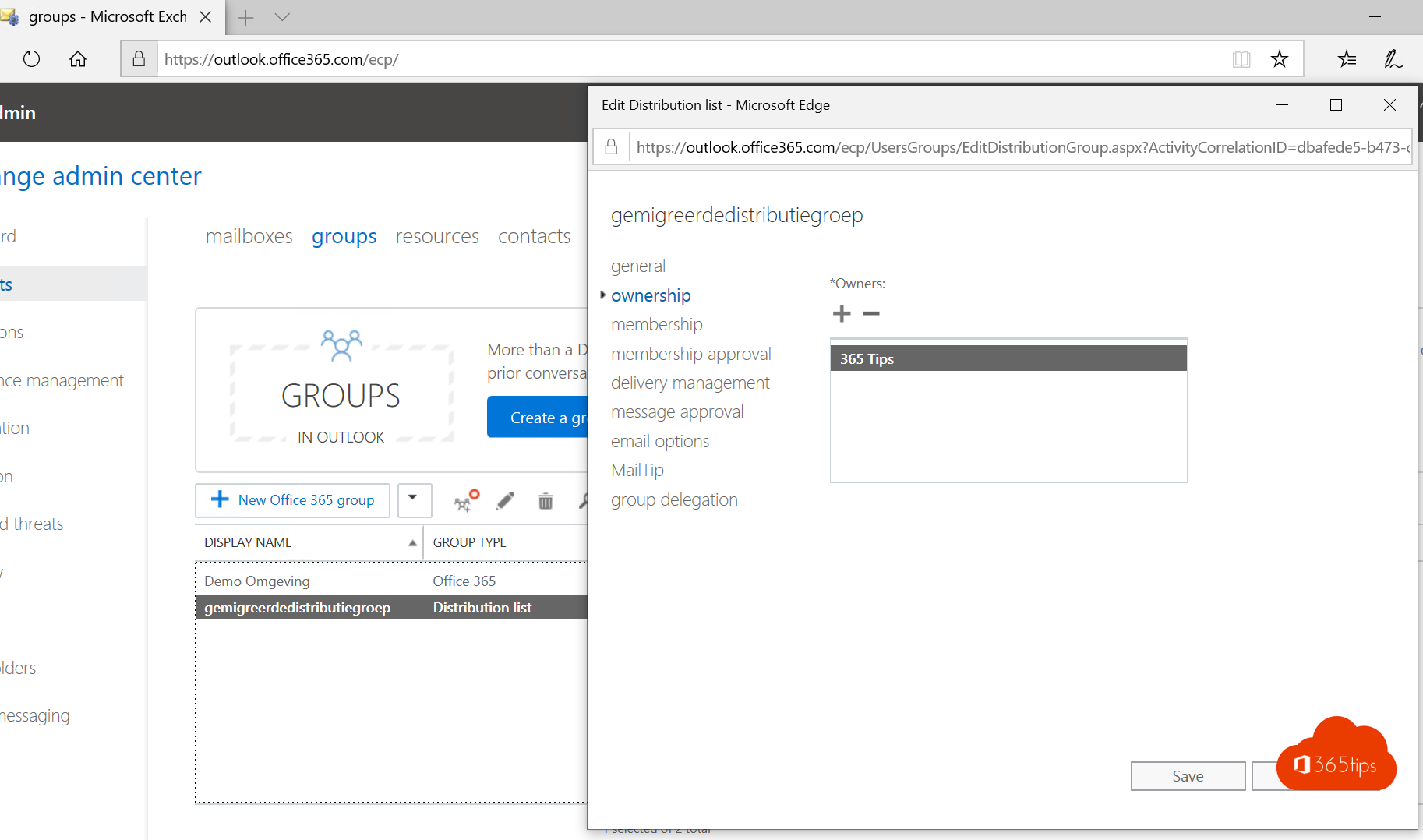
- Central management in the Exchange admin center or the Microsoft 365 admin center.
- Upgrade: you can later convert a cloud group into a Microsoft 365 group with a shared mailbox, calendar and SharePoint site.
Microsoft also offers a way to move synced groups to the cloud without recreating them. Check its current status for your tenant first.
The approach in short
You can't simply change a synced group in the cloud. The classic method is: recreate the group in Exchange Online and remove the on-premises group.
- Take an inventory: export all groups with their members, owners, email addresses and settings (such as who may send to the group).
- Create the new group in Exchange Online, with a temporary name first.
- Add members and owners.
- Remove the on-premises group or take it out of sync scope, and run a sync.
- Move the name and email addresses to the new group, including the old X500 address.
- Test with a test message from inside and outside the organization.
You find the full PowerShell steps in migrate distribution groups to Exchange Online with PowerShell.
Points of attention
- Nested groups: create the subgroups in the cloud first, then the parent group.
- Members must already exist in Microsoft 365, as a synced user or contact.
- Dependencies: groups are also used in transport rules, permissions on shared mailboxes or applications. Write those down beforehand.
- Timing: between removing the old group and adding the address to the new group, mail to that address doesn't arrive. Do this outside office hours.
Managing groups as an owner
After the migration, owners can manage their group themselves:
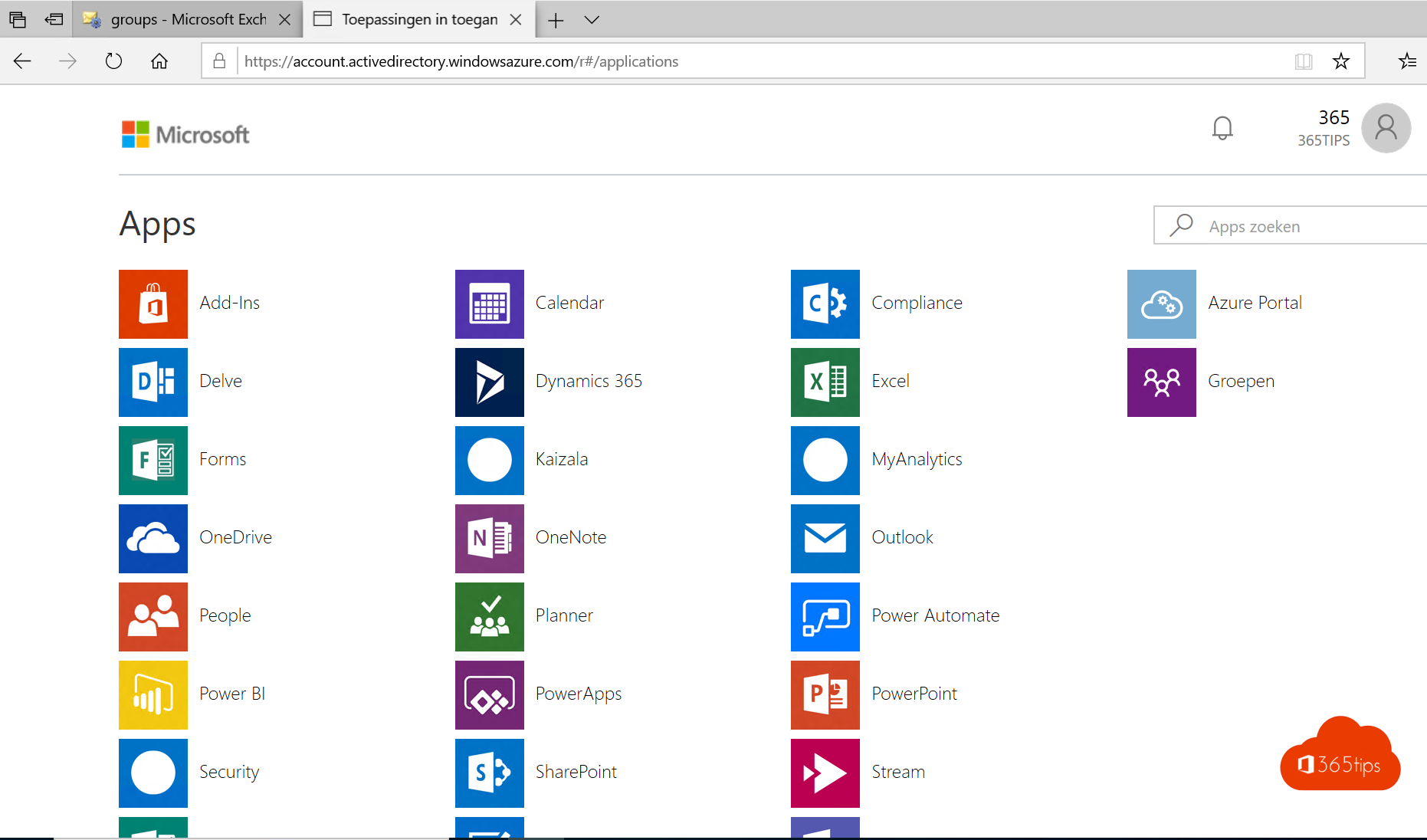
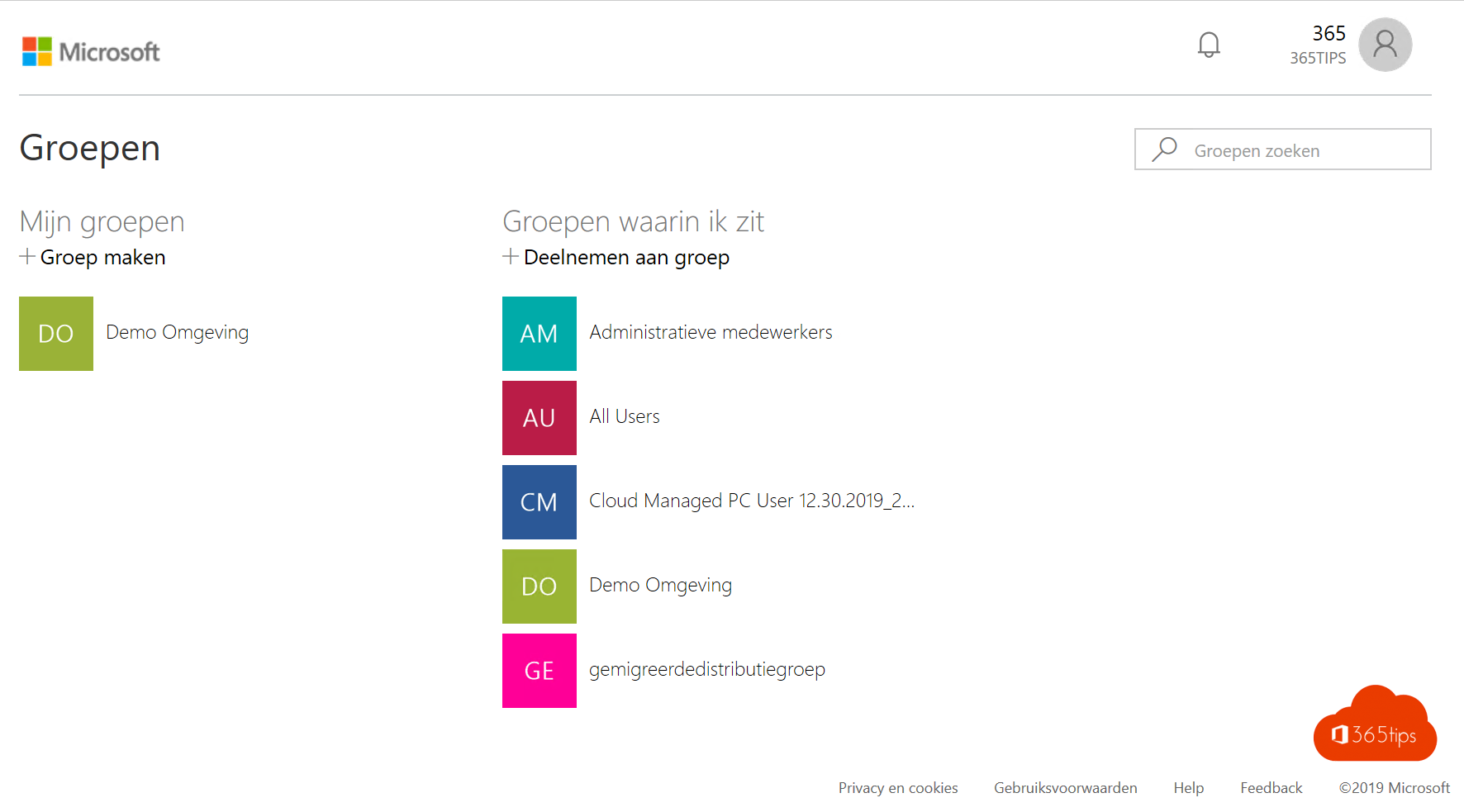
- Go to myaccount.microsoft.com and open Groups (formerly via myapps.microsoft.com).
- You see the groups you own or are a member of.
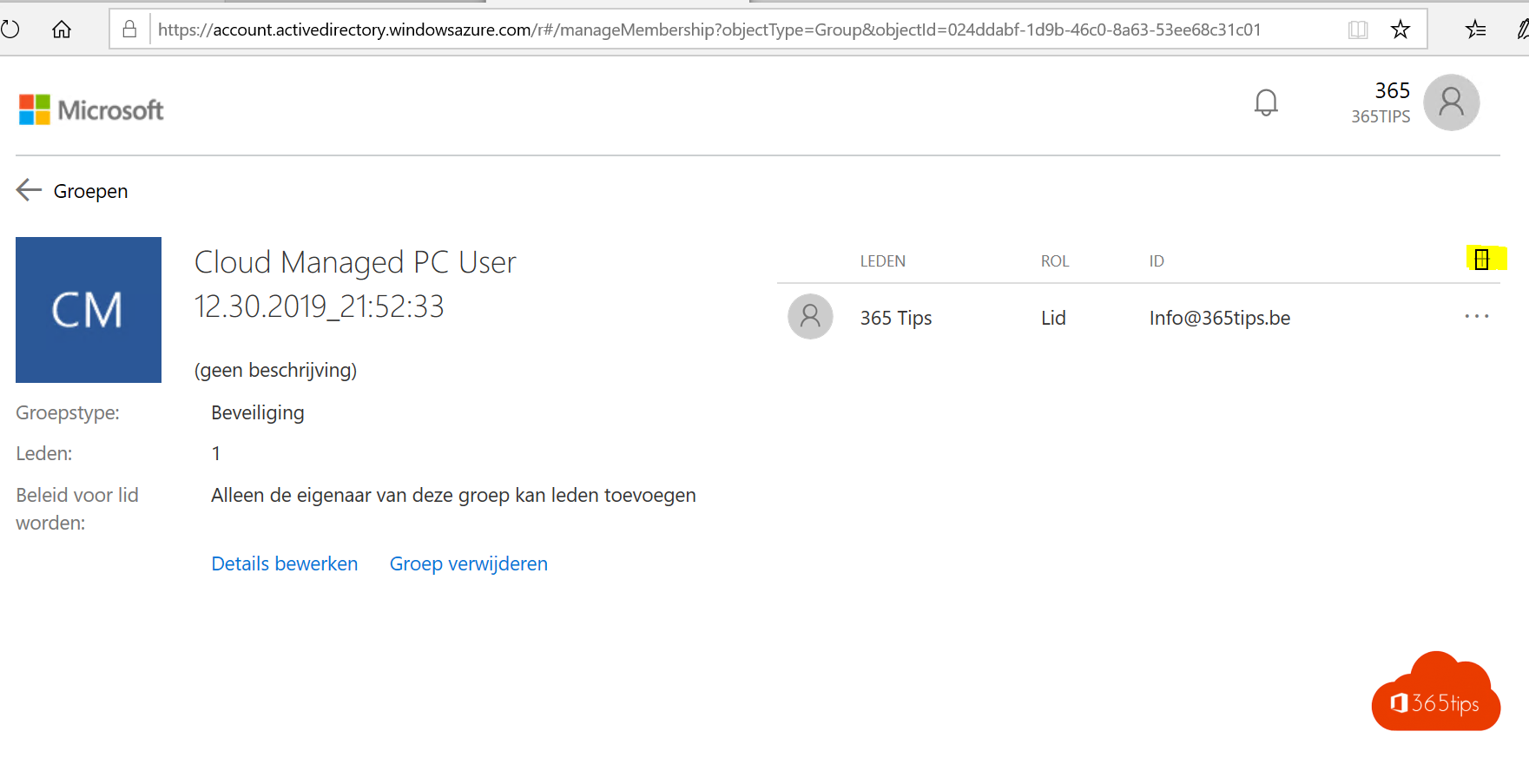
- Open a group and add or remove members.
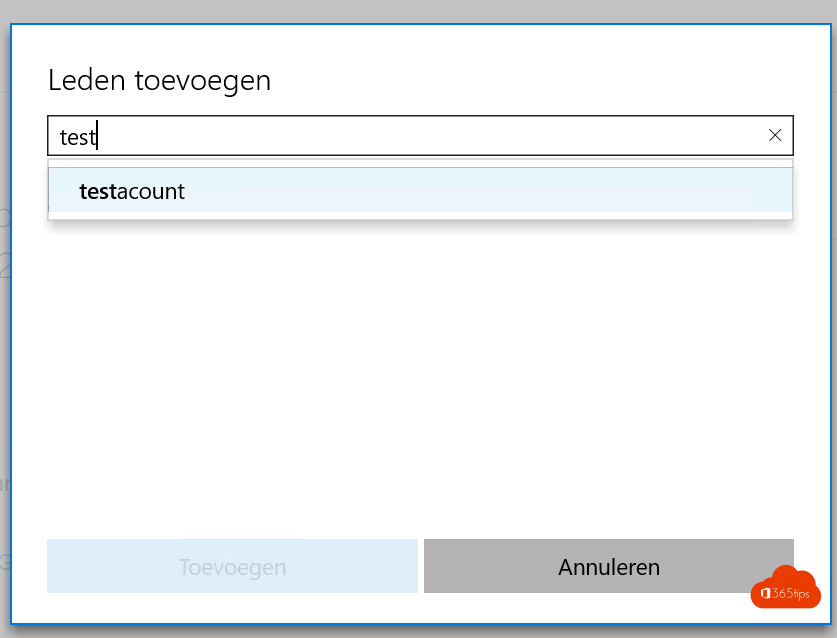
Owners can also change members via the address book in classic Outlook or via Outlook on the web.
Frequently asked questions
Can I convert a distribution group into a Microsoft 365 group?
Yes, for groups managed in the cloud. You do that in the Exchange admin center. Not every group qualifies, for example nested groups or groups with members that aren't users.
Do I have to migrate all groups at once?
No. Work in small batches and start with groups whose members change often.
Also see dynamic distribution groups in Exchange Online and delete a group with PowerShell.
Read also
Migrate distribution groups to Exchange Online with PowerShell
How to create a distribution list in Microsoft 365 and use it in Teams
Create a dynamic distribution group in Exchange Online
Nederlandstalige versie: Waarom en hoe migreer je distributiegroepen naar Microsoft 365?