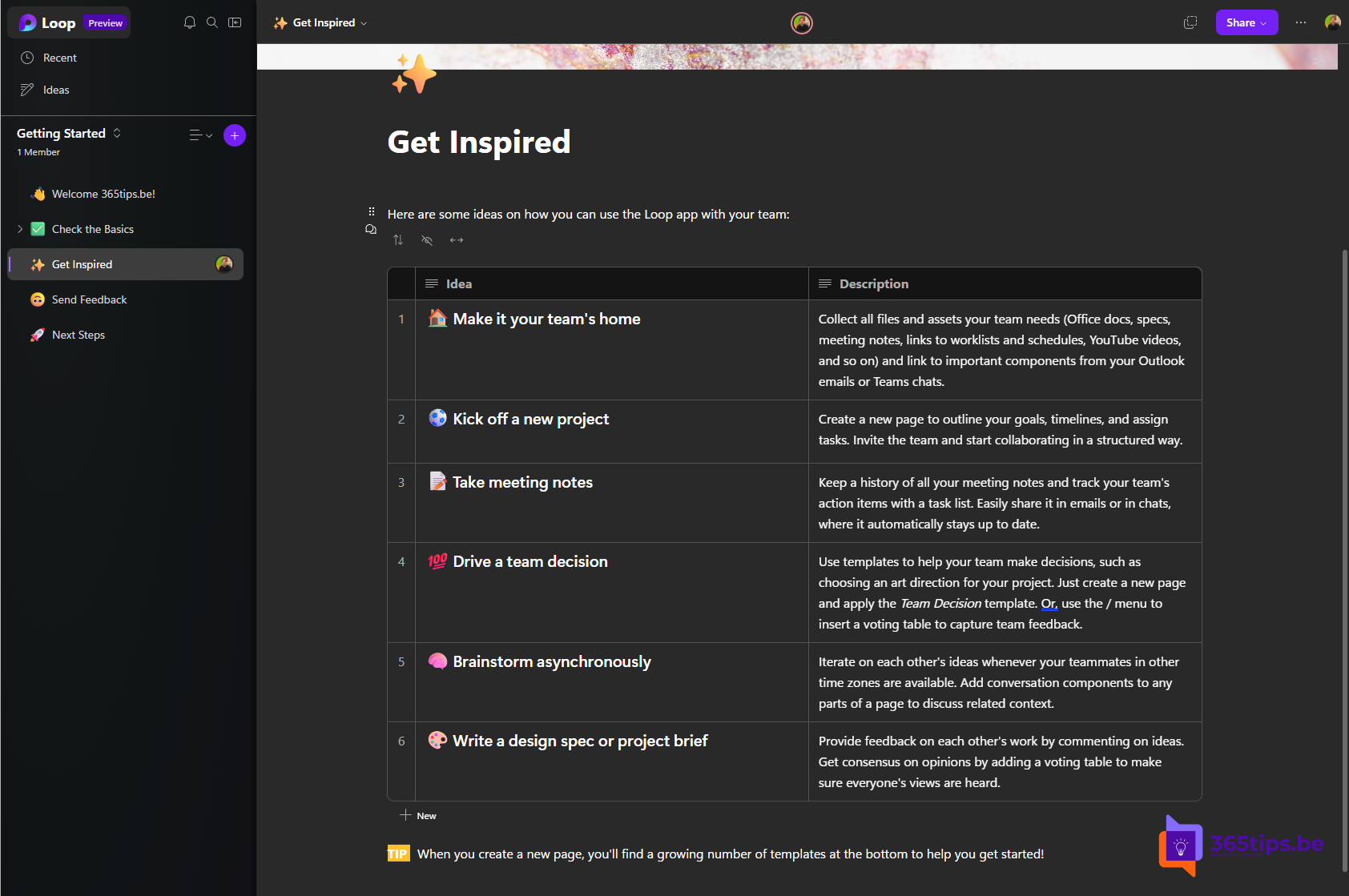
Microsoft Loop is an app for collaborating in flexible pages and workspaces. You create project notes, task lists and tables that everyone can edit at the same time. With Loop components you also share pieces of that in Teams chats, Outlook emails and meetings, and they stay up to date everywhere. Loop is no longer in preview, and the Loop app works with workspaces (formerly called "spaces"). This article shows how to enable Loop as an admin and how to get started.
The three building blocks
| Part | What is it? |
|---|---|
| Loop components | Live pieces of content, such as a task list, table or agenda, that you share in Teams, Outlook, Word or OneNote. Everyone always sees the latest version. |
| Loop pages | Flexible pages where you bring components, text and links together. |
| Loop workspaces | Shared spaces for a project or team, with all its pages. |
Licenses
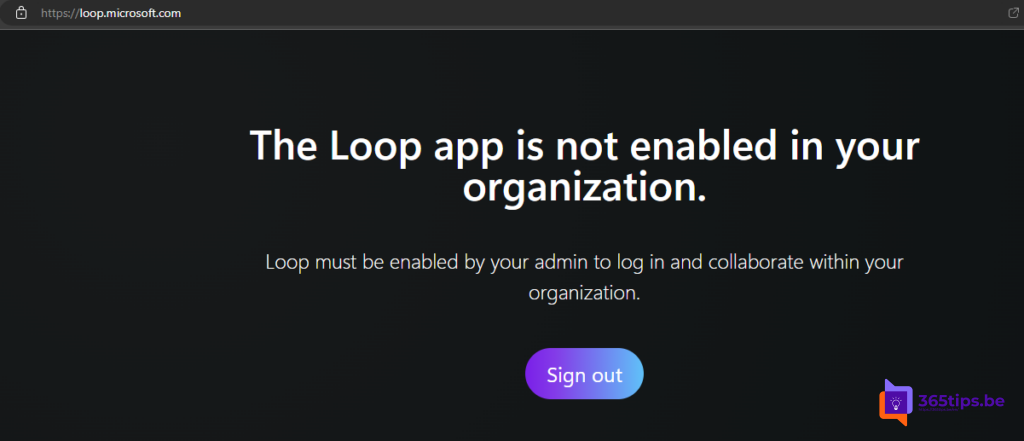
You can use Loop components in Teams, Outlook and other apps with most business and education plans. To create your own workspaces in the Loop app you need a license that includes Loop workspaces, such as certain Microsoft 365 Business, Enterprise or education plans, or Microsoft 365 Copilot. The exact list changes, so check it with Microsoft before rolling out.
Enable Loop as an admin
Loop uses Cloud Policy to turn features on or off.
- Go to the Microsoft 365 Apps admin center at config.office.com.
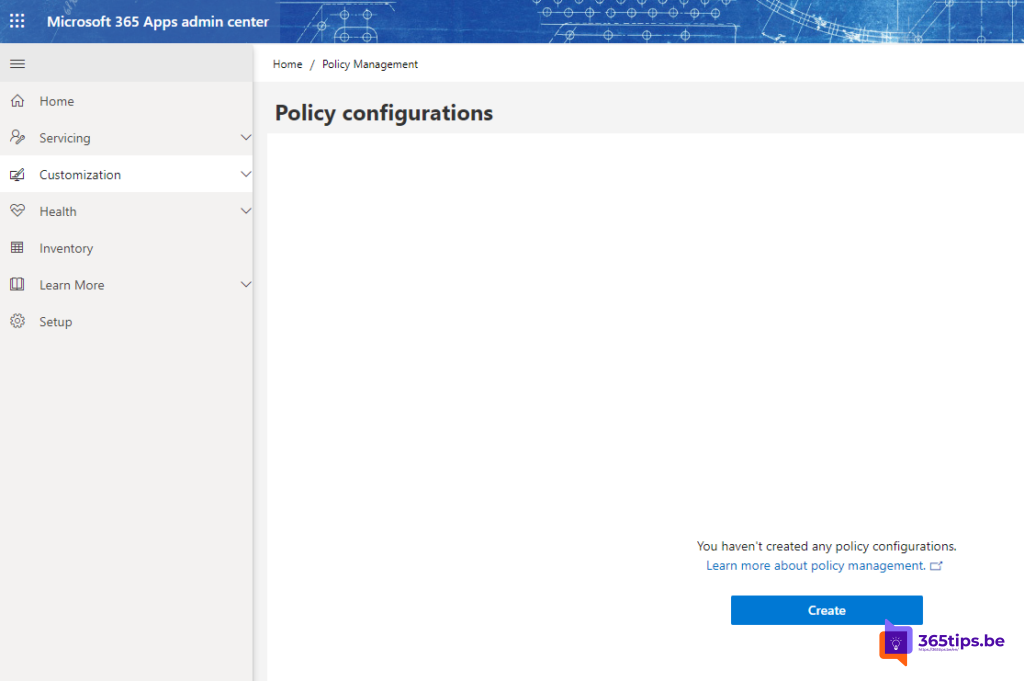
- Choose Customization > Policy Management and create a new policy configuration, or open an existing one.
- Search for Loop. You'll find settings for creating and viewing Loop files and Loop workspaces, and for using Loop components in other apps.
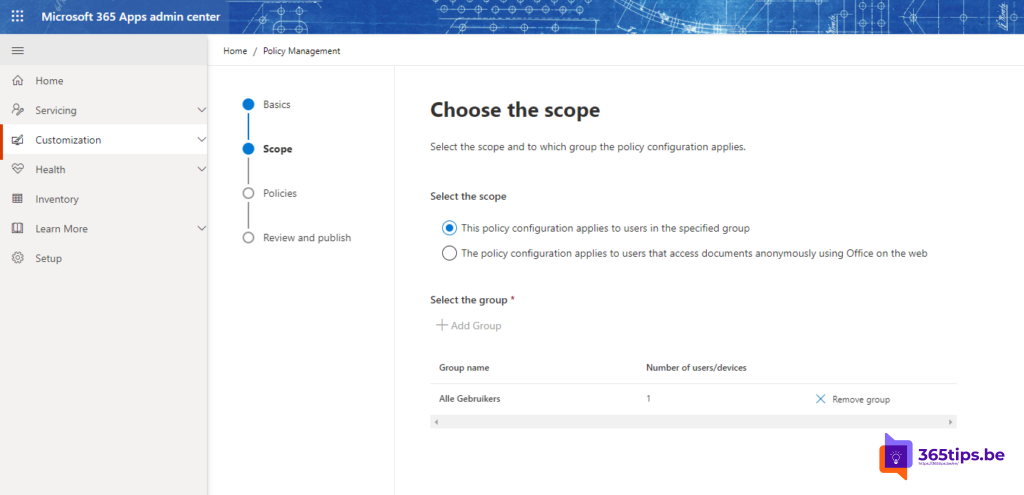
- Set the settings you want to Enabled and assign the policy to all users or to a group.
- Save. It can take a while before the change is active.
You can also manage Loop components in Teams and Outlook through PowerShell or the SharePoint settings.

Get started with the Loop app
- Go to loop.cloud.microsoft, or install the Loop app on your phone.
- Sign in with your work or school account.
- Click + to create a new workspace and give it a name.
- Invite colleagues to the workspace.
- Create a page and type / to insert components, such as a task list, a table or a priority board.

Loop components in Teams
In a Teams chat, click the Loop icon below the message box and choose a component. Everyone in the chat can edit it right away. Read more in using Loop components in Teams.

Tips
- Loop files are stored in OneDrive or SharePoint, so retention and sharing follow your existing rules.
- Workspaces are kept in separate storage. Agree on who the owner is when someone leaves the organization.
- Use Loop for work that's still in motion. For a finished document, Word is often still the best choice.
Also see co-authoring files in Microsoft 365 and ways to share files in Microsoft 365.
Read also
Use Loop components in Teams chats, channels and meetings
Work on one file with several people at the same time
Share files in Microsoft 365 and Teams: all the options
Nederlandstalige versie: Zo activeer en gebruik je Microsoft Loop in Microsoft 365