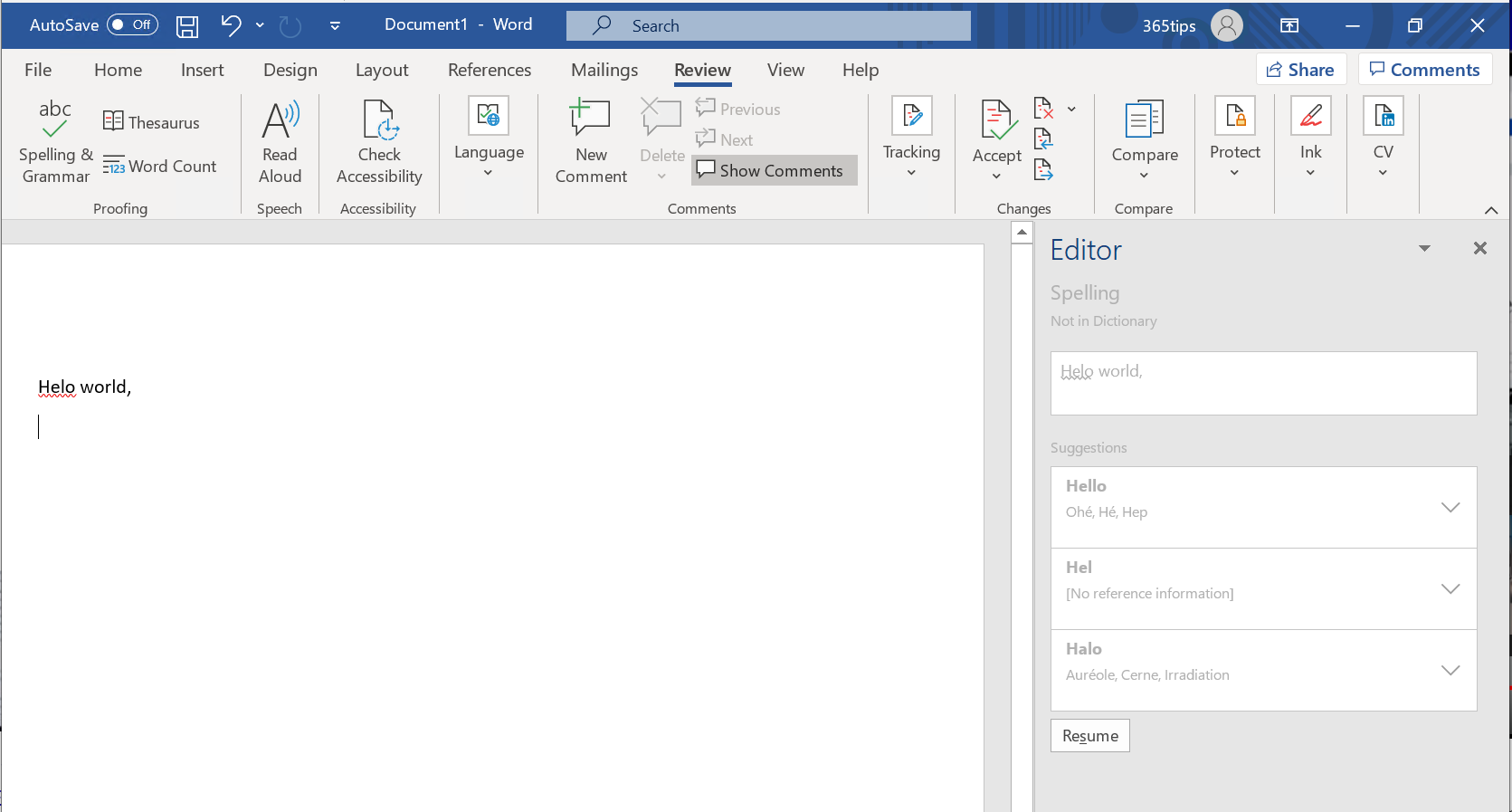
Microsoft Editor is the writing assistant built into Word and Outlook. It checks your spelling and grammar, suggests better wording and helps you write more clearly and concisely, in dozens of languages. In this article you learn where to find Editor and how to use it well.
What does Microsoft Editor do?
- Spelling and grammar: mistakes are underlined, with a suggested fix.
- Refinements: tips on clarity, conciseness, formality and inclusive language.
- Rewrite suggestions: select a sentence and let Editor propose a different phrasing.
- Similarity: in Word for Microsoft 365, Editor can compare text with sources on the web so you can cite correctly. This feature isn't available in every version or language.
The separate Editor browser extension for Edge and Chrome has been retired by Microsoft (around 2024–2025; the exact date varied by channel). For AI rewriting, Microsoft now mainly points to Copilot.
Use Editor in Word
- Open your document in Word (desktop or Word for the web).
- On the Home tab, select Editor. In some versions you find it under Review > Spelling & Grammar.
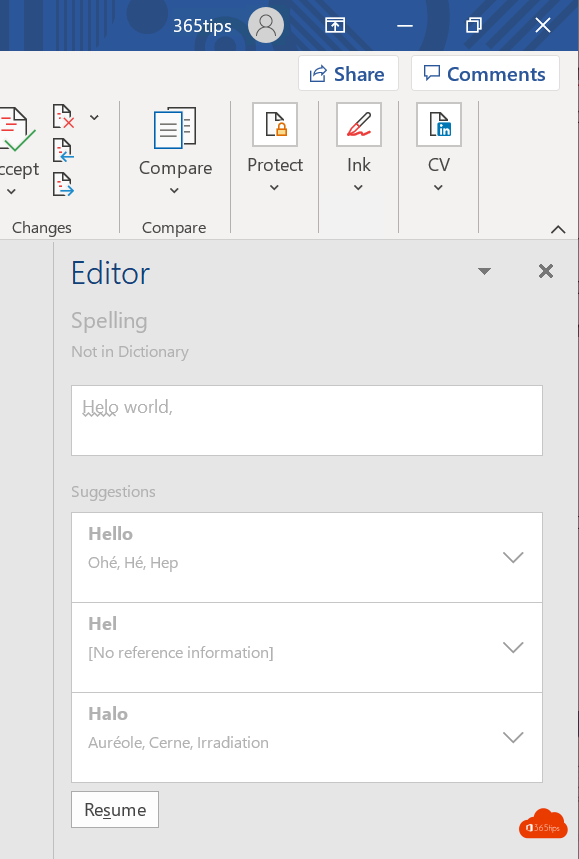
- The Editor pane opens on the right, with a score and the number of suggestions per category.
- Select a category and choose for each suggestion whether to accept or ignore it.

When you select a suggestion, Editor replaces the word or sentence right away.
Use Editor in Outlook
In the new Outlook, Outlook on the web and classic Outlook, Editor works as you type. Mistakes are underlined: click (or right-click) them to choose a suggestion. The proofing language usually follows the language of your text or the language you set in the proofing options.
Tips
- Set the correct proofing language so Editor doesn't flag words in another language as mistakes.
- Choose in the Editor settings which refinements you want to see, to keep the pane uncluttered.
- Using Copilot in Word or Outlook? Copilot can rewrite whole paragraphs or change the tone. Editor remains handy for a quick spelling and grammar check.
Also see translate a document in Word and recover unsaved Word and Excel files.
Read also
Translate a document or text in Word and PowerPoint
Recover an unsaved Word or Excel file
The most useful tips for email in Microsoft Outlook
Nederlandstalige versie: Microsoft Editor gebruiken in Word en Outlook