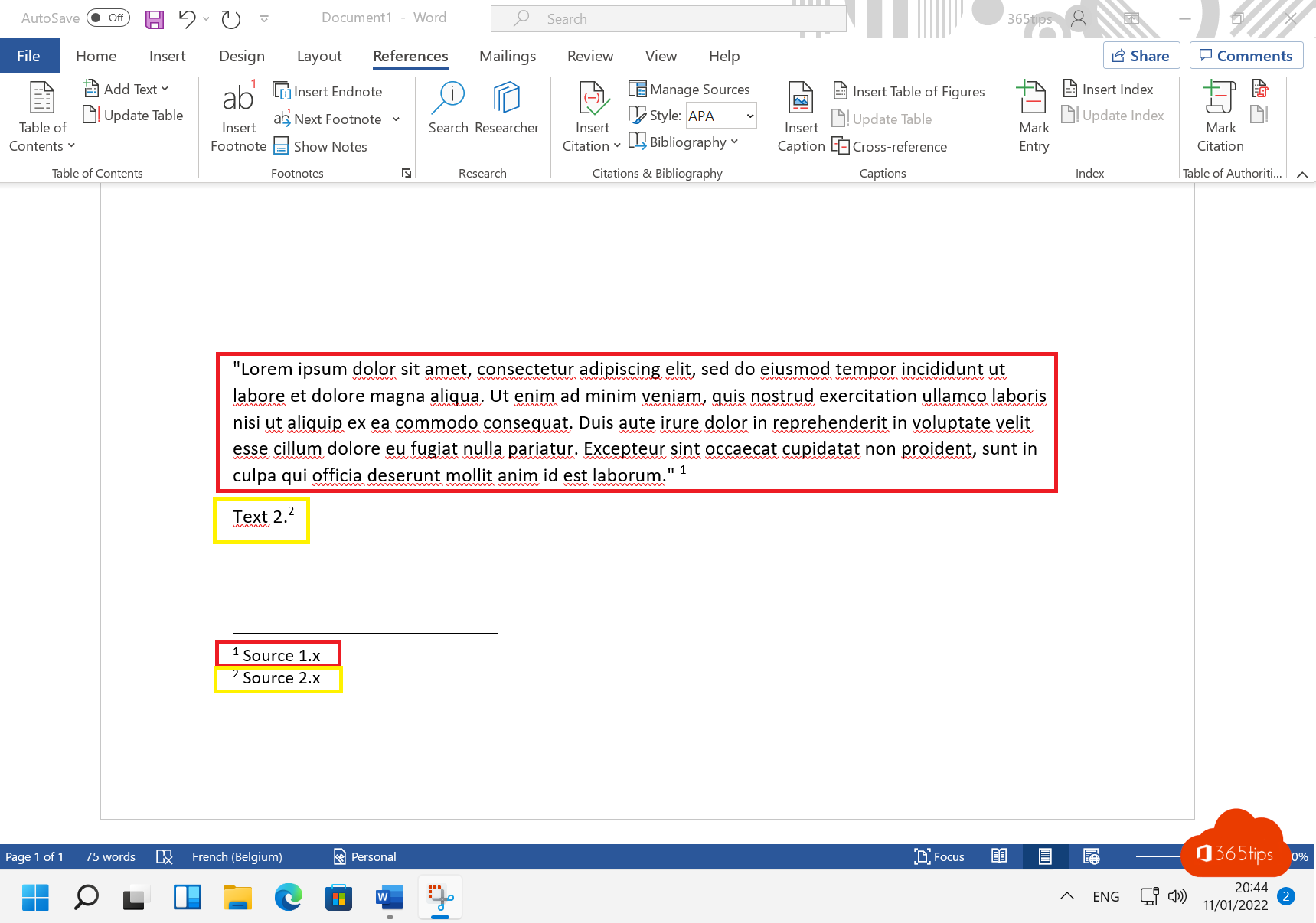
In a thesis, report or legal text, you want to add a source or extra explanation without interrupting the main text. That's what a footnote at the bottom of the page is for, or an endnote at the end of the document. Word numbers them automatically. This article shows how to add, adjust and remove them.
Add a footnote
- Click in the text where the number should go.
- Go to the References tab > Insert Footnote. Shortcut: Ctrl + Alt + F.
- Word adds a number in the text and jumps to the bottom of the page. Type your footnote there.
For an endnote, choose Insert Endnote (Ctrl + Alt + D). On a Mac, use Cmd + Option + F and Cmd + Option + E.

Adjust numbering and formatting
- On the References tab, select the small arrow at the bottom right of the Footnotes group.
- Choose the number format (1, 2, 3 or i, ii, iii or a symbol), the start number and whether numbering restarts per page or section.
- Select Apply.
To format all footnote text differently, modify the Footnote Text style in the Styles pane.
Convert footnotes to endnotes
In the same dialog, select Convert and choose Convert all footnotes to endnotes, or the other way round.
Delete a footnote
Select the number in the text and press Delete. The footnote at the bottom disappears too and Word renumbers the rest. If you only delete the text at the bottom, the number stays.
Navigate quickly
- Double-click a number to jump to its footnote, and the number at the bottom to jump back.
- Use Next Footnote on the References tab to go through them one by one.
- Working with lots of sources? Use Insert Citation and Bibliography on the same tab.
In Word for the web
Insert Footnote is on the References tab there too. The advanced numbering options are only in the desktop app. Done? Save your document as a PDF.
Read also
Save a Word document as PDF on Windows, Mac and the web
Delete a page or blank page in Microsoft Word
Recover an unsaved Word or Excel file
Nederlandstalige versie: Een voetnoot of eindnoot toevoegen in Microsoft Word