A quote, a CV or a report is best sent as a PDF. The recipient sees exactly what you see on any device, and nobody can change the text by accident. Word creates PDFs itself, no extra software needed. This article shows how on Windows, Mac and in Word for the web.
In Word for Windows
- Select File > Save As (or Save a Copy for files in OneDrive).
- Choose the folder and set Save as type to PDF.
- Optionally select Options for extra settings (see below).
- Select Save.
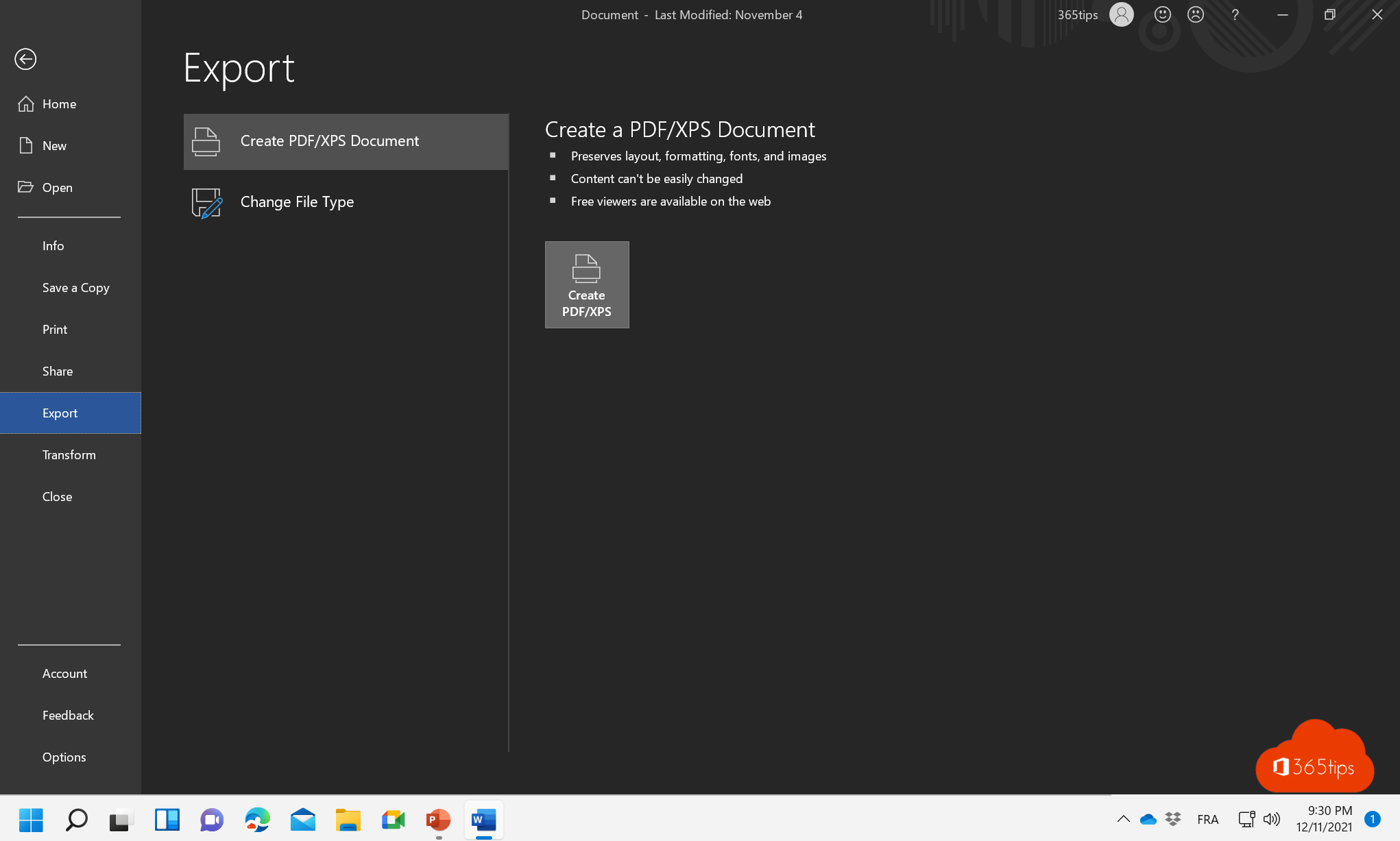
Or use File > Export > Create PDF/XPS Document.
Useful options
- Optimize for: choose Minimum size for email or Standard for printing.
- Create bookmarks using headings: readers can jump straight to each chapter in the PDF. Use the Heading 1 and Heading 2 styles in your document.
- ISO 19005-1 compliant (PDF/A): for archiving, for example for government bodies.
- Page range: make a PDF of only part of the document.
In Word for Mac
Select File > Save As and choose PDF under File Format. Choose Best for electronic distribution and accessibility for a PDF with clickable links.
In Word for the web
Select File > Save as (or Create a copy) > Download as PDF. The file lands in your Downloads folder.
Through printing
Any Windows app can create a PDF through Print > printer Microsoft Print to PDF. Links and bookmarks are lost, though, so in Word Save As is better.
Tips
- Want nobody to open the PDF without a password? Under Options, choose Encrypt the document with a password.
- Editing a PDF again works too: open the PDF in Word and Word converts it into an editable document. The layout isn't always perfect.
- Turning a PDF into slides? See create a PowerPoint from a PDF with Copilot.
- More Word tips: add a footnote and delete a page.
Read also
Add a footnote or endnote in Microsoft Word
Delete a page or blank page in Microsoft Word
Recover an unsaved Word or Excel file
Nederlandstalige versie: Een Word-document opslaan als PDF op Windows, Mac en het web