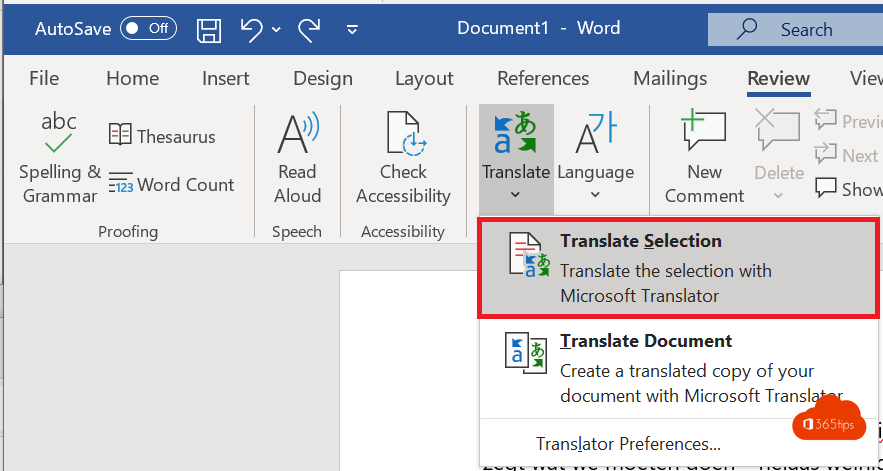
A contract in French, a manual in German or a presentation that needs an English version too? With the built-in translation in Word and PowerPoint you translate a selection or a whole document in a few clicks, without copying text into a translation site. This article shows how.
Translate a whole document in Word
- Open the document and go to the Review tab > Translate > Translate Document.
- Choose the target language on the right, such as Dutch.
- Select Translate.
Word creates a new document with the translation. Your original stays unchanged. Formatting, tables and images are largely preserved.

Translate a piece of text
- Select the text.
- Choose Review > Translate > Translate Selection, or right-click > Translate.
- Choose the target language and select Insert to replace the original text.

In PowerPoint
Select text on a slide and choose Review > Translate. PowerPoint translates per selection. Translating an entire presentation at once is possible with Copilot, if you have a licence.
In Outlook and Teams too
- Outlook shows Translate message above an email in another language.
- In Teams, translate a chat message via More options > Translate, and use live translated captions in meetings.
Tips
- Machine translation is good for understanding, but have legal or commercial texts checked by a fluent speaker.
- Set the language of the translated document via Review > Language so spell check is right.
- Translation runs through Microsoft's online services; your admin can turn that off.
- Done? Save the document as PDF.
Read also
Use live translated captions in Microsoft Teams meetings
Change the language of Microsoft Teams
Save a Word document as PDF on Windows, Mac and the web
Nederlandstalige versie: Een document of tekst vertalen in Word en PowerPoint