An old scanner that scans to e-mail, an older mail app or a script that sends mail over SMTP: such applications don't support multi-factor authentication (MFA). An app password is a long, random password that such an application uses instead of your normal password and MFA. This article shows when app passwords still work in Microsoft 365, how to create and delete them, and why you are better off replacing them with a more modern solution.
When do app passwords work?
- Only with per-user MFA. If you use security defaults or Conditional Access, you can't use app passwords.
- The administrator must allow app passwords.
- The application must still be allowed to use basic authentication. In Exchange Online that has been turned off for POP, IMAP, EWS and ActiveSync since 2022, so an app password no longer helps there.
In practice an app password today mainly still works for SMTP AUTH (sending mail through smtp.office365.com) and for some older applications.
SMTP AUTH: what changes in 2026?
Microsoft turns off basic authentication for SMTP AUTH (client submission) in Exchange Online by default at the end of December 2026. Administrators can temporarily turn it back on after that; Microsoft will announce the final end date in the second half of 2027. New tenants can no longer use it from then on. So convert scanners and applications that send mail with a user name and (app) password now.
Create an app password (as a user)
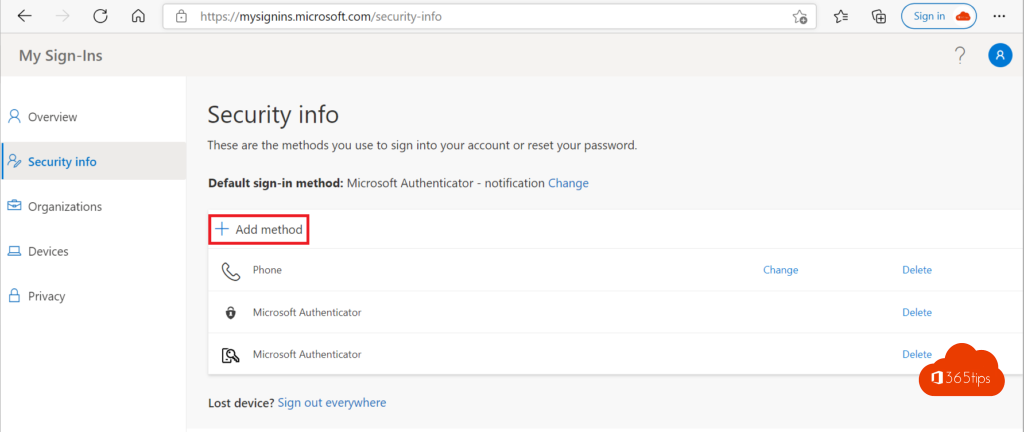
- Go to mysignins.microsoft.com/security-info.
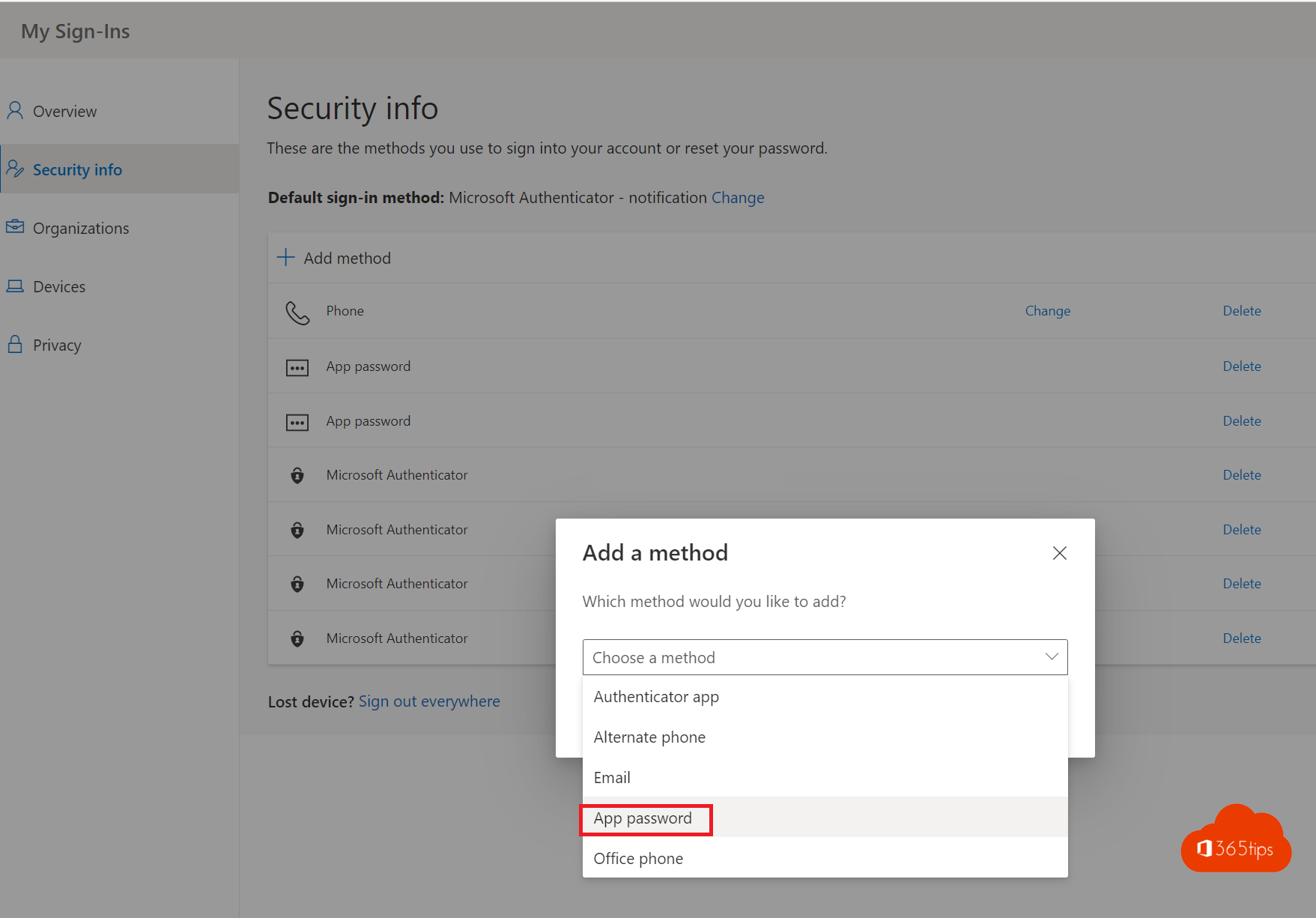
- Click Add sign-in method and choose App password.
- Give it a name, for example Scanner 2nd floor, and click Next.
- Copy the password and enter it in the application. You only see it once.
Don't see App password in the list? Then per-user MFA isn't enabled for your account, or your administrator hasn't allowed app passwords.

Allow app passwords (as an administrator)
- Go to the Microsoft Entra admin center > Entra ID > Users > Per-user MFA.
- Open Service settings.
- Choose Allow users to create app passwords to sign in to non-browser apps and click Save.
Delete an app password
Go to Security info, find the app password and click Delete. Delete app passwords you no longer use, especially when a device is gone or someone leaves the organization.
Better alternatives
| Situation | Alternative |
|---|---|
| Old mail app or Outlook version | Use an app with modern authentication, such as the new Outlook or Outlook mobile |
| Scanner or printer that scans to e-mail | Firmware update with OAuth, scan to OneDrive/SharePoint, or SMTP relay through a connector in Exchange Online |
| Application that sends notifications | OAuth for SMTP, Microsoft Graph (sendMail), High Volume Email or Azure Communication Services |
| Script | Microsoft Graph with an app registration or managed identity |
Tips
- Create a separate app password per application, with a clear name.
- An app password bypasses MFA. Treat it as a sensitive key and don't share it.
- Moving from per-user MFA to Conditional Access? First make sure no application still needs an app password.
Read also
Security defaults in Microsoft Entra ID: what they do and how to enable them
How to set the password expiration policy in Microsoft 365
How to encrypt or protect an e-mail in Outlook and Microsoft 365
Nederlandstalige versie: App-wachtwoorden in Microsoft 365: aanmaken, verwijderen en vervangen