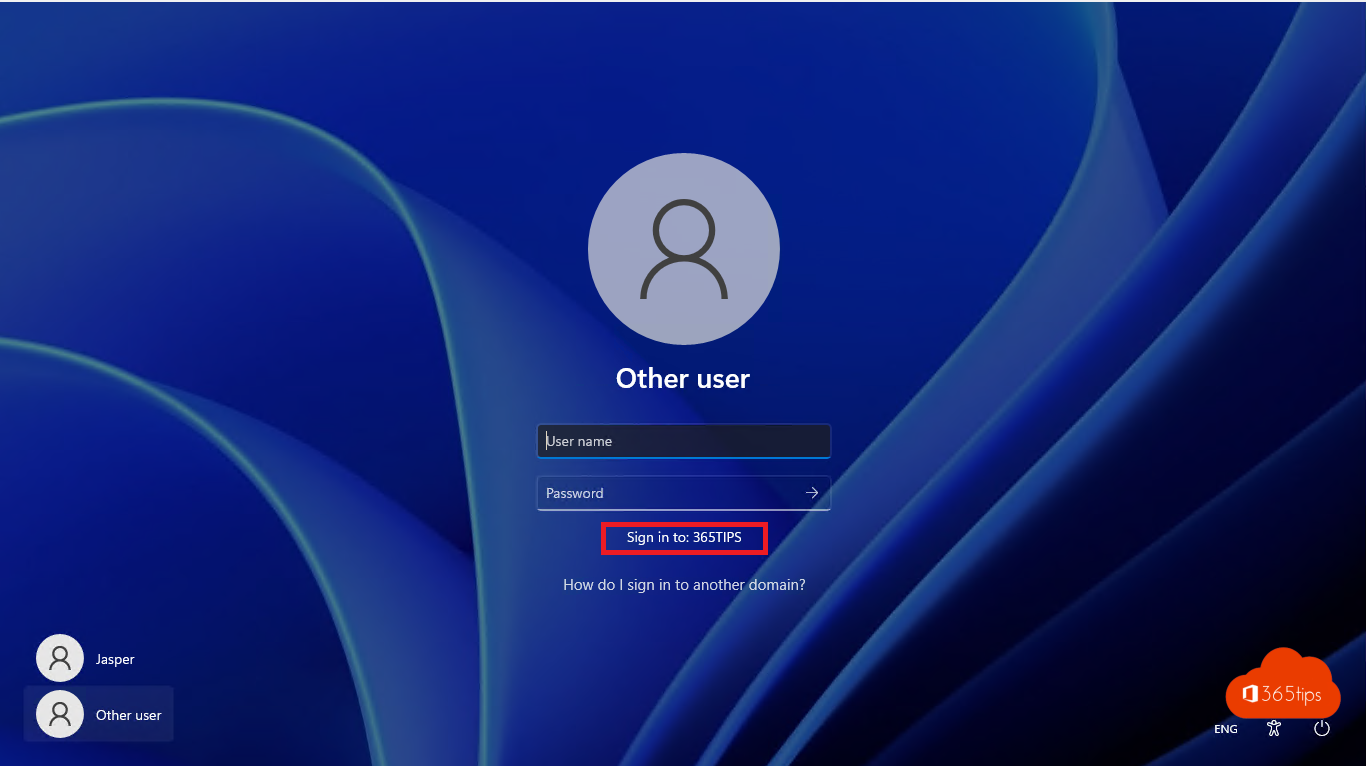
If your organisation still has on-premises Active Directory, you join a Windows 11 PC to the domain so users sign in with their domain account and Group Policy applies. This article shows how, through settings or with PowerShell, and the alternative for new PCs.
Before you start
- Windows 11 Pro, Enterprise or Education. Home can't join a domain.
- The PC uses a DNS server that knows the domain, usually your domain controller.
- An account with rights to add computers to the domain.
Through settings
- Open Settings > System > About.
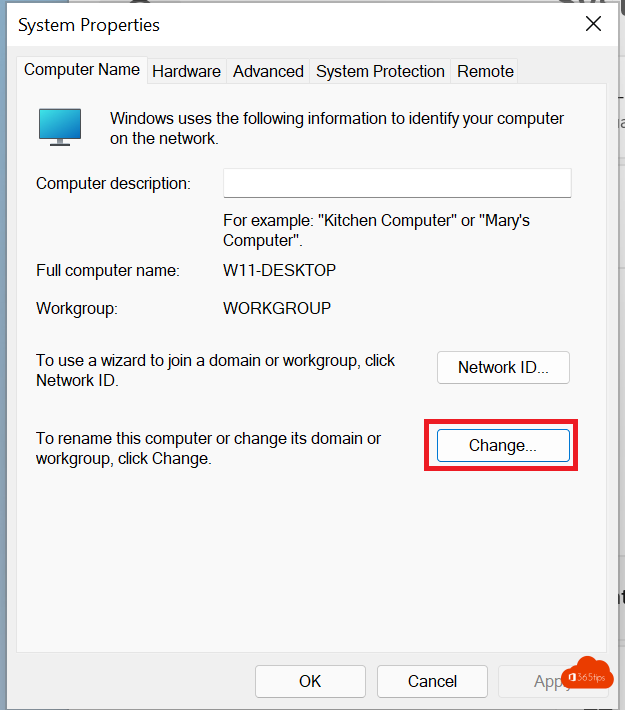
- Select Domain or workgroup (or Advanced system settings > Computer Name tab).
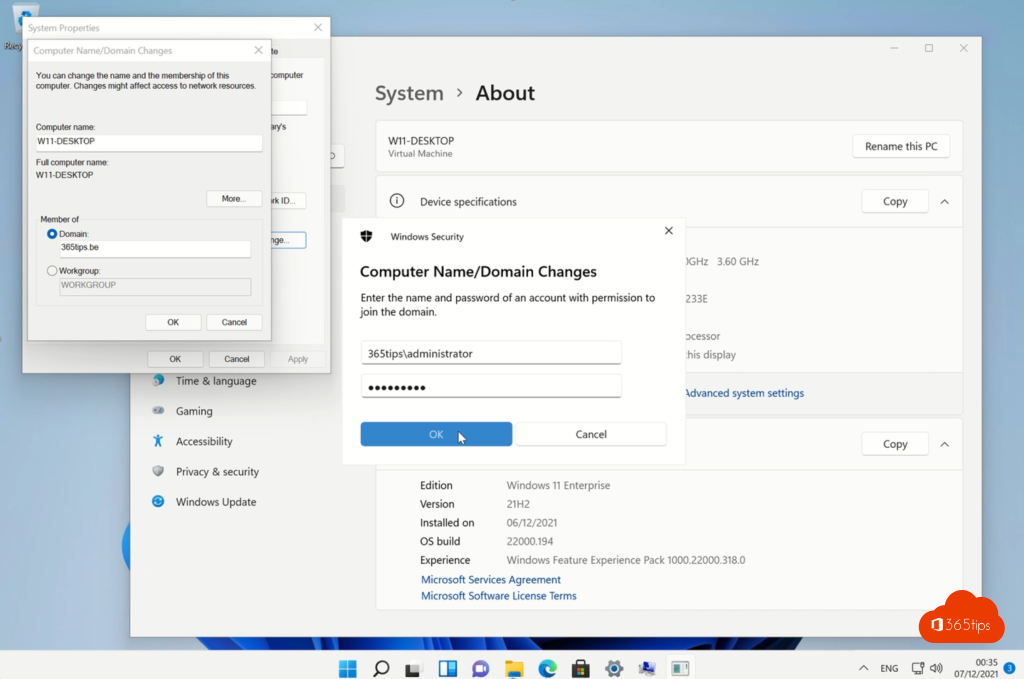
- Select Change, choose Domain and type the domain name, for example contoso.local.
- Sign in with an account that has the right permissions.
- Restart the PC.
With PowerShell
Open PowerShell as administrator and type:
Add-Computer -DomainName contoso.local -OUPath "OU=Laptops,DC=contoso,DC=local" -Restart
Add -NewName to rename the PC at the same time.
Not working?
- Error The domain could not be contacted: check the DNS settings and that you can ping the domain controller.
- No permissions? Ask a domain admin, or pre-create the computer in Active Directory Users and Computers.
- Need AD admin tools on your own PC? Read install RSAT.
Alternative: Microsoft Entra
For new PCs, Microsoft recommends joining them to Microsoft Entra ID and managing them with Intune. Read Entra join or hybrid join.
Read also
Install Remote Server Administration Tools (RSAT) on Windows 11
Entra joined, hybrid joined or registered: which should you choose?
Install and configure Microsoft Entra Connect (Azure AD Connect)
Nederlandstalige versie: Een Windows 11-computer lid maken van een Active Directory-domein