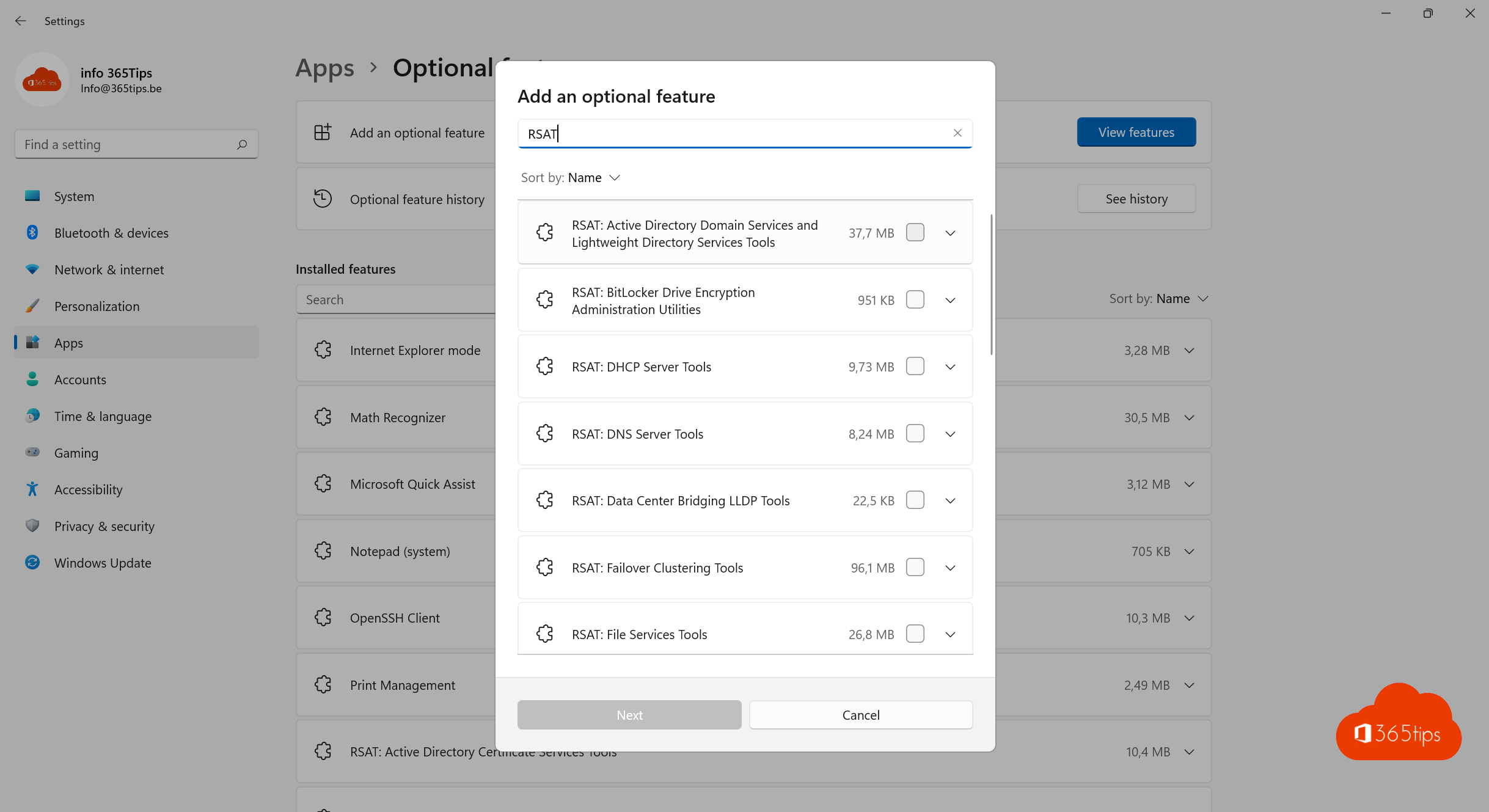
With the Remote Server Administration Tools (RSAT) you manage Active Directory, DNS, DHCP and Group Policy from your own Windows 11 PC, without signing in to a server. In Windows 11 you install RSAT as optional features. This article shows how, through settings and with PowerShell.
Requirements
- Windows 11 Pro, Enterprise or Education. Home doesn't support RSAT.
- An internet connection (or an internal source if your organisation manages Windows Update).
- Admin rights on your PC.
Through settings
- Open Settings > System > Optional features.
- Next to Add an optional feature, select View features.
- Type RSAT in the search box.
- Tick the tools you need, such as RSAT: Active Directory Domain Services and Lightweight Directory Services Tools and RSAT: Group Policy Management Tools.
- Select Next > Install.

With PowerShell
Open PowerShell as administrator.
- Overview: Get-WindowsCapability -Name RSAT* -Online | Select Name, State
- One tool: Add-WindowsCapability -Online -Name Rsat.ActiveDirectory.DS-LDS.Tools~~~~0.0.1.0
- Everything at once: Get-WindowsCapability -Name RSAT* -Online | Add-WindowsCapability -Online

Use the tools
After installation, the tools are in the Start menu under Windows Tools, such as Active Directory Users and Computers, Group Policy Management and DNS. Your PC must be domain-joined, or you sign in with a domain account.
Troubleshooting
- Error 0x800f0954: your PC fetches features from a WSUS server that doesn't have them. Your admin must allow optional features to come straight from Windows Update.
- No domain anymore? In a cloud environment you manage users in the Microsoft 365 admin center and Entra ID.
Related: join a PC to a domain and turn Windows features on or off.
Read also
Join a Windows 11 computer to an Active Directory domain
Turn Windows features on or off in Windows 11 and 10: 4 ways
Run Command Prompt as administrator in Windows 11 and 10: 6 ways
Nederlandstalige versie: Remote Server Administration Tools (RSAT) installeren in Windows 11