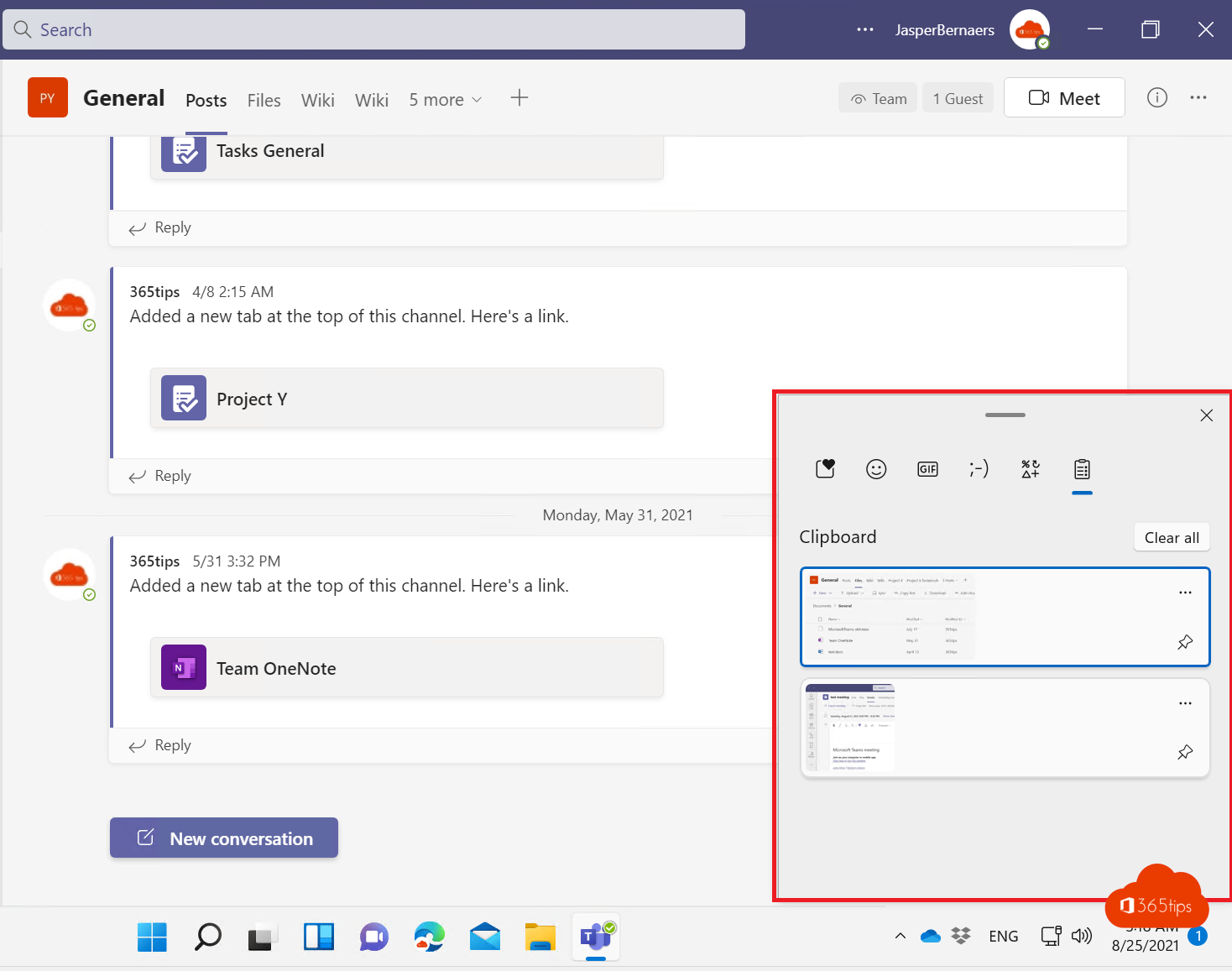
Normally Windows remembers only one thing you copy: copy something new and the previous item is gone. With clipboard history, Windows 11 and Windows 10 keep the last 25 things you copy, text and screenshots alike, and you paste them again with Windows + V. This article shows how to turn on clipboard history, pin items, clear it and sync it across your devices.
Turn on clipboard history
Fastest way: press Windows + V. If history is still off, you see a Turn on button. Click it.
Through Settings:
- Open Settings (
Windows + I) > System > Clipboard. - Turn on Clipboard history.

Using clipboard history
- Copy as usual with
Ctrl + C(or cut withCtrl + X). - Click where you want to paste and press Windows + V.
- Click the item you want to paste, or pick it with the arrow keys and press Enter.
- Windows remembers the last 25 items. After that the oldest one drops off.
- Text, HTML and images up to 4 MB per item are kept.
- When you restart your PC the history is cleared, except pinned items.
- Click ... on an item to paste only the text without formatting (Paste as text, in Windows 11).

Pin and delete items
- Pin: click the pin icon (or ... > Pin). Pinned items stay, even after a restart and when you clear the history. Handy for an address, a standard reply or a bank account number you type often.
- Delete one item: ... > Delete.
- Clear everything: click Clear all at the top, or go to Settings > System > Clipboard and click Clear next to Clear clipboard data.
More than the clipboard: emoji, GIFs and symbols
In Windows 11, Windows + V opens a panel with tabs. Besides clipboard history you'll find emoji, GIFs, kaomoji and symbols such as €, ©, → or ±. Windows + . (period) opens the same panel on the emoji tab.
Combine it with screenshots
With Windows + Shift + S you take a screenshot of part of your screen with the Snipping Tool. It lands on the clipboard, and therefore in clipboard history too. So you can take five screenshots in a row and then paste them one by one into Word, Teams or an e-mail with Windows + V.

Sync across your devices
Using several Windows PCs with the same Microsoft account or work or school account? You can sync the clipboard:
- Go to Settings > System > Clipboard.
- Turn on Clipboard sync across your devices.
- Choose whether Windows syncs everything automatically, or only what you pick in clipboard history.
In companies an administrator can turn this sync off.
Careful with passwords
Everything you copy ends up in the history, including passwords and other sensitive data. Many password managers keep copied passwords out of the history, but check yours. Use Clear all after copying something sensitive, and turn off sync on shared or public computers.
Windows + V not working?
- Nothing happens: check that clipboard history is on in Settings.
- The option is greyed out: your organization has turned it off by policy (Intune or Group Policy).
- An item is missing: it was larger than 4 MB, or the app you copied from asks Windows not to keep it (like some password managers).
- History is empty after a restart: that is normal. Pin the items you want to keep.
Read also
How to put windows side by side in Windows 11 with Snap
How to turn on dark mode in Windows 11
How to get the full (classic) right-click menu back in Windows 11
Nederlandstalige versie: Klembordgeschiedenis bekijken en gebruiken in Windows 11 en 10 (Windows + V)