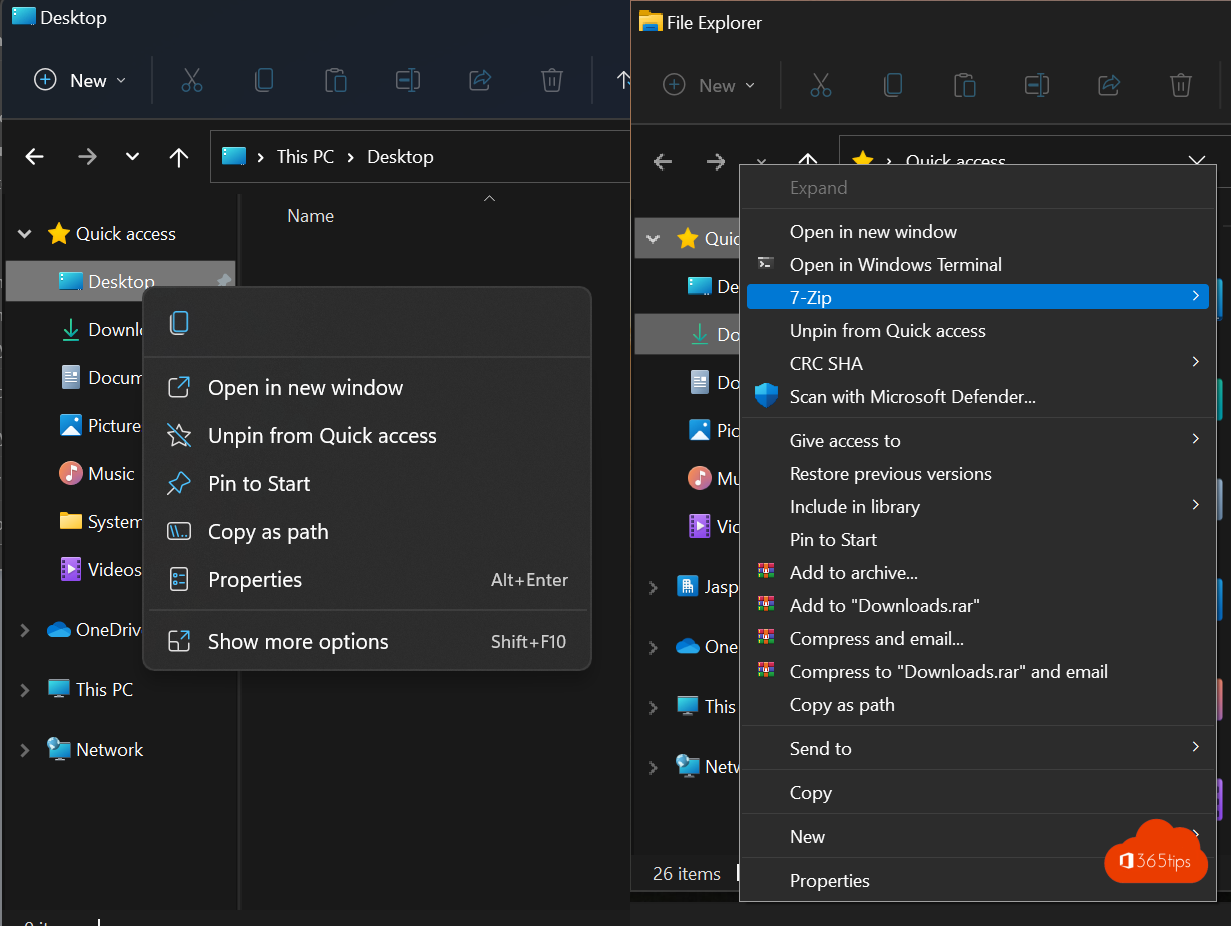
In Windows 11 a right-click shows a short, redesigned menu. For many options, such as Open with in older programs, 7-Zip, Notepad++ or some tools' own entries, you first have to click Show more options. This article shows how to open the full (classic) right-click menu once with a shortcut, and how to make it the default again, like in Windows 10. You also learn how to undo it.
Open the full menu once
You don't need to change anything if you only need the classic menu now and then:
- Shift + right-click on a file or folder opens the full menu directly.
- Select a file and press Shift + F10.
- Click Show more options at the bottom of the new menu.
Make the full menu the default
With one registry key Windows 11 shows the classic menu on every right-click. The key lives under your own user profile (HKEY_CURRENT_USER), so you don't need administrator rights and the change only applies to your account.
Method 1: Command Prompt or PowerShell
- Right-click Start and choose Terminal.
- Paste this command and press Enter:
reg add "HKCU\Software\Classes\CLSID\{86ca1aa0-34aa-4e8b-a509-50c905bae2a2}\InprocServer32" /f /ve - Restart File Explorer (see below) or sign out and back in.

Method 2: Registry Editor
- Press
Windows + R, typeregeditand press Enter. - Go to
HKEY_CURRENT_USER\Software\Classes\CLSID. - Right-click CLSID > New > Key and name it
{86ca1aa0-34aa-4e8b-a509-50c905bae2a2}. - Inside it, create another new key called
InprocServer32. - In InprocServer32, double-click (Default) and click OK straight away without typing anything. The value must be empty, not "value not set".
- Restart File Explorer.
Restart File Explorer
The change only takes effect after File Explorer restarts. Two ways:
- Open Task Manager (
Ctrl + Shift + Esc), find Windows Explorer, right-click it and choose Restart. - Or run this in Command Prompt:
taskkill /f /im explorer.exe & start explorer.exe
Your taskbar disappears for a moment and comes right back.

Back to the new Windows 11 menu
Want the new menu back? Delete the key and restart File Explorer:
reg delete "HKCU\Software\Classes\CLSID\{86ca1aa0-34aa-4e8b-a509-50c905bae2a2}" /fNot working?
- You still see the new menu: File Explorer hasn't restarted yet. Restart it or sign out.
- You created the key in Registry Editor: check that (Default) really is empty. Double-click it and click OK.
- Typo in the CLSID: copy the whole command, including the braces.
- The new menu is back after a major Windows update: this is an unofficial tweak; Microsoft may ignore it in a future version. Run the command again.
- On a company computer: some organizations block Registry Editor. Use Shift + right-click instead.
Why does Windows 11 have a new menu?
Microsoft wanted a shorter menu with the most used actions on top and cut, copy, rename and delete as icons. Programs have to register in a new way for that; older programs that don't (yet) only appear under Show more options. The classic menu is mainly useful if you work a lot with such tools.
Read also
How to show file extensions in File Explorer in Windows 11 and 10
How to put windows side by side in Windows 11 with Snap
Run Command Prompt as administrator in Windows 11 and 10: 6 ways
Nederlandstalige versie: Het volledige (klassieke) rechtsklikmenu standaard instellen in Windows 11