Microsoft Edge isn't installed by default on Windows Server 2016 and 2019. Especially on terminal servers (RDS) and management servers you do want a modern browser. You install Microsoft Edge for Business easily with the MSI package, manually or centrally with Configuration Manager or Group Policy. On Windows Server 2022 and 2025 Edge is already part of the operating system; check Microsoft's support page for the current list of supported server versions.
1. Download Edge for Business
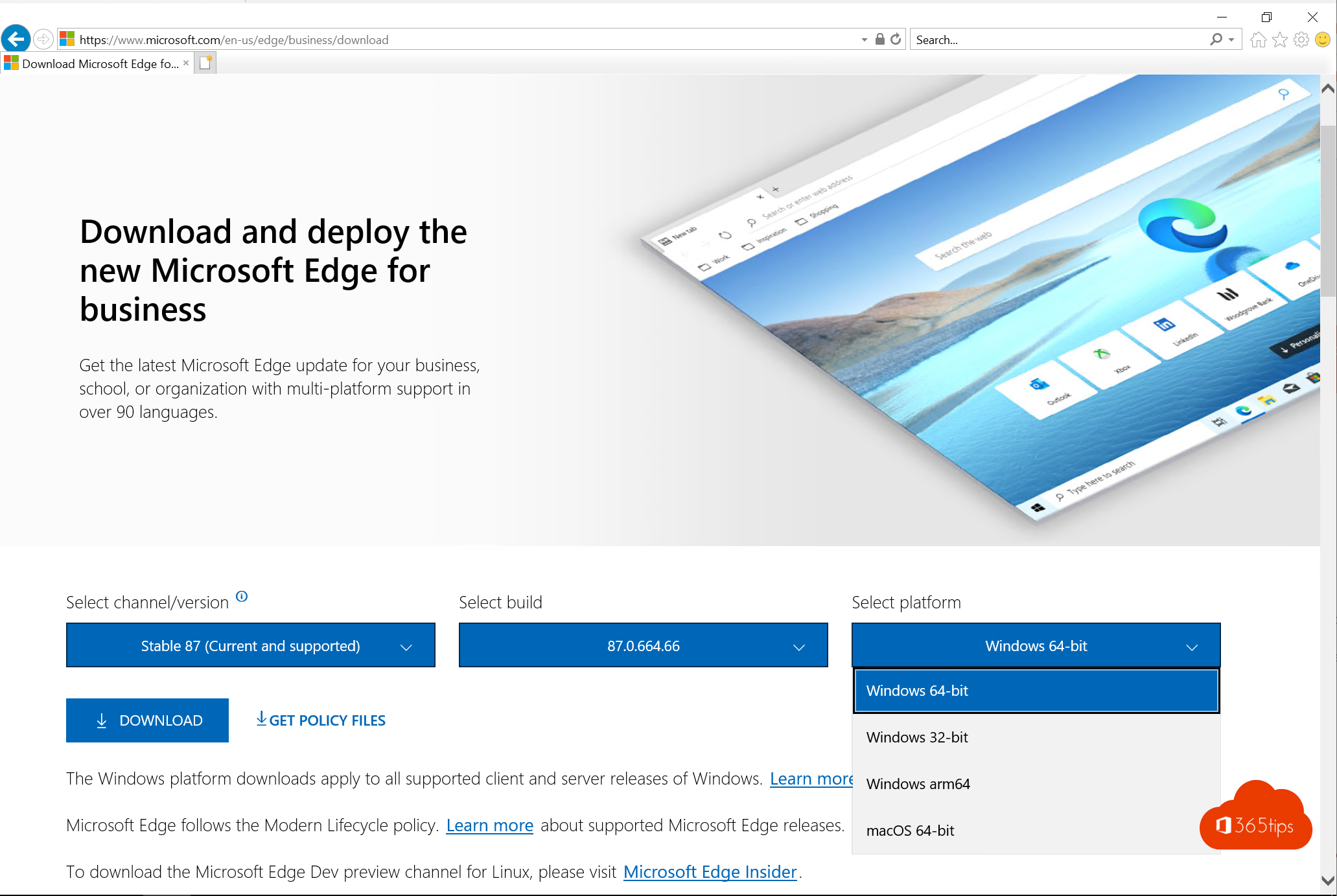
- Go to the Microsoft Edge for Business download page on microsoft.com.
- Choose the Stable channel, the latest version and the Windows 64-bit platform.
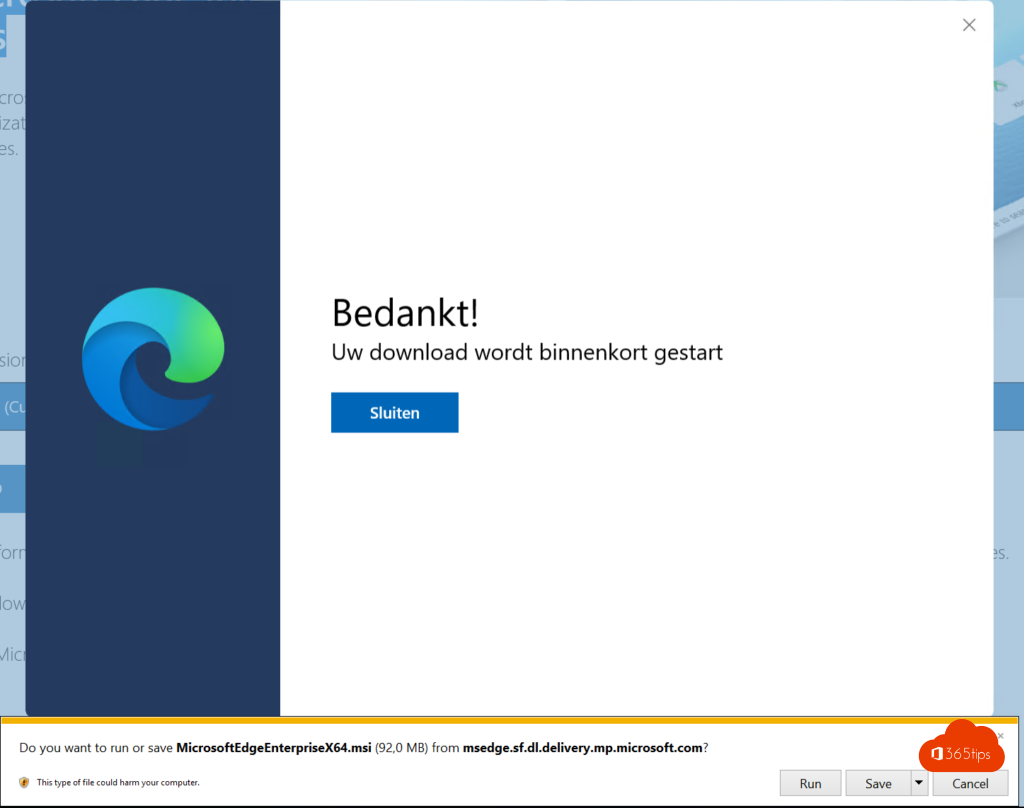
- Select Download. You get the file MicrosoftEdgeEnterpriseX64.msi.
- Also download the policy files (ADMX) on the same page if you want to manage Edge with Group Policy.

2. Install manually
Double-click the MSI file, or install silently from an elevated command prompt:
msiexec /i MicrosoftEdgeEnterpriseX64.msi /qnOn an RDS server, install Edge per machine, as with this MSI package, so all users get the same version.

3. Deploy with Configuration Manager
- Open the console and go to Software Library > Microsoft Edge Management.
- Select Create Microsoft Edge Application. The wizard downloads the chosen version and channel itself.
- Choose whether Edge may update itself, or whether you send updates through Configuration Manager.
- Deploy the application to a collection of servers.
You can also add the MSI as a regular application with the command line above.

4. Manage with Group Policy
- Copy the ADMX and ADML files from the policy package to your Central Store (
\\domain\SYSVOL\domain\Policies\PolicyDefinitions). - Create a GPO for your servers and configure, under Microsoft Edge, for example the start page, the default search engine and the update policies.
- Check on the server with edge://policy.
Tips
- Let Edge update automatically, or make sure you roll out updates quickly yourself. An outdated browser on a server is a risk.
- Don't browse from servers unnecessarily. Limit use to admin portals and internal applications.
- Turn on Edge enhanced security for extra protection.
Also see deploy and manage Edge with Intune and enhanced security in Microsoft Edge.
Read also
Deploy and manage Microsoft Edge with Microsoft Intune
Enhanced security mode in Microsoft Edge
Manage Microsoft Edge with the Edge management service in the Microsoft 365 admin center
Nederlandstalige versie: Microsoft Edge for Business downloaden en uitrollen op Windows Server 2016 en 2019