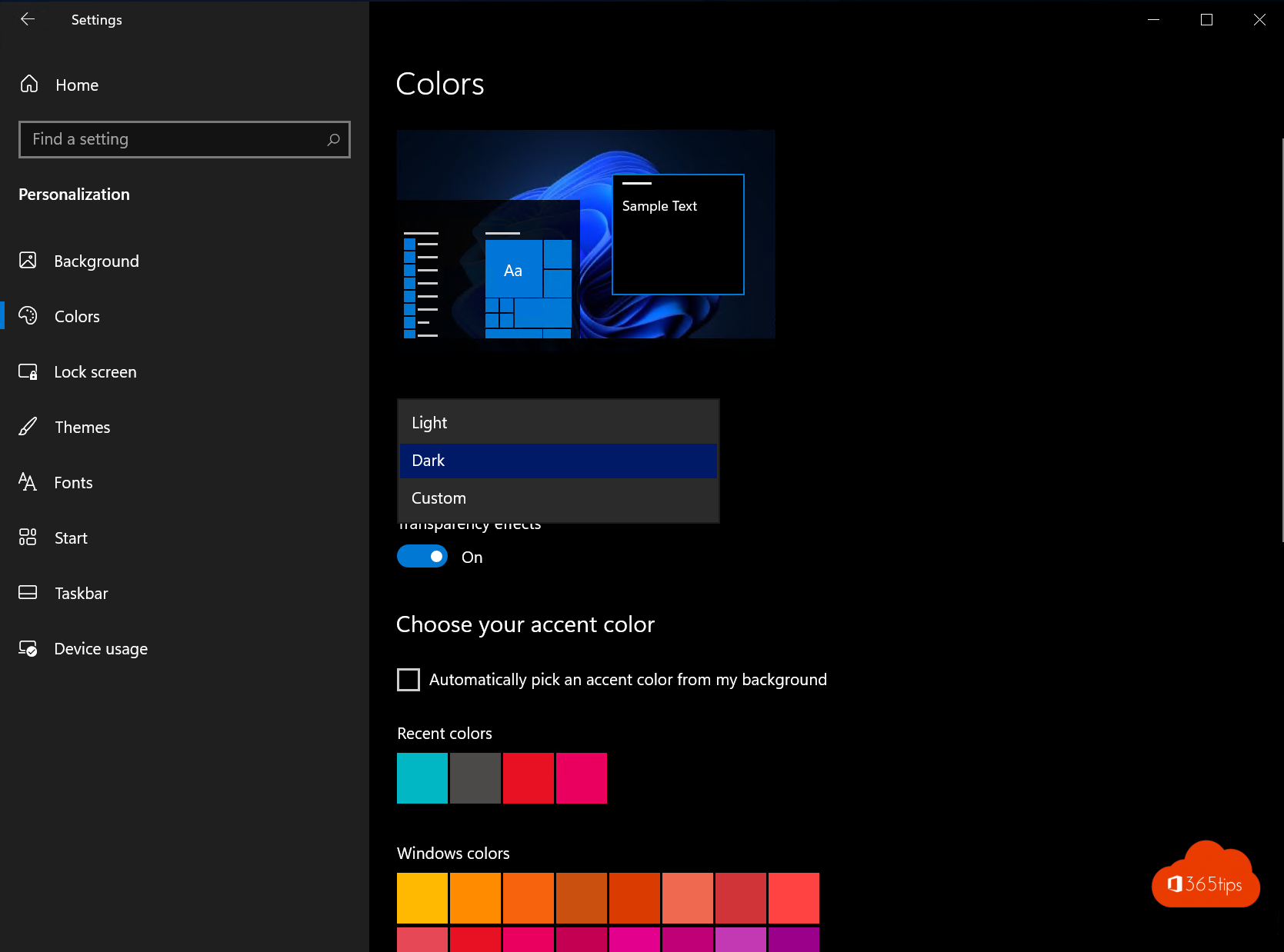
Often work in the evening or in a dark room? Then dark mode is easier on your eyes. Windows, menus and many apps get a dark background. This tip shows how to turn on dark mode in Windows 10, and where to find the same setting in Windows 11. Note that Windows 10 reached end of support on 14 October 2025. The steps below still work, but we recommend moving to Windows 11.
Turn on dark mode in Windows 10
- Open Settings with Windows+I.
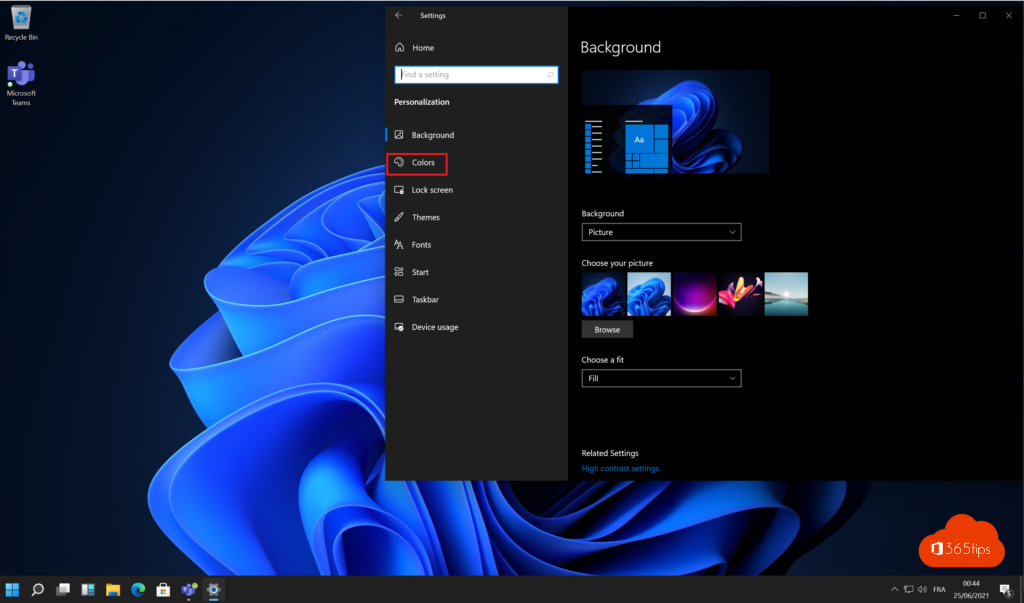
- Choose Personalization.
- Click Colors on the left.
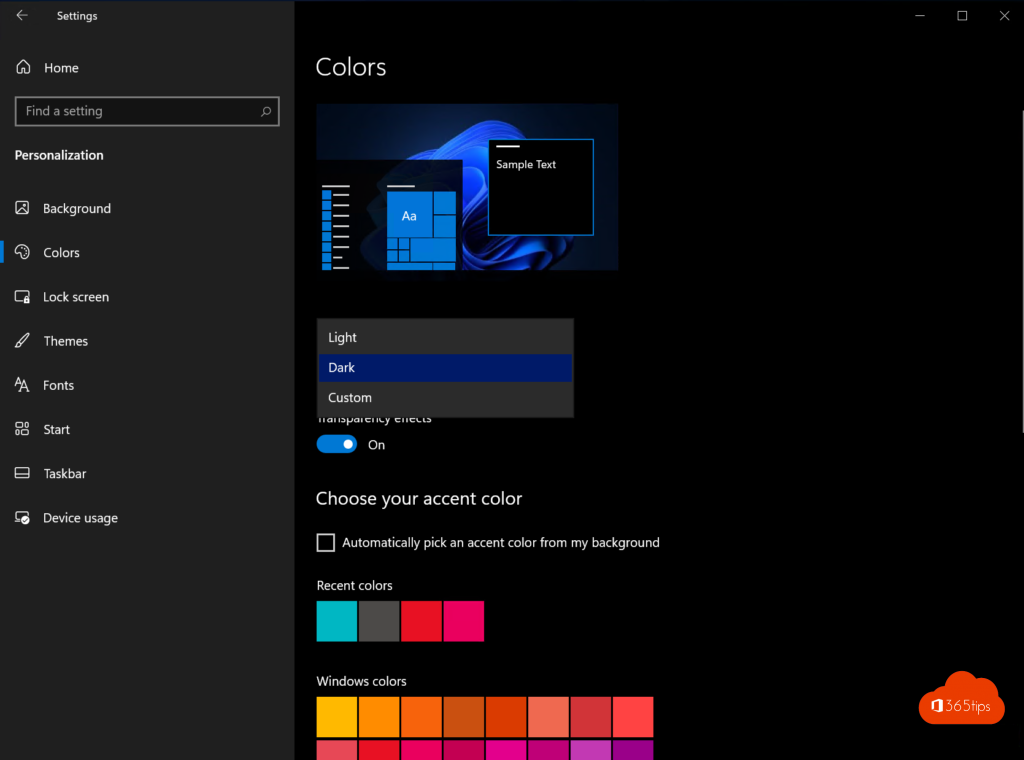
- Under Choose your color, select Dark.
The change applies immediately. There's nothing to save.

Set Windows and apps separately
Under Choose your color, select Custom. Then you set two things separately:
- Choose your default Windows mode: for the Start menu, taskbar and Action Center.
- Choose your default app mode: for apps such as Settings, File Explorer and Microsoft Store apps.
That way you can combine, for example, a dark taskbar with light apps.
In Windows 11
- Open Settings and choose Personalization > Colors.
- Under Choose your mode, select Dark.
You can also pick a dark theme under Personalization > Themes.
Dark mode in other apps
Some apps don't follow the Windows setting automatically, or have their own option. In Microsoft 365 apps such as Word and Outlook, choose the theme via File > Account > Office Theme. Pick Use system setting to follow Windows. Also see dark mode in Windows 11, dark mode in Word and dark mode in Outlook.
Read also
How to turn on dark mode in Windows 11
Turn on dark mode in Microsoft Word
Turn on dark mode in Outlook on the web, Windows and mobile
Nederlandstalige versie: Donkere modus instellen in Windows 10 (en Windows 11)