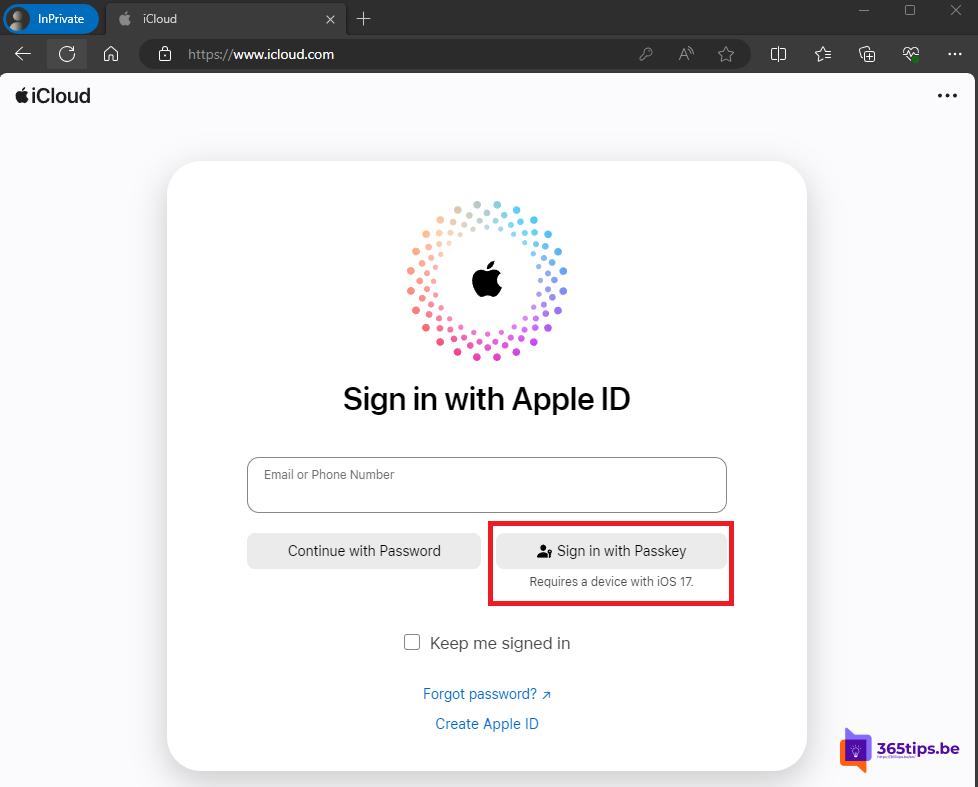
With a passkey you sign in without a password. That works on iCloud.com too, in any modern browser and on any computer. You confirm the sign-in with Face ID or Touch ID on your iPhone or iPad. Here's how.
What is a passkey?
A passkey replaces your password. A secret key stays on your device and is never sent anywhere. You confirm with your face, fingerprint or passcode. A passkey can't be guessed and doesn't work on a fake phishing site. Apple automatically creates a passkey for your Apple Account (formerly Apple ID) on devices running a recent version of iOS, iPadOS or macOS.
What you need
- An iPhone or iPad running iOS 17 / iPadOS 17 or later, signed in with your Apple Account.
- Two-factor authentication on your Apple Account.
- Bluetooth on on your iPhone and, if possible, on the computer, so your phone can confirm it's nearby.
- A modern browser such as Edge, Chrome, Firefox or Safari.
Sign in to iCloud.com with a passkey
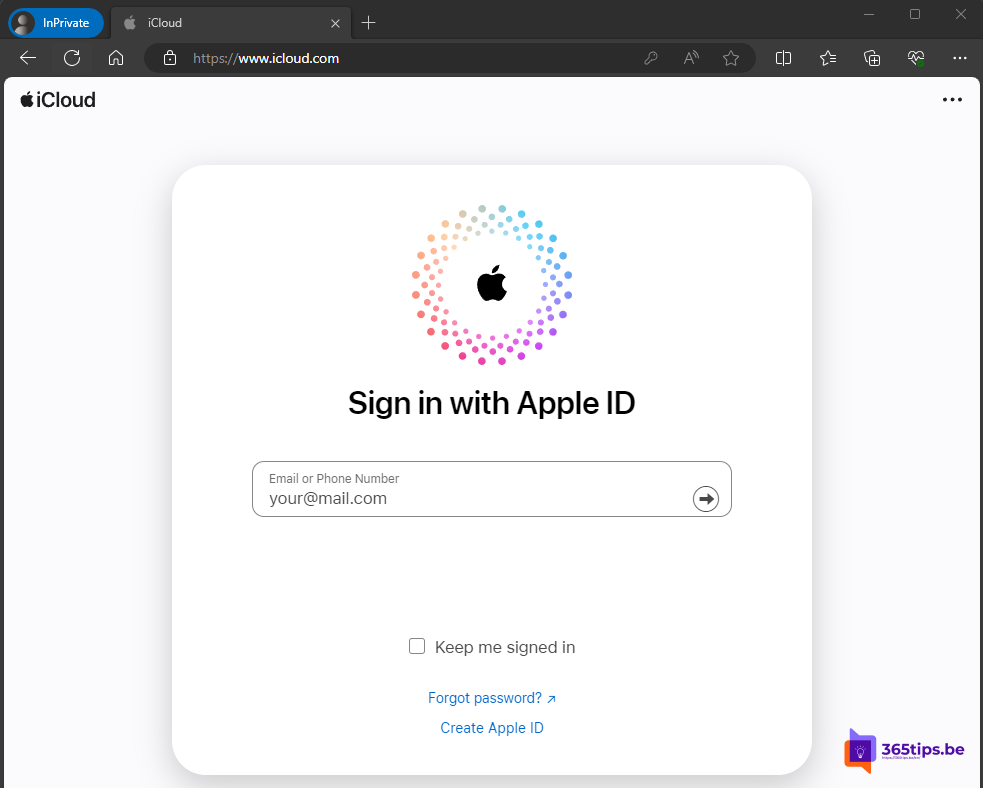
- Go to icloud.com and click Sign In.
- Enter only your Apple Account email address or phone number.
- Choose Sign in with passkey (or a similar button, the exact wording can vary).
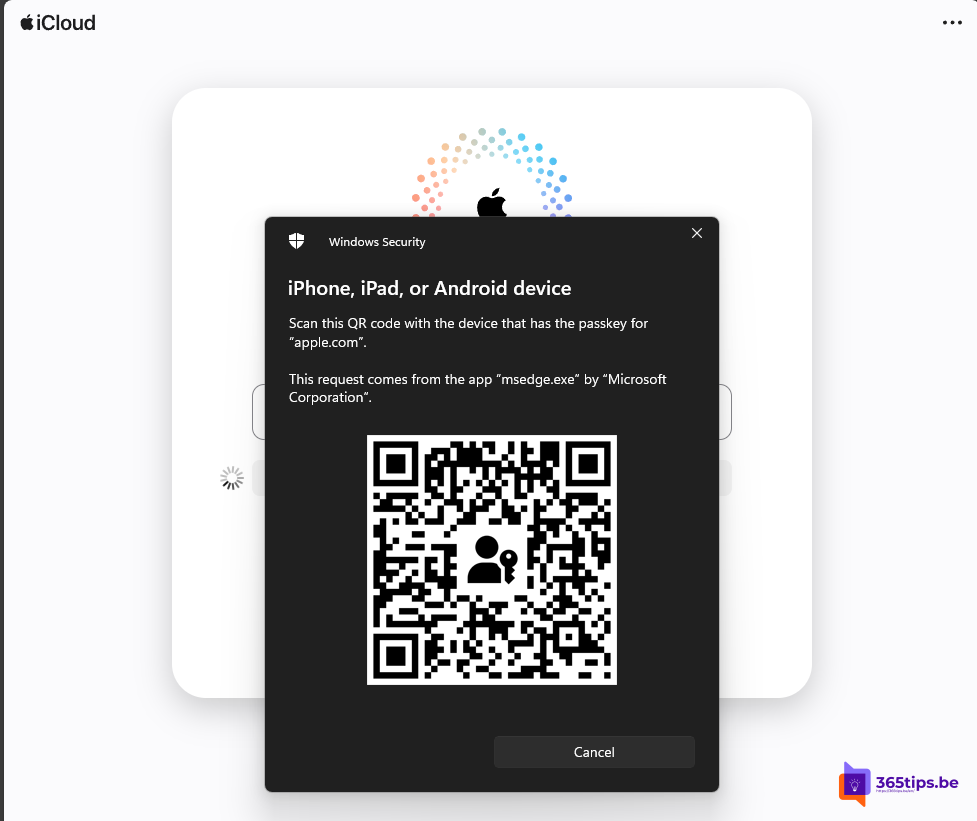
- A QR code appears on your screen.
- Scan the code with your iPhone or iPad camera.
- Tap Sign in with passkey on your iPhone and confirm with Face ID or Touch ID.
You're now signed in without typing a password.

On a Mac or iPhone itself
Using Safari on a Mac, iPhone or iPad signed in with the same Apple Account? Then you don't need a QR code. You confirm right away with Touch ID, Face ID or your passcode.
Tips
- Signing in on a shared or public computer? Choose not to trust the browser and sign out afterwards.
- Not working? Check that Bluetooth is on and your iPhone is up to date. You can always fall back to your password and a verification code.
- You can use a passkey instead of a password for your Microsoft account too.
Also see use Apple passwords on Windows and go passwordless with your Microsoft account.
Read also
Use Apple passwords on Windows with iCloud for Windows
Use your personal Microsoft account without a password
Enable passwordless sign-in in Microsoft 365 in 3 steps
Nederlandstalige versie: Aanmelden op iCloud.com met een passkey, in elke browser