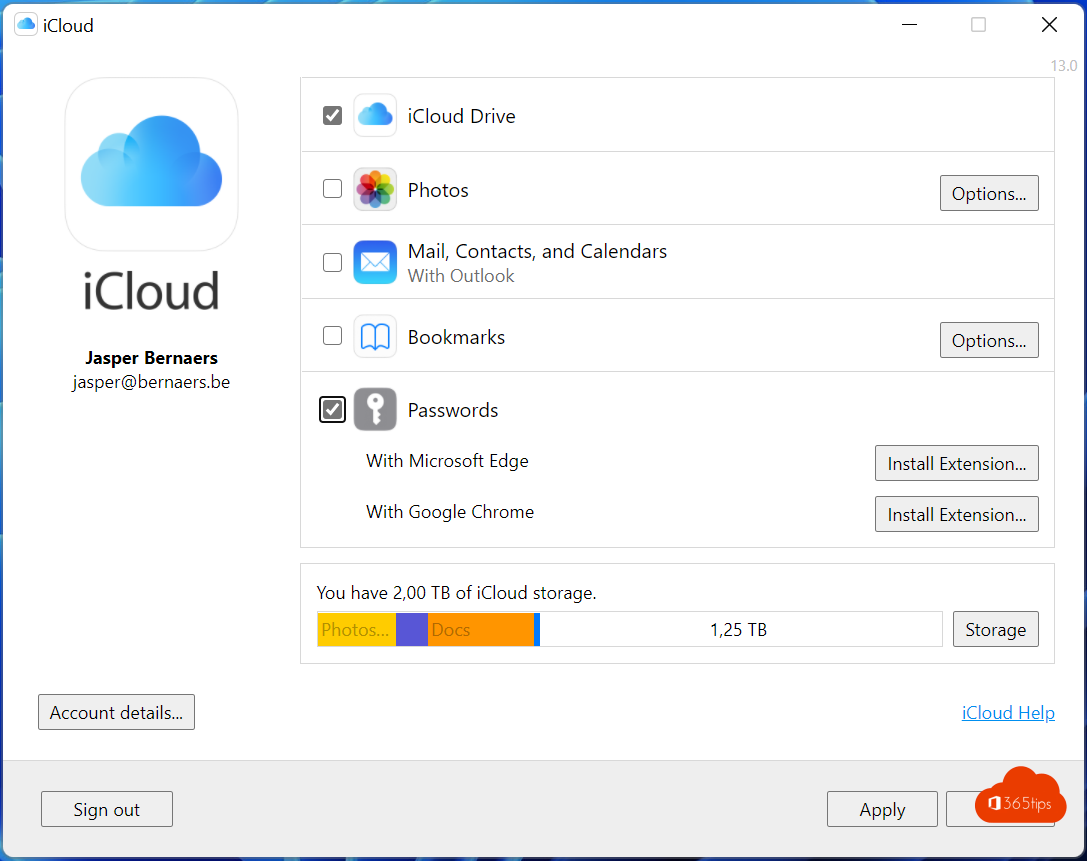
Use an iPhone or Mac but work on a Windows PC? You can use your Apple passwords on Windows too. It works through iCloud for Windows and a browser extension, so you can autofill passwords and save new ones to your iCloud Keychain.
On iPhone and Mac the app is now called Passwords. On Windows you use iCloud for Windows, the iCloud Passwords app and the browser extension. Your Apple ID is now called your Apple Account.
What you need
- An Apple Account with two-factor authentication.
- iCloud Keychain turned on on your iPhone, iPad or Mac.
- A PC running Windows 10 or 11.
- Microsoft Edge or Google Chrome (an extension for other browsers may be available, depending on the version).
Install iCloud for Windows
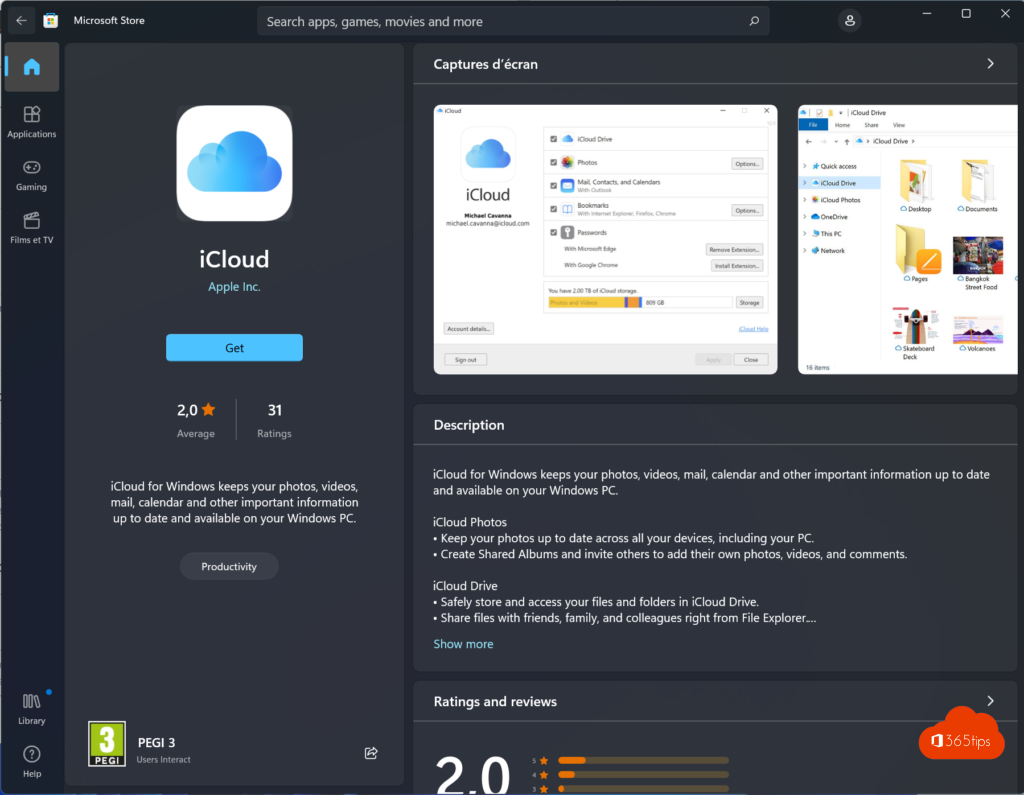
- Open the Microsoft Store and search for iCloud.
- Click Get or Install.
- Open iCloud from the Start menu.
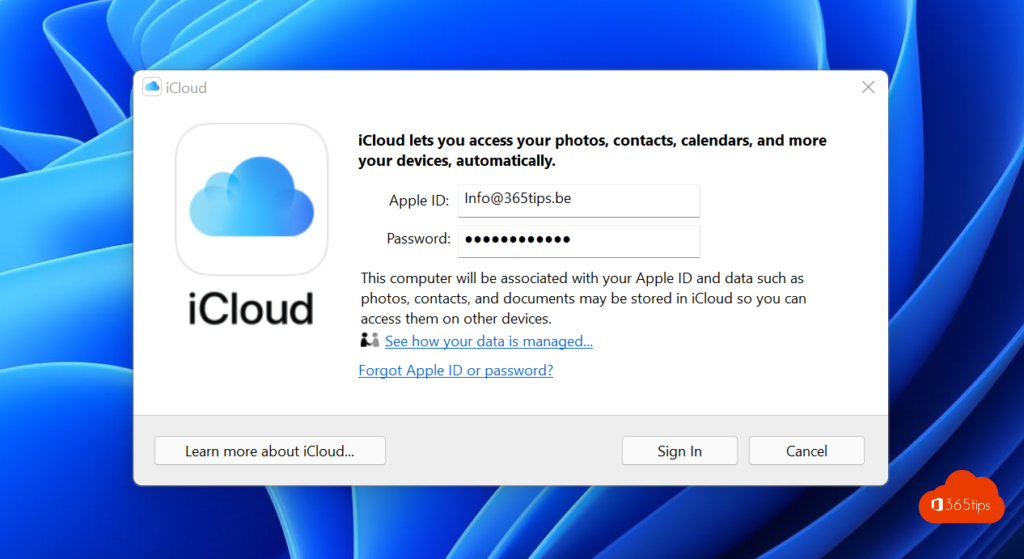
Sign in with your Apple Account
- Enter your Apple Account email address and password.
- Confirm with the code that appears on your iPhone or Mac.
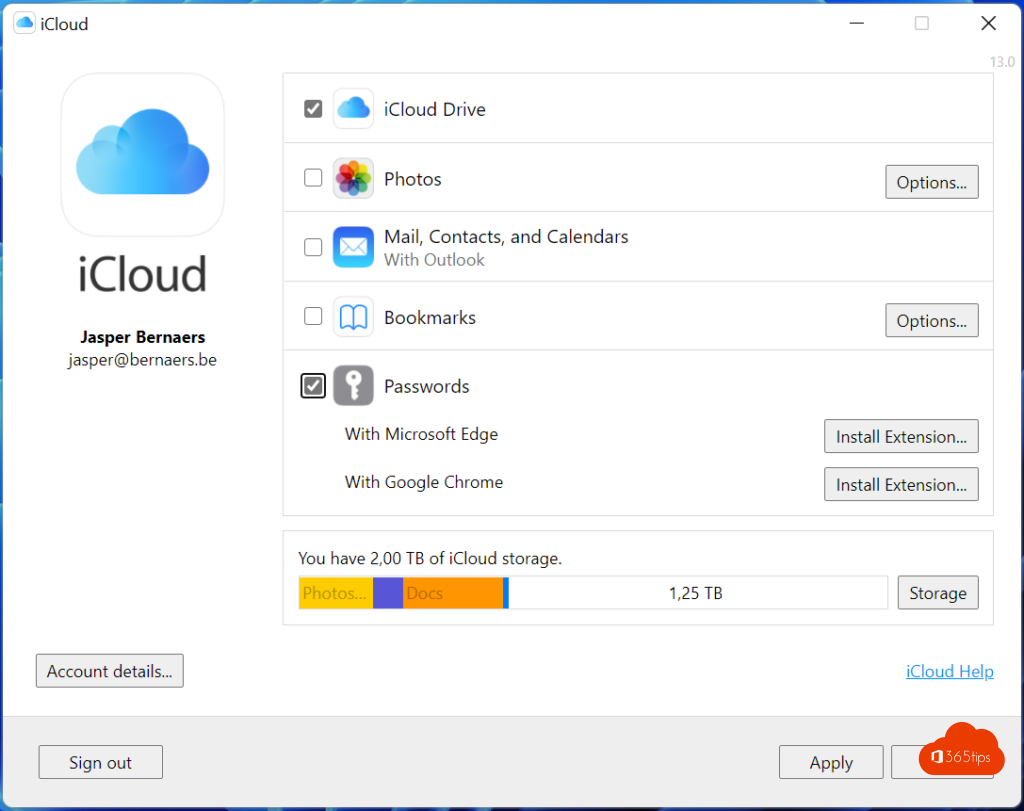
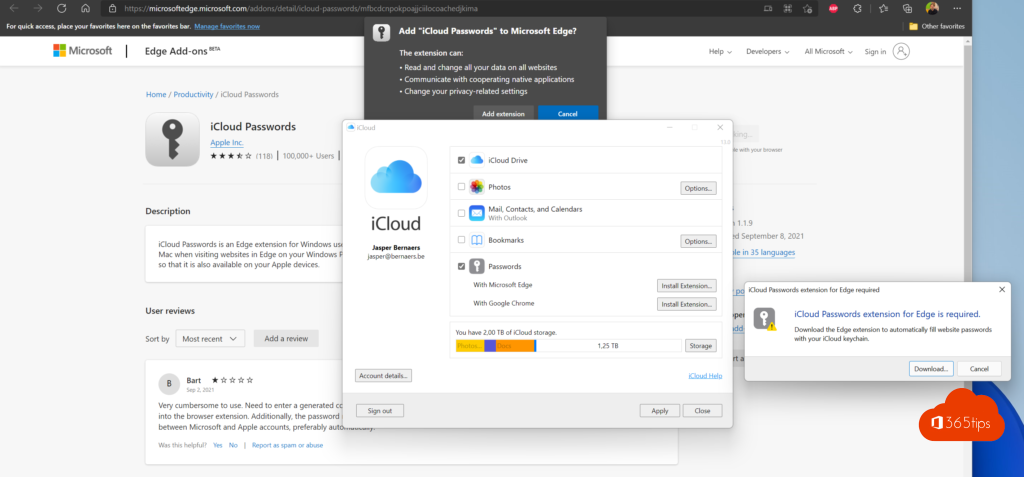
- Choose what to sync and turn on Passwords.

Install the browser extension
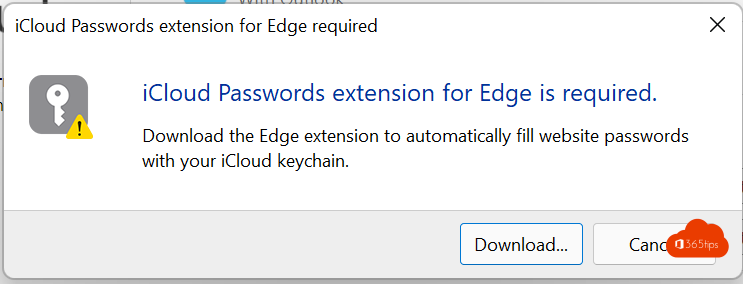
After turning on Passwords, iCloud asks you to install the extension for your browser.
- Microsoft Edge: search the Edge Add-ons store for iCloud Passwords and click Get.
- Google Chrome: search the Chrome Web Store for iCloud Passwords and click Add to Chrome.
Then click the extension's key icon in your browser. A six-digit code appears on your PC. Enter it to connect the extension. The extension asks for a code again from time to time.
Use your passwords
- Autofill: click a sign-in field or the extension icon and pick the right account.
- Save: when you sign in on a new site, the extension offers to save the password. It shows up on your iPhone and Mac right away.
- Strong passwords: when creating a new account, the extension can suggest a strong password.
- View and manage: open the iCloud Passwords app on Windows to look up, copy or edit passwords. Depending on the version, you can also use verification codes and passkeys there.
Tip for Microsoft 365 users: for your work account, stick to the sign-in method your organization requires, such as Microsoft Authenticator or passwordless sign-in. Also see sign in to iCloud.com with a passkey and sync passwords and favorites in Edge.
Read also
Sign in to iCloud.com with a passkey in any browser
Sync passwords, favorites and settings in Microsoft Edge
Use your personal Microsoft account without a password
Nederlandstalige versie: Apple-wachtwoorden gebruiken op Windows met iCloud voor Windows