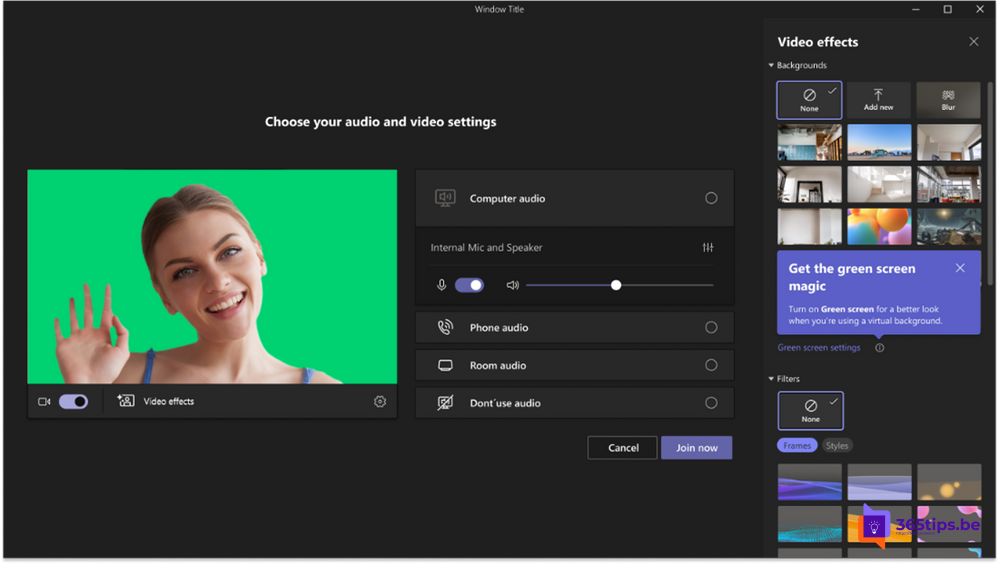
A virtual background in Teams works fine, but sometimes part of your head or hand disappears into the background. The Green screen feature makes that edge much sharper, if you have a plain wall or cloth behind you. Green screen is part of the background settings in the new Teams for Windows and Mac; the exact location and name can vary by version.
What does green screen do?
Normally Teams uses AI to guess where you end and the background begins. With green screen, Teams uses the plain color behind you to determine this much more accurately. You see fine details better, such as hair, a pen or your hands, and the edge flickers less.
Turn it on
- First pick a background effect (blur or an image) via Video effects and settings. Without a background effect, you can't turn on green screen.
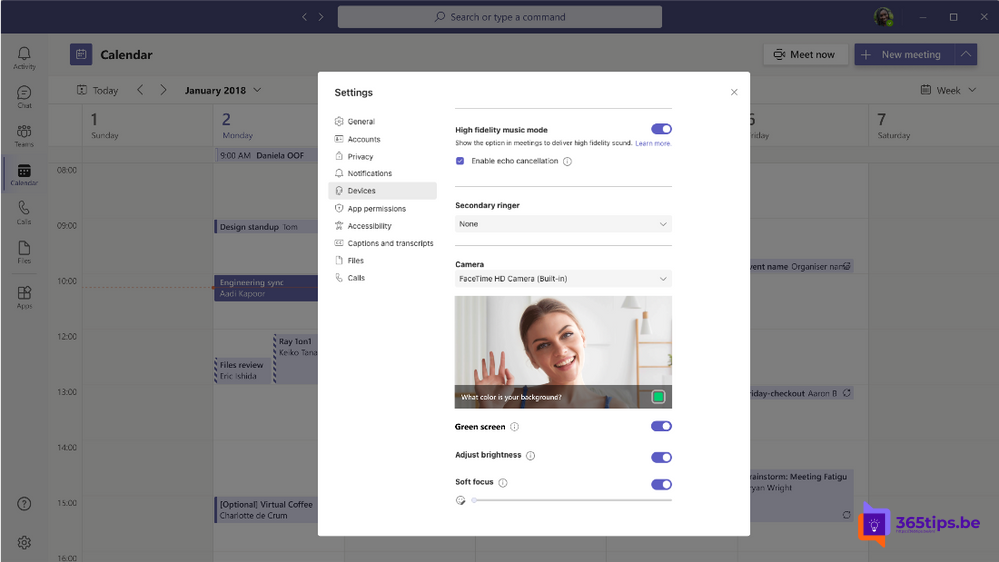
- Open the background settings (for example via Settings > Devices or the gear icon next to the backgrounds).
- Turn on Green screen.
- Click your background in the preview to set the color, or let Teams pick it automatically.
Tips
- A plain, evenly lit wall or cloth works best. Green is ideal, but another solid color can work too.
- Don't wear clothes in the same color as your background.
- Make sure your face is well lit.
- Green screen doesn't work with every effect, for example not always with avatars. This can vary by version.
Also see brightness and soft focus in Teams and set a custom background.
Read also
Set a custom background in Microsoft Teams
Turn on brightness correction and soft focus in Microsoft Teams
Mirror or unmirror your video in Microsoft Teams
Nederlandstalige versie: Green screen gebruiken in Microsoft Teams