Google Drive is Google's cloud storage. You store files online, sync them with your computer and phone, and work together in Google Docs, Sheets and Slides. This guide explains how to get started, how to use Google Drive on Windows and what to keep in mind if you also work with Microsoft 365.
What is Google Drive?
- Storage: keep files online and open them from any device.
- Collaboration: with Google Docs, Sheets and Slides you work on the same document at the same time.
- Sharing: you decide who can view, comment on or edit a file.
- Storage space: a free account gets 15 GB, shared with Gmail and Google Photos. You can buy more through Google One. For businesses there's Google Workspace.
Create a Google account
- Go to accounts.google.com and select Create account.
- Fill in the required fields. You can pick a new Gmail address or use an existing email address.
- Turn on 2-Step Verification right after creating the account.


Use Google Drive on Windows
You have two options:
- In the browser at drive.google.com. Nothing to install.
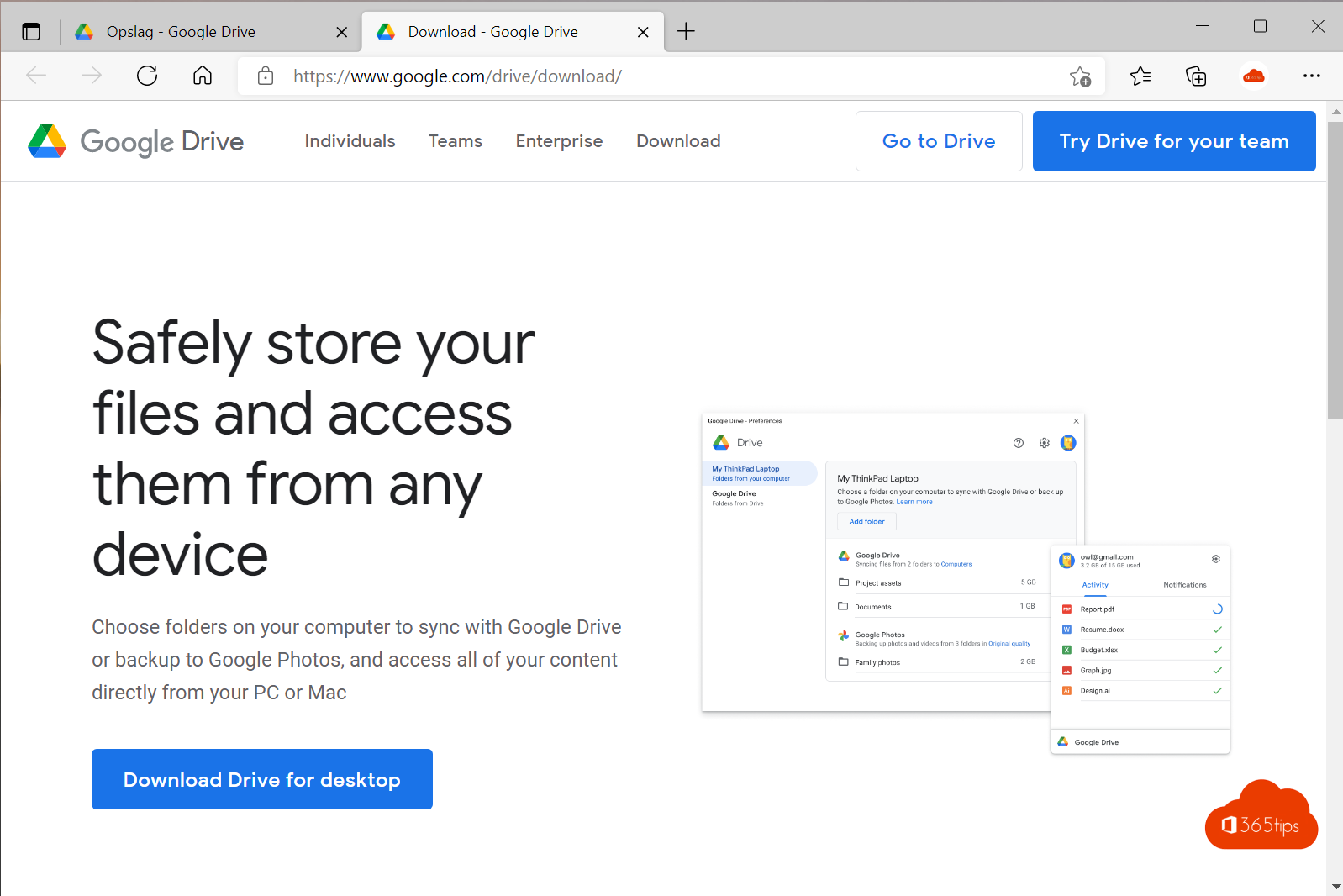
- With Google Drive for desktop, which replaces the older Backup and Sync and Drive File Stream apps. Download it from Google's website. After you sign in, Google Drive appears as a separate drive in File Explorer.

Set up the desktop app
- Install the app and sign in with your Google account.
- In the preferences, choose how files sync: stream (files stay online and download only when you open them) or mirror (everything is also stored locally). The exact names may differ per version.
- Optionally choose folders on your computer, such as Desktop or Documents, to back up to Google Drive.

Share files
Right-click a file and choose Share. Add people, pick their role and use General access to decide whether the link stays restricted. More details in share large files with Google Drive.
Google Drive alongside Microsoft 365
If your organization uses Microsoft 365, keep work files in OneDrive, SharePoint or Teams, where your company's security and retention policies apply. Use Google Drive mainly for personal files or to work with external people who use Google. Also see reasons to use OneDrive.
Read also
Share large files with Google Drive and stay in control
Ten reasons to use OneDrive for work or school
Use Google Drive or Dropbox in Microsoft Teams
Nederlandstalige versie: Handleiding: alles wat je moet weten over Google Drive