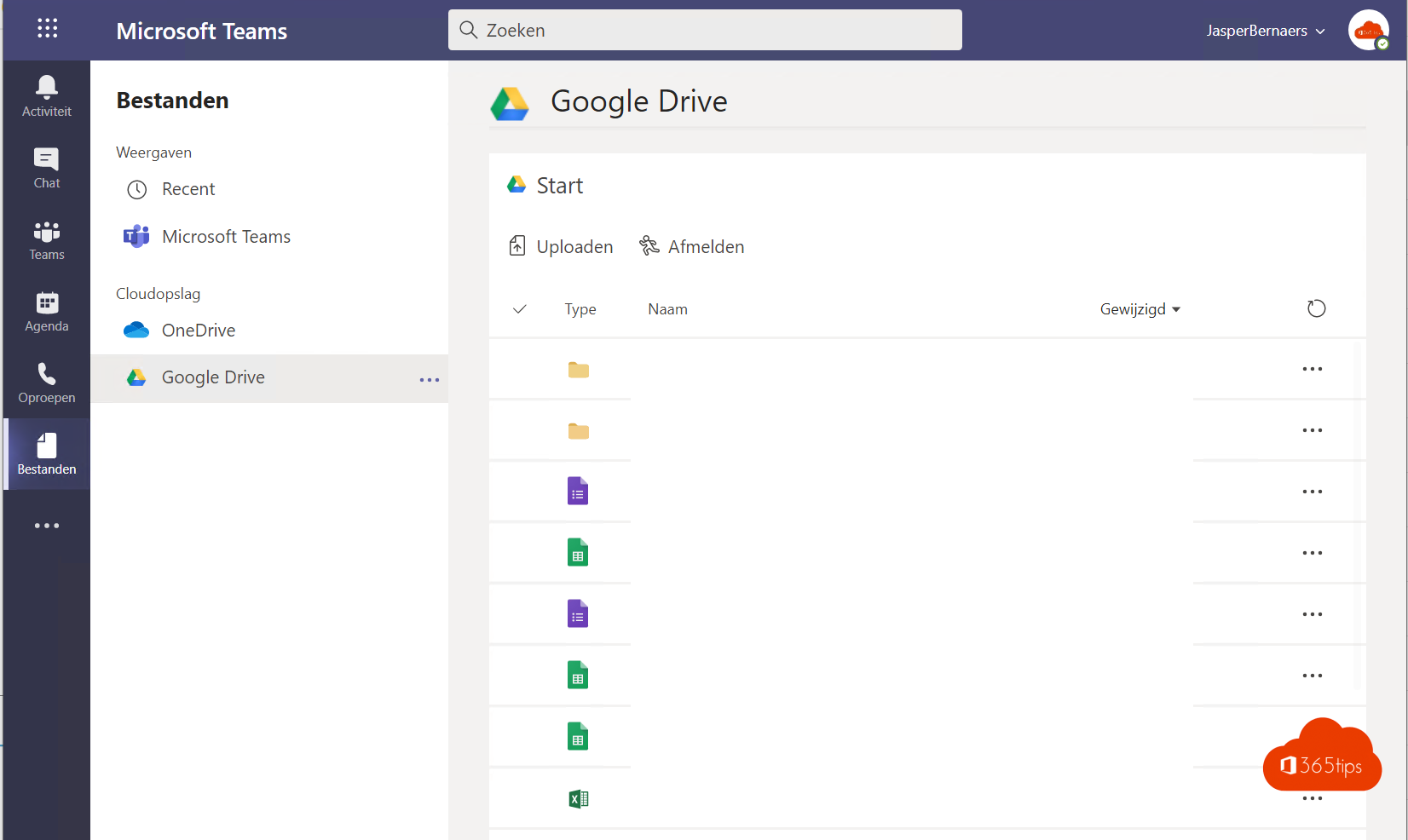
Are your documents spread across Google Drive, Dropbox and Microsoft 365? Then it's handy to open them from Microsoft Teams. In the past you could do that with the Add cloud storage button. In the new Teams that has changed. Here's what still works today and which alternatives you have.
How it used to work
In classic Teams you went to Files, selected Add cloud storage, chose a service such as Google Drive, Dropbox, Box or ShareFile, and signed in with your Google or Dropbox account. Then you gave Teams permission to open your files.


In the new Teams this option is limited or no longer available, depending on your version and your organization's settings. Still see it? Then you can keep using it. Don't see it? Use one of the alternatives below.
Alternative 1: a website tab
- Open the channel and select the plus sign at the top (Add a tab).
- Choose Website.
- Name the tab and paste the link to the shared Google Drive or Dropbox folder.
- Select Save.
Some services can't be shown inside a tab. In that case the link opens in your browser. Everyone also needs their own access to the folder in Google or Dropbox.
Alternative 2: an app from the Teams store
Check Apps to see whether the service you use offers an app. The selection changes regularly, and your admin decides which apps are allowed.
Alternative 3: share links
The simplest way: share a link to the file in the chat or channel. Set the permissions correctly in Google Drive or Dropbox so only the right people can open it.

Our recommendation
If you collaborate in Teams a lot, move the files to the channel's files (SharePoint) or to OneDrive. Then you work on them directly, with version history and your organization's security.
For admins
In the Teams admin center you decide which third-party cloud storage is allowed and which apps users can add. The exact location of these settings may change. Also see share files in Microsoft Teams and the Google Drive guide.
Read also
Share files in a Teams chat, channel or via a link
Add a SharePoint page, site or list to Microsoft Teams
Guide: everything you need to know about Google Drive
Nederlandstalige versie: Google Drive of Dropbox gebruiken in Microsoft Teams