Outlook data files (.pst and .ost), disk images (.iso) and installers don't belong in OneDrive. They're large, change constantly and cause sync errors or full storage. As an admin you can stop the OneDrive sync app from uploading specific file types. This article shows how in the SharePoint admin center, with PowerShell and with Intune or Group Policy, and what users see.
Which files should you block?
| Extension | What | Why block |
|---|---|---|
| .pst | Outlook data file | Large, locked while Outlook is open, gets corrupted by syncing |
| .ost | Offline copy of an Exchange mailbox | Rebuilt automatically, syncing it is pointless |
| .iso, .vhd(x) | Disk images, virtual disks | Very large, fill up storage |
| .exe, .msi, .pkg | Installers | Belong in a software library, not OneDrive |
In the SharePoint admin center
- Open the SharePoint admin center (from admin.microsoft.com > Admin centers > SharePoint).
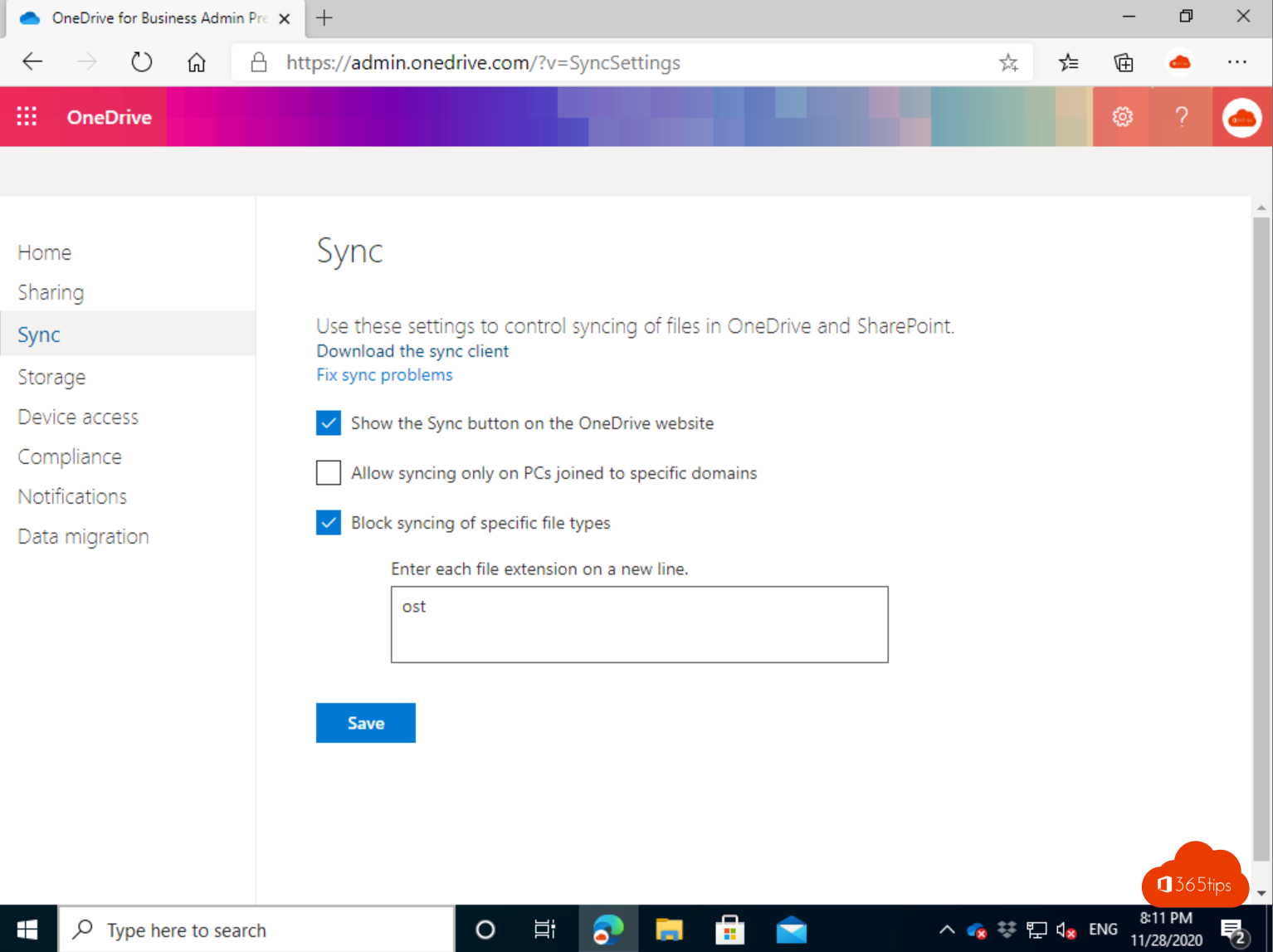
- Choose Settings > OneDrive Sync.
- Check Block upload of specific file types.
- Enter the extensions without a dot, separated by semicolons or one per line, for example pst;ost;iso.
- Select Save.

With PowerShell
Connect with the SharePoint Online Management Shell and set the list:
Connect-SPOService -Url https://contoso-admin.sharepoint.com
Set-SPOTenantSyncClientRestriction -ExcludedFileExtensions "pst;ost;iso"
Check the setting with Get-SPOTenantSyncClientRestriction. Note that the list you provide replaces the existing one.
With Intune or Group Policy
According to Microsoft's documentation, the admin center setting only applies to Windows PCs joined to an Active Directory domain. For Entra-joined devices and Macs, use the OneDrive policy Exclude specific kinds of files from being uploaded:
- Intune: Devices > Configuration > Create policy > Settings catalog, search for OneDrive and choose this setting. Enter patterns such as *.pst.
- Group Policy: use the OneDrive ADMX templates from the OneDrive installation folder.
- Mac: the same setting through a configuration profile (key EnableODIgnore).
What do users see?
Blocked files stay on the PC but aren't uploaded. OneDrive shows a red icon on the file and a notification that this file type isn't allowed. If the user moves the file to a folder outside OneDrive, the warning disappears.

Important: this only blocks the sync app. Uploading through the browser still works. To block that as well, use data protection policies or per-site SharePoint settings.
What to do with existing PST files?
- Import old PST files into the mailbox or an archive mailbox, so the mail is searchable and protected.
- Make sure OneDrive folder backup doesn't include a folder full of PST files.
- To give one user more room instead, see change the OneDrive storage limit for a user.
Read also
How to change the OneDrive storage of a single user
How to restore deleted files in Microsoft Teams and SharePoint
Find and delete large files in Windows 11 and 10: 5 ways
Nederlandstalige versie: Specifieke bestandstypen blokkeren in de OneDrive-synchronisatie