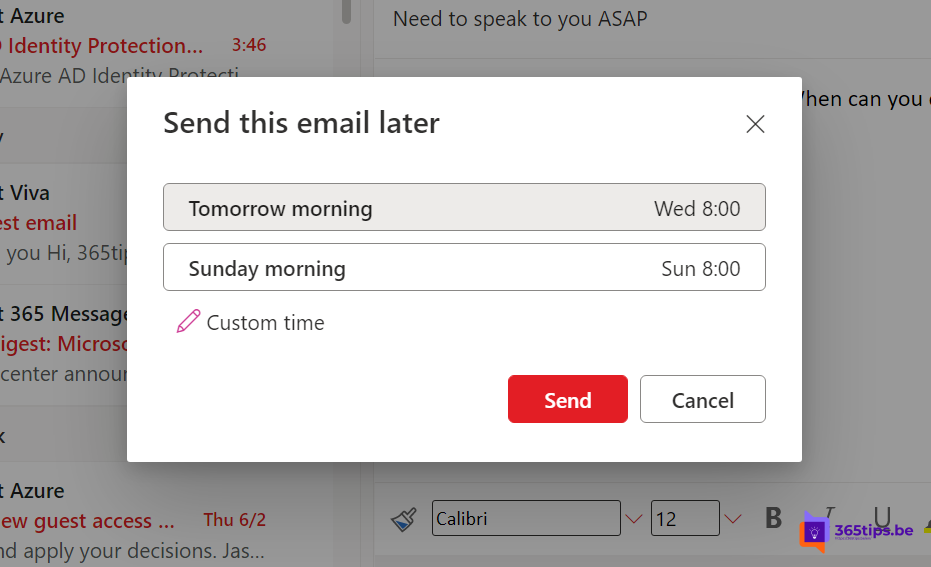
You're writing an email late in the evening but don't want to disturb your colleague at 11 pm. Or you hit Send and immediately spot a typo. In Outlook you can schedule a message for later, undo send and even delay every message by a few minutes automatically. This article shows how in the new Outlook, Outlook on the web and classic Outlook.
Schedule an email in the new Outlook and on the web
- Write your message.
- Select the arrow next to Send and choose Schedule send.
- Pick a suggested time or Custom time and select Send.
The message waits until the scheduled time, even if your computer is off: the server sends it. Until then you'll find it in Drafts or Scheduled. To change it, open it and schedule it again.

Undo send
Go to Settings > Mail > Compose and reply > Undo send. Choose up to 10 seconds. After sending you'll see Undo at the bottom.

In classic Outlook for Windows
- In the new message, open the Options tab > Delay Delivery.
- Tick Do not deliver before and choose a date and time.
- Select Close, then Send. The message waits in the Outbox.
With an Exchange or Microsoft 365 account, the server sends the message on time. With an IMAP or POP account, Outlook must be open at that moment.

Delay every message automatically
Want a few minutes to reconsider every time? In classic Outlook, create a rule: File > Manage Rules & Alerts > New Rule > Apply rule on messages I send > action defer delivery by a number of minutes. Choose for example 2 minutes (up to 120). While the message sits in the Outbox, you can still edit it.
In Teams too
You can schedule a chat message in Microsoft Teams as well. Read how to schedule a message in Teams. Sending something confidential? See how to encrypt email in Outlook.
Read also
How to schedule a chat message in Microsoft Teams
How to encrypt or protect an e-mail in Outlook and Microsoft 365
Keep declined meetings on your Outlook calendar
Nederlandstalige versie: Een e-mail plannen, uitstellen of verzenden ongedaan maken in Outlook