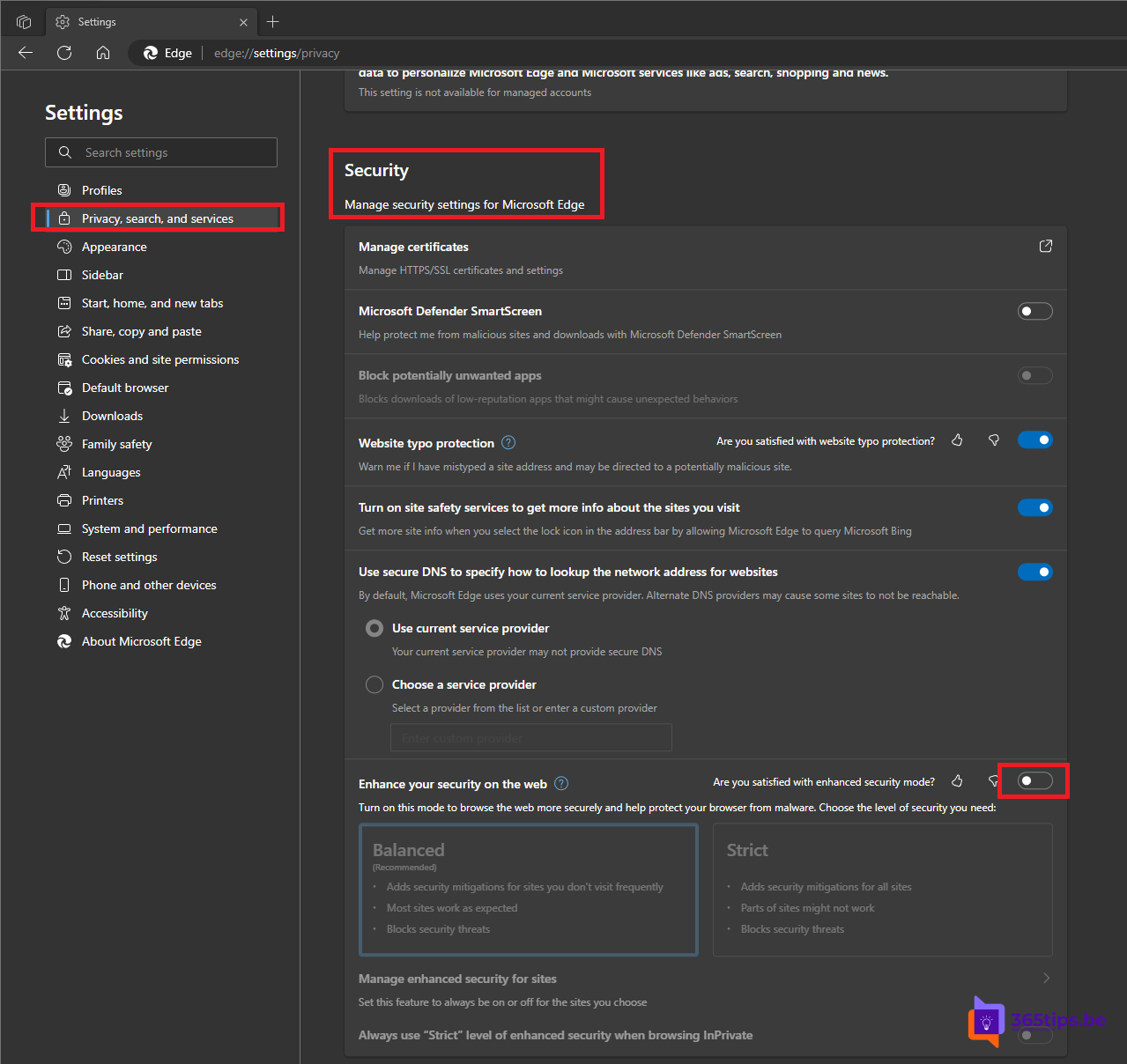
Microsoft Edge has an extra security mode that better protects you against attacks through websites. Edge then turns off some browser techniques, such as the JavaScript JIT compiler, on sites you don't visit often. This article shows how to turn this enhanced security on or off, for yourself or for your whole organization.
Turn on enhanced security
- Open Edge and go to Settings > Privacy, search, and services > Security.
- Turn on Enhance your security on the web.
- Choose a level:
- Balanced (recommended): extra security on sites you rarely visit; most sites work as usual.
- Strict: extra security on all sites. Some sites may be slower or not work as well.

Add exceptions
Does a trusted website not work properly? Select Exceptions in the same menu and add the site. Edge then won't apply the extra security there. You can also add sites where it should always be on.

For admins
Use an Edge policy to set this centrally, for example through Intune or Group Policy:
- EnhanceSecurityMode sets the level (off, balanced or strict).
- EnhanceSecurityModeBypassListDomains and EnhanceSecurityModeEnforceListDomains hold the exceptions.
Also see deploy and manage Edge with Intune and sync passwords and favorites in Edge.
Read also
Deploy and manage Microsoft Edge with Microsoft Intune
Set up automatic sign-in and sync in Microsoft Edge with Intune
Sync passwords, favorites and settings in Microsoft Edge
Nederlandstalige versie: Verbeterde beveiliging (Enhanced Security) in Microsoft Edge