
Microsoft Edge ships with Windows 11. On Windows you usually don't need to deploy Edge anymore, but you do want to manage it: updates, home page, security and extensions. On macOS you do deploy it. This article shows how to install and configure Edge with Intune.
On Windows
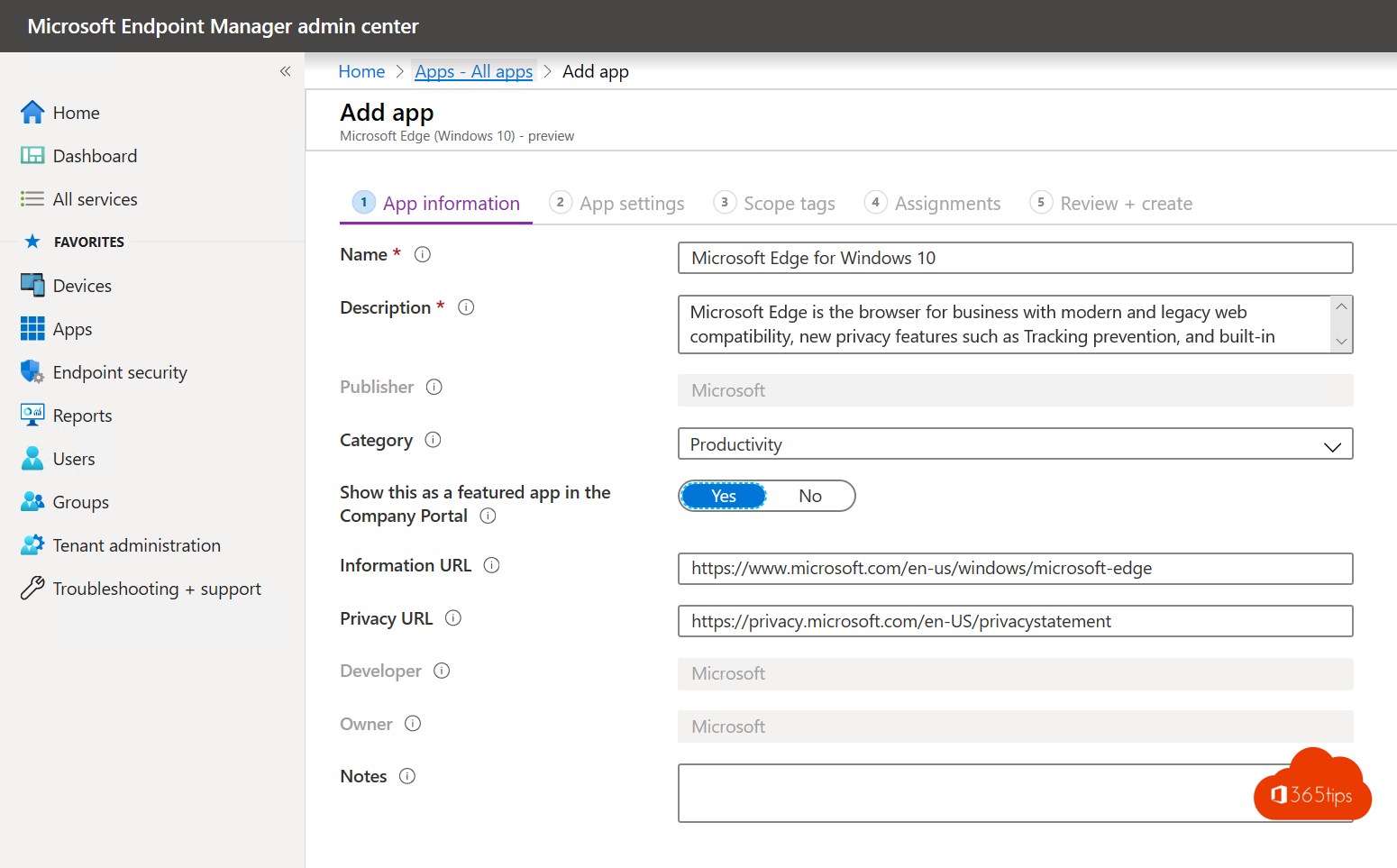
Edge is built in and updates itself. Want a fixed channel or certainty that every PC has the right version? Go to Apps > Windows > Add > Microsoft Edge, version 77 and later and choose the channel: Stable (recommended), Beta or Dev.
On macOS
Under Apps > macOS > Add > Microsoft Edge, version 77 and later, choose the channel and assign the app.
Configure Edge
Create a settings catalog profile and search for Microsoft Edge. Useful settings:
- Home page and new tab page pointing to your intranet.
- Automatic sign-in and sync with the work account. Read sign-in and sync in Edge.
- Extensions: allow, block or force-install.
- Default search engine.
- Updates: manage update policy with the Edge Update templates.
Security
Use the Microsoft Edge security baseline under Endpoint security > Security baselines. Also turn on enhanced security and SmartScreen.
Alternative: the Edge management service
In the Microsoft 365 admin center under Settings you'll also find the Microsoft Edge management service, a simpler interface for the most important settings. Related: Intune basic setup.
Read also
Set up automatic sign-in and sync in Microsoft Edge with Intune
Package and deploy Win32 apps with Microsoft Intune
Sync passwords, favorites and settings in Microsoft Edge
Nederlandstalige versie: Microsoft Edge uitrollen en beheren met Microsoft Intune