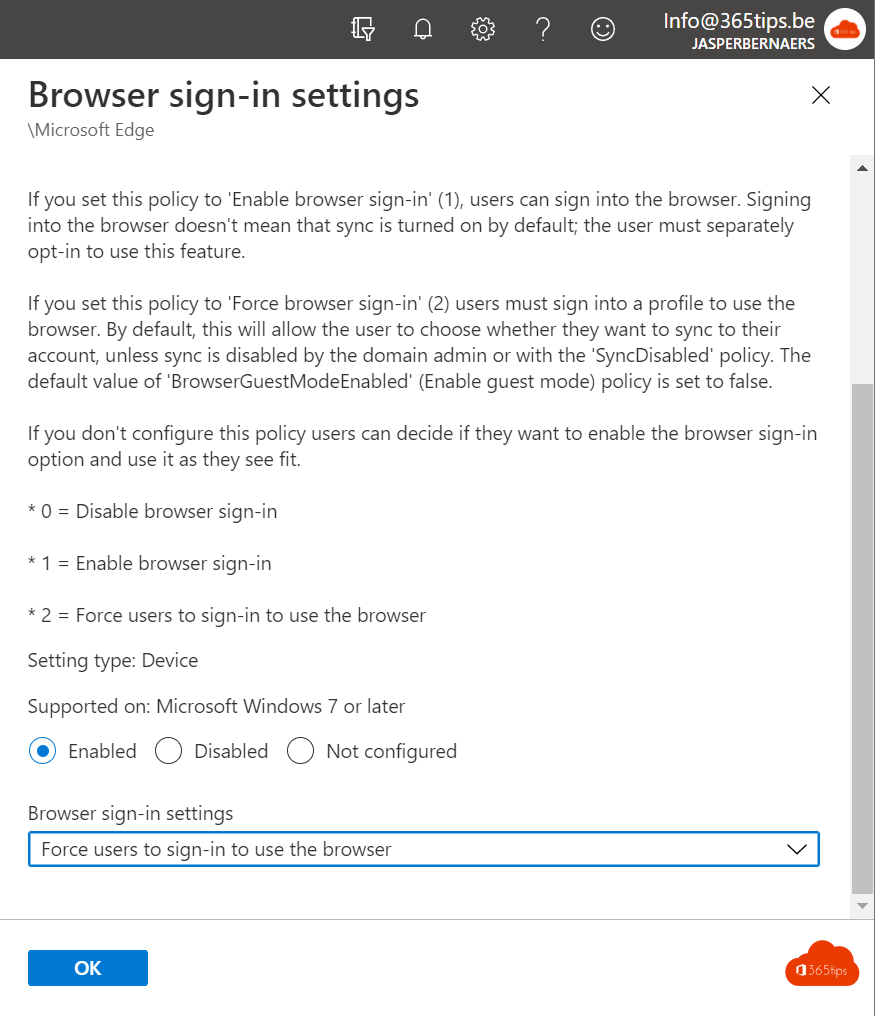
Employees signed in to Edge with their work account get their favourites, passwords and settings on every device, plus single sign-on to Microsoft 365. With Intune you make sure Edge signs in automatically with the work account and that sync is on. This article shows how.
Signed in by default?
On a PC joined to Microsoft Entra, Edge usually signs in automatically with the work account already. Policy makes that certain and stops users from using a personal account as the main profile.
Create the profile
- Go to intune.microsoft.com > Devices > Windows > Configuration > Create > Settings catalog.
- Under Add settings, search for Microsoft Edge.
- Set Browser sign-in settings to Force users to sign-in to use the browser, or allow sign-in without forcing it.
- Set Disable synchronization of data to Disabled so sync works.
- Optionally use Configure the list of types that are excluded from synchronization, for example to exclude passwords.
- Assign the profile to a group and save.

Useful extra settings
- Restrict adding profiles, so users don't create extra personal profiles on a company PC.
- Home page and new tab page pointing to your intranet.
- Password manager on or off, depending on your policy.
- The Microsoft Edge security baseline under Endpoint security > Security baselines.
What does the user see?
When Edge opens, the work account appears at the top right and sync is active. Under Settings > Profiles > Sync, they see which data syncs. Read also sync passwords and favourites in Edge and deploy and manage Edge with Intune.
Read also
Deploy and manage Microsoft Edge with Microsoft Intune
Sync passwords, favorites and settings in Microsoft Edge
The basic settings to start using Microsoft Intune
Nederlandstalige versie: Automatisch aanmelden en synchroniseren in Microsoft Edge instellen met Intune