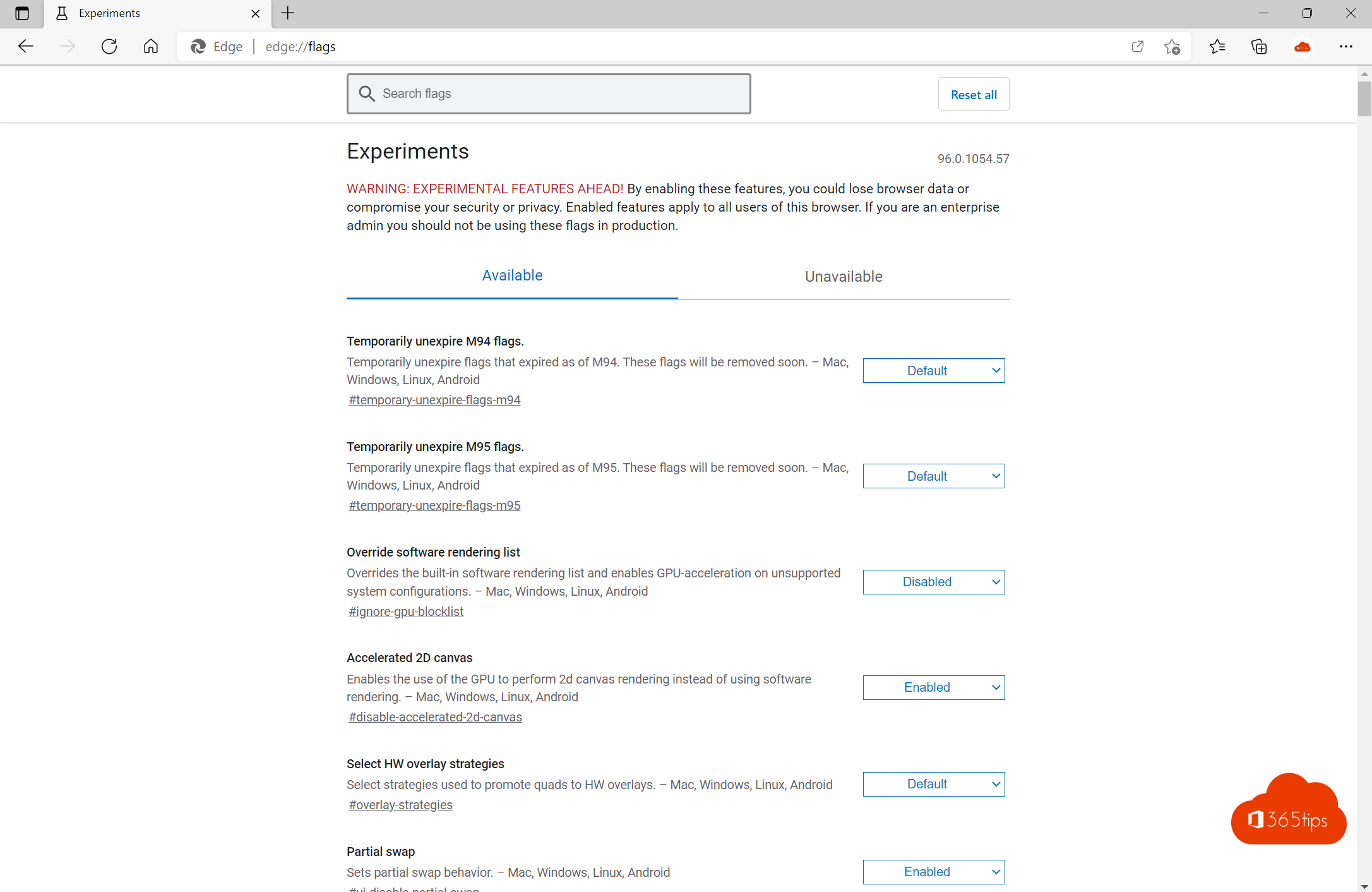
Microsoft Edge has a hidden menu with experimental features: edge://flags. There you can turn on new features before they're officially available, or sometimes fix a problem. This article shows how it works and what to watch out for.
Open edge://flags
- Type
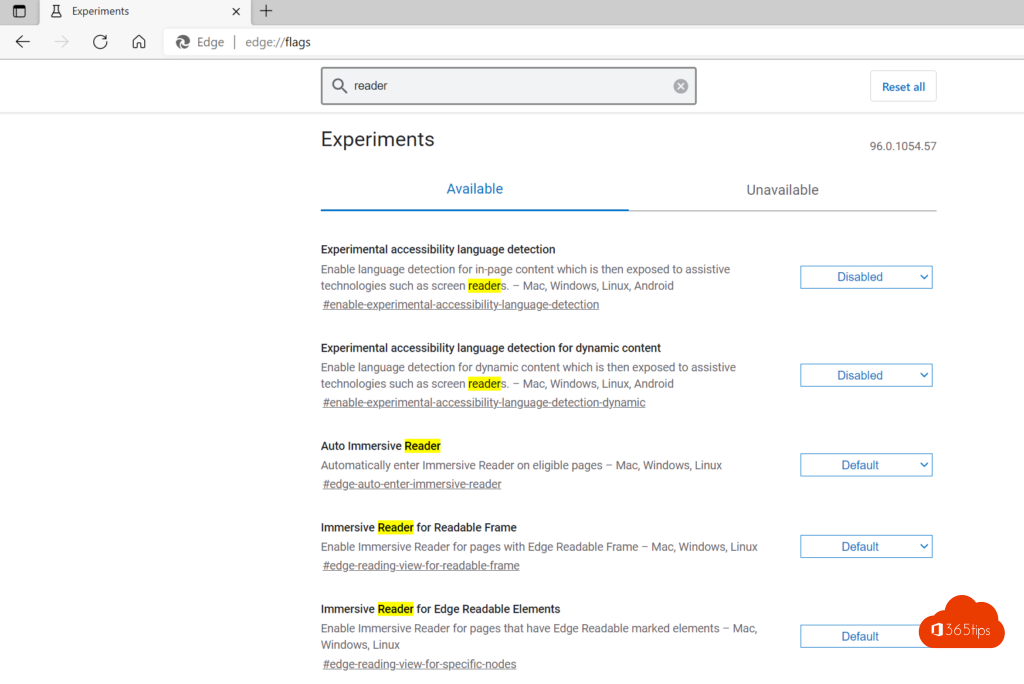
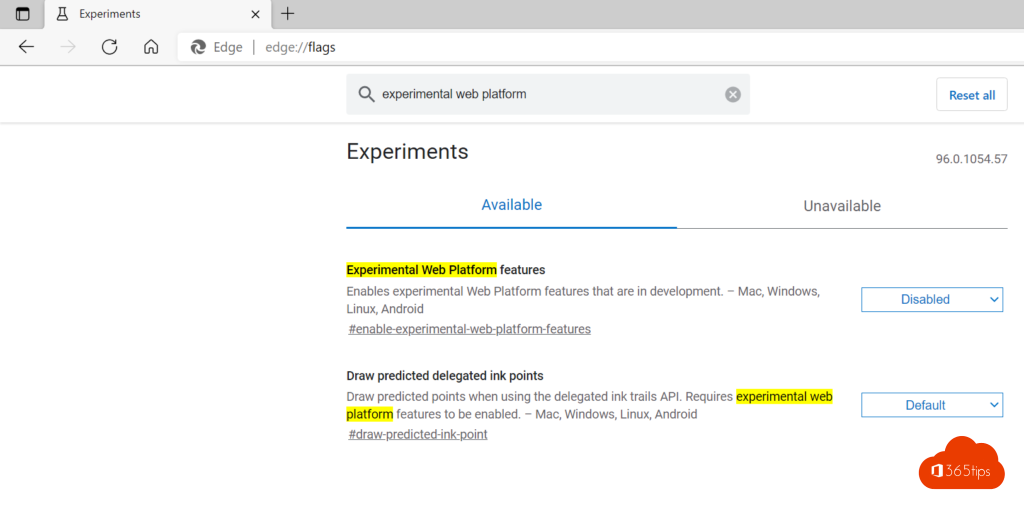
edge://flagsin the address bar and press Enter. - Search at the top for a word, such as tab or scroll.
- Set a flag to Enabled or Disabled.
- Select Restart at the bottom.

Reset everything
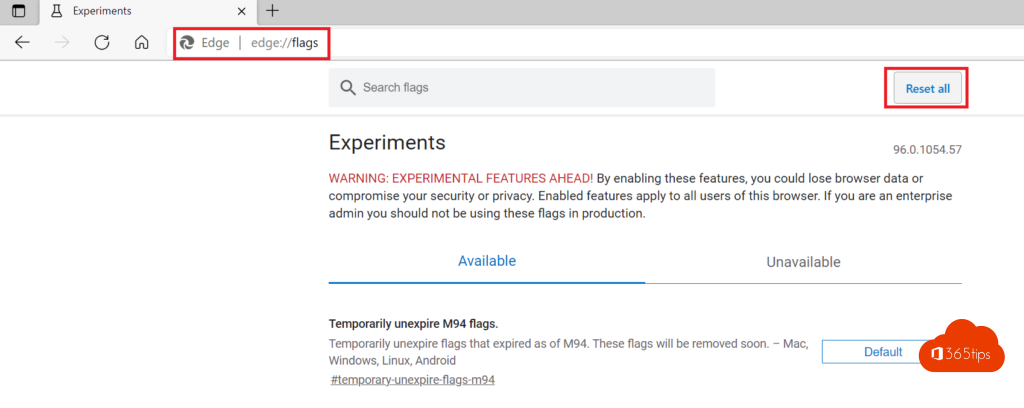
Is Edge acting strangely after a change? Select Reset all at the top and restart Edge.
Be careful
- Flags are experimental. They can make Edge unstable or affect your privacy and security.
- A flag can disappear or become standard in a later update.
- On a managed work computer, your admin may block flags. Use the official settings or policies there instead.
- Other handy pages:
edge://settings,edge://versionandedge://policy(which policies your admin has set).
Also see enhanced security in Edge and sync passwords and favorites in Edge.
Read also
Enhanced security mode in Microsoft Edge
Sync passwords, favorites and settings in Microsoft Edge
Create a shortcut to a website on the desktop or taskbar
Nederlandstalige versie: Experimentele functies aanzetten met edge://flags
More in English
▸Deploy and manage Microsoft Edge with Microsoft IntuneDeploy Microsoft Edge on Windows and macOS with Intune and manage the home page, extensions, updates and…
▸Set up automatic sign-in and sync in Microsoft Edge with IntuneUse Intune to make Edge sign in automatically with the work account and sync, with extra settings for…
▸Install Outlook on the web as an app in Edge or ChromeInstall Outlook on the web as an app (PWA) in Microsoft Edge or Google Chrome, with its own window and…
▸Seven tips to work more productively in Windows 11Snap layouts, clipboard history, virtual desktops, File Explorer tabs, focus sessions and shortcuts in…