In most organizations, chat is the reason to use Teams. Still, sometimes you want to turn off chat for certain users, such as students, kiosk accounts or a shared account. You do that with a messaging policy in the Teams admin center.
Create a messaging policy without chat
- Open the Teams admin center (admin.teams.microsoft.com).
- Go to Messaging > Messaging policies.
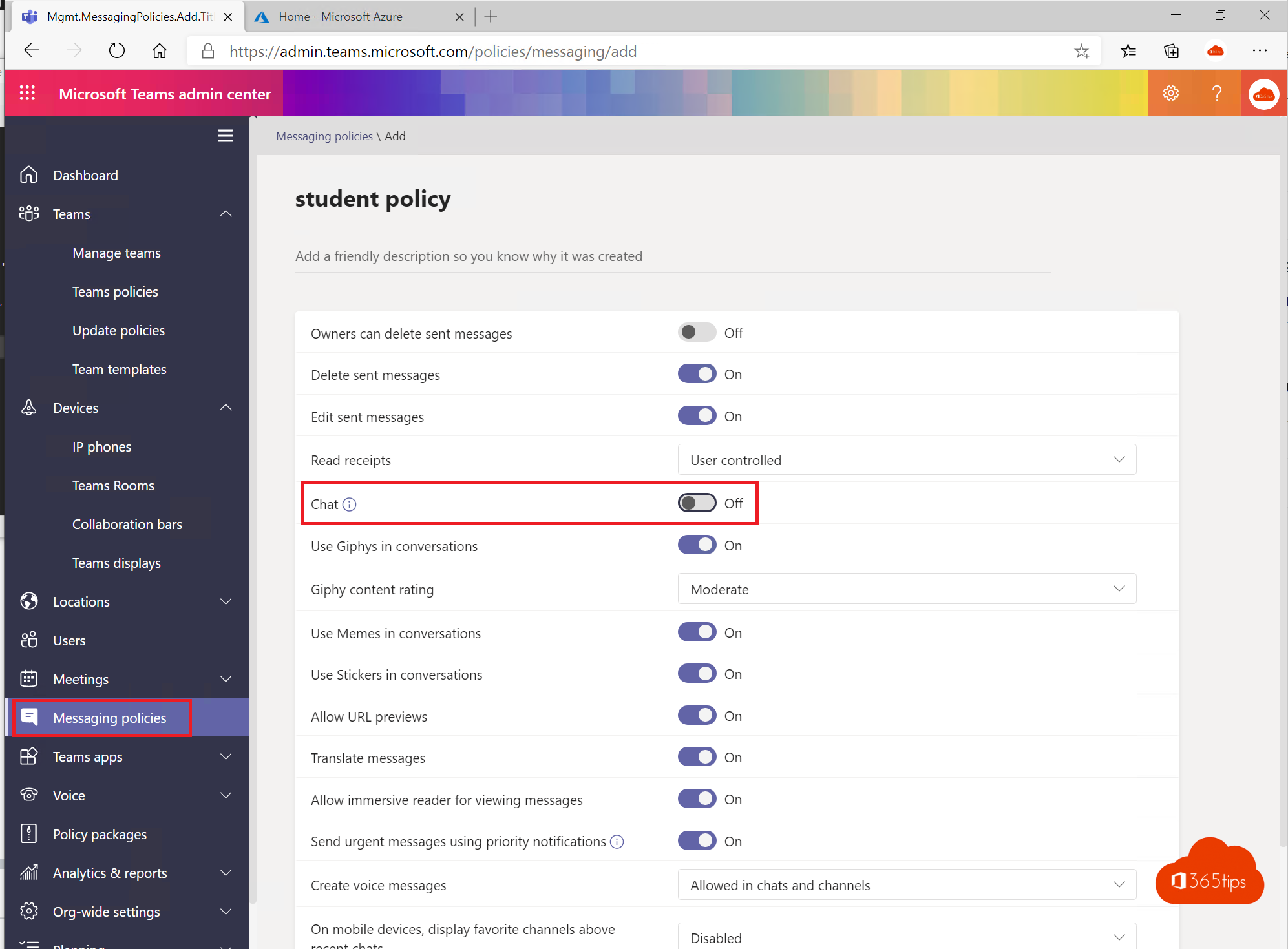
- Select Add and give the policy a clear name, such as No chat.


Turn chat off
In the policy, set Chat to Off. Users with this policy can no longer start private or group chats. Channel posts still work, unless you limit them in the team settings.
The same policy controls other options, such as deleting or editing messages, read receipts, GIFs and memes.
Select Save.
Assign the policy
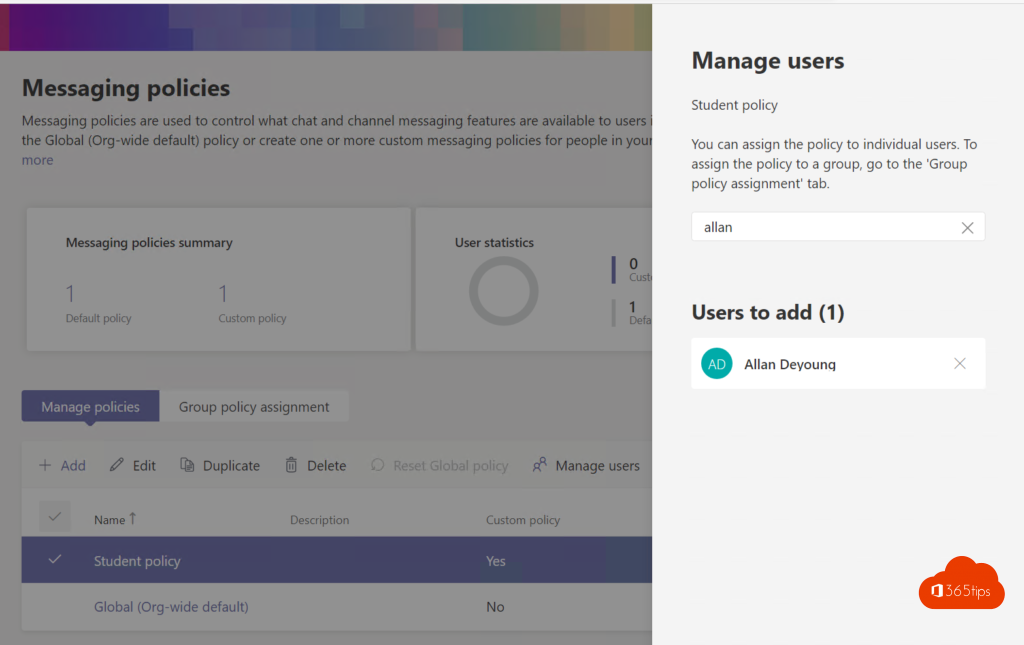
- Select the policy, then Manage users > Assign users.
- Search for the users and select Apply.
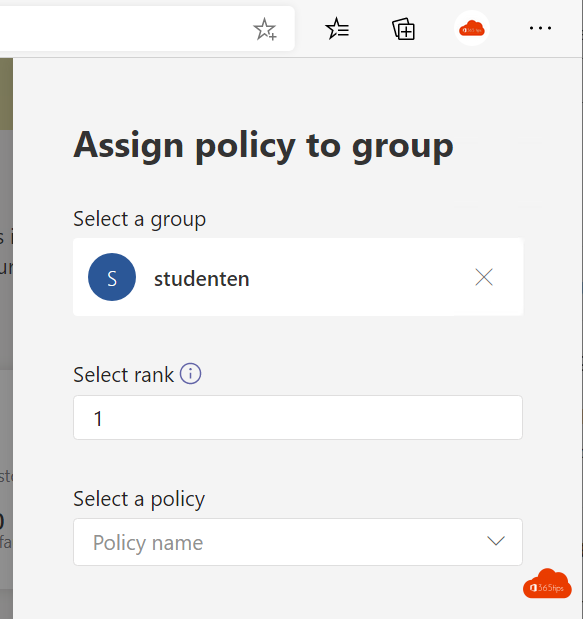
For many users at once, use the Group policy assignment tab. It can take a few hours before the policy takes effect.


Only turn off chat in meetings?
That is a different setting: the meeting policy, or the meeting options of a single meeting. Also see turn off read receipts in Teams and delete a chat in Teams.
Read also
Turn read receipts on or off in Microsoft Teams
Delete a message or an entire chat in Microsoft Teams
How to chat with yourself in Microsoft Teams
Nederlandstalige versie: Chat uitschakelen voor gebruikers in Microsoft Teams