Sent a message to the wrong person, made a typo or have a chat you no longer want to see? In Microsoft Teams you can edit or delete your own messages and remove an entire chat from your list. This article explains what's possible, what the other person still sees and what admins can control.
Delete a message
- Hover over your own message and select More options (...).
- Choose Delete.
- Made a mistake? Select Undo straight away.
The chat then shows This message has been deleted. To fix something instead, choose Edit; the other person sees an Edited label.

Delete an entire chat
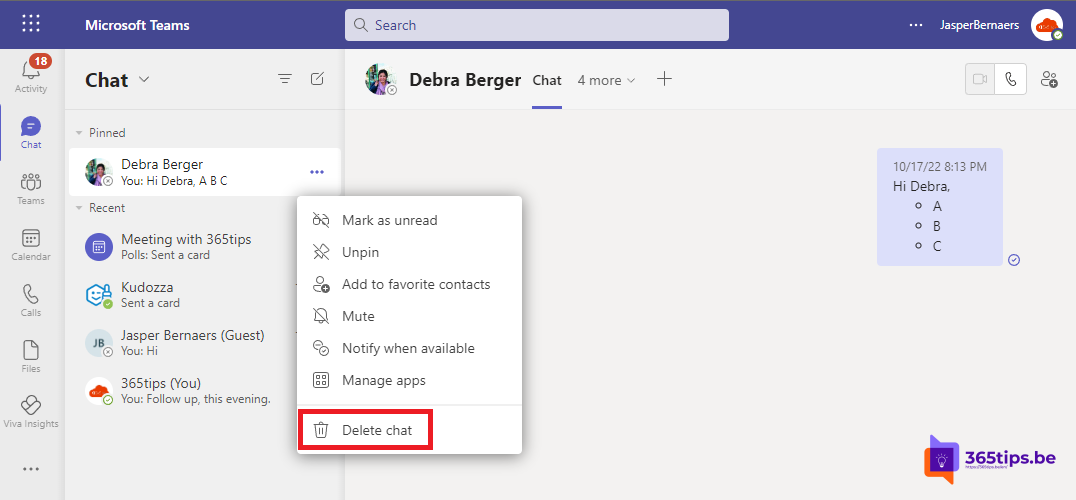
- In the chat list, hover over the chat and select More options (...).
- Choose Delete and confirm.
The chat disappears from your list. Other participants keep the chat and all its messages. For meeting chats this option isn't always available; there you can hide or leave the chat.

Hide, mute or leave
- Hide: the chat disappears until a new message arrives.
- Mute: no more notifications, but the chat stays.
- Leave chat: in a group chat you no longer receive new messages. Others see that you left.
Messages in a channel
In a channel you delete your own messages the same way. Team owners can, if the team settings allow it, also delete other people's messages via Manage team > Settings > Member permissions.
For admins
- In the Teams admin center > Messaging > Messaging policies, you decide whether users can edit and delete sent messages and delete entire chats.
- Deleted doesn't always mean gone: with a retention policy in Microsoft Purview, messages are kept for eDiscovery and audits.
Related: chat with yourself in Teams and schedule a message in Teams.
Read also
How to chat with yourself in Microsoft Teams
How to schedule a chat message in Microsoft Teams
Create a task from a chat message in Microsoft Teams
Nederlandstalige versie: Een bericht of volledige chat verwijderen in Microsoft Teams