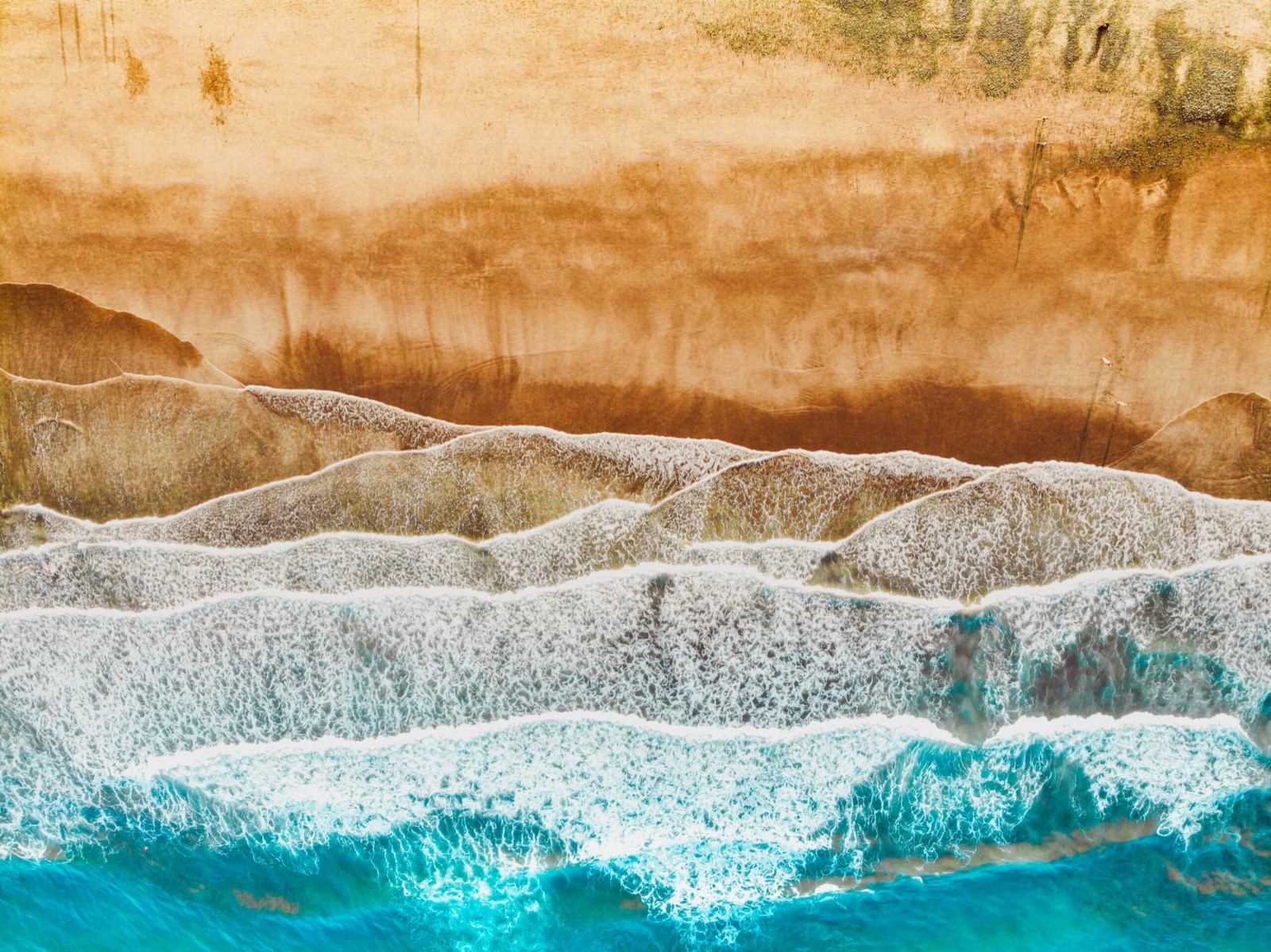
A beautiful nature photo on your desktop is calming. You don't need to search far: Windows 11 has nature photos built in, and free photo sites offer thousands of pictures of mountains, sea, forests and animals. Here's how to set them.
A new nature photo every day with Windows Spotlight
- Go to Settings > Personalization > Background.
- Under Personalize your background, choose Windows spotlight.
- Windows then regularly shows a new photo, often of landscapes and nature. Use the icon on your desktop to learn more about the photo.
You can also pick your own photo: choose Picture and select Browse photos. With Slideshow, Windows rotates through the photos in a folder.
Download and set a photo
- Find a photo on a free photo site such as Unsplash or Pexels. Pick a landscape photo at least as large as your screen resolution (for example 1920 × 1080 or higher).
- Download the photo.
- Right-click the file in File Explorer and choose Set as desktop background.

Always check the license on the photo site. The well-known free sites usually let you use photos as a background, but terms can differ.
A complete theme
Want matching colors and sounds too? Pick a theme from the Microsoft Store; there are plenty of nature themes. On a work laptop, your IT department may have locked the background, for example with Intune. Also see themes in Windows 11 and dark mode in Windows 11.
Read also
Set or create a theme in Windows 11
How to turn on dark mode in Windows 11
Set the desktop background and lock screen with Microsoft Intune
Nederlandstalige versie: Natuurachtergronden instellen in Windows 11