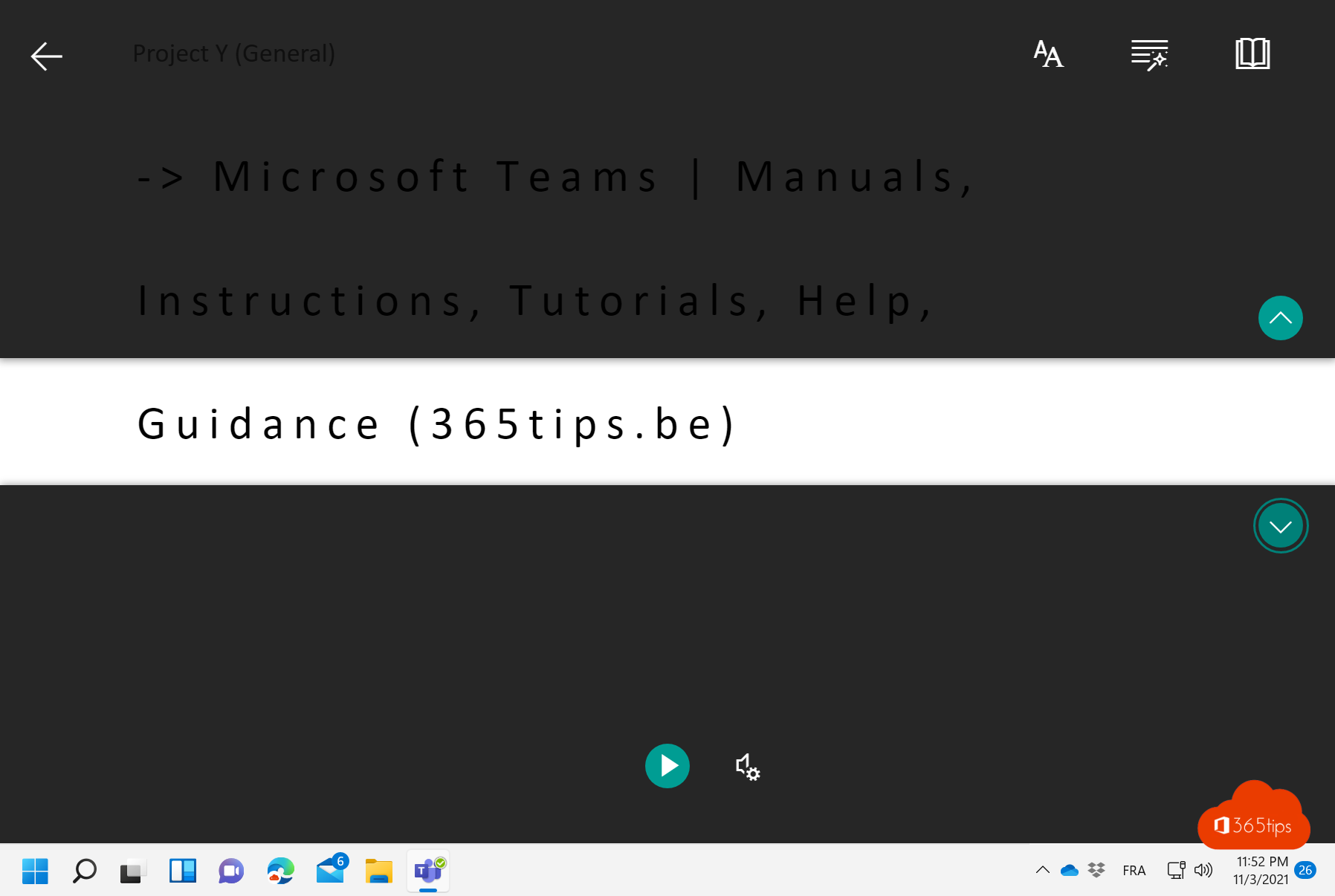
Reading long messages on a screen is tiring, and for people with dyslexia or a different native language it can be hard. With Immersive Reader, Teams reads a message aloud and shows it in a calm, focused view.
Have a message read aloud
- Hover over a message in a chat or channel.
- Select More options (...) > More actions > Immersive reader.
- Select the play button at the bottom. Teams reads the message aloud and highlights each word.

Useful settings
- Voice settings: choose a faster or slower speed and a male or female voice.
- Text preferences: larger text, more spacing between words and a different background color.
- Grammar options: split words into syllables.
- Reading preferences: focus on one line and translate the text into another language.
In other apps too
In Word and OneNote you find Immersive Reader under View > Immersive Reader. In Edge, open a web page in reading view with F9 and choose Read aloud. Also see live translated captions in Teams.
Read also
Use live translated captions in Microsoft Teams meetings
Translate a document or text in Word and PowerPoint
How to chat with yourself in Microsoft Teams
Nederlandstalige versie: Teams-berichten laten voorlezen met de Insluitende lezer
More in English
▸The most useful Microsoft Teams keyboard shortcuts for Windows and MacThe most useful shortcuts for the new Teams app: navigation, chat, mute, camera, raise hand and screen…
▸Change the language of Microsoft TeamsChange the Teams app language, keyboard language and spell check, and translate messages and meetings in…
▸Set up noise suppression and voice isolation in Microsoft TeamsFilter out background noise in Teams with AI noise suppression: the Auto, High and Low levels, voice…
▸Get started with OneNote in Microsoft 365: guide and tipsHow OneNote works: notebooks, sections and pages, with tips for to-do lists, tags, search, drawing, meeting…