An assistant who answers your calls, or a colleague who calls on your behalf while you're away: with a delegate in Teams that's possible. The delegate answers your calls, calls for you and can manage your call settings.
What do you need?
- You and the delegate both have a Teams Phone license with a phone number.
- Your admin has allowed delegation in the calling policy.
Add a delegate
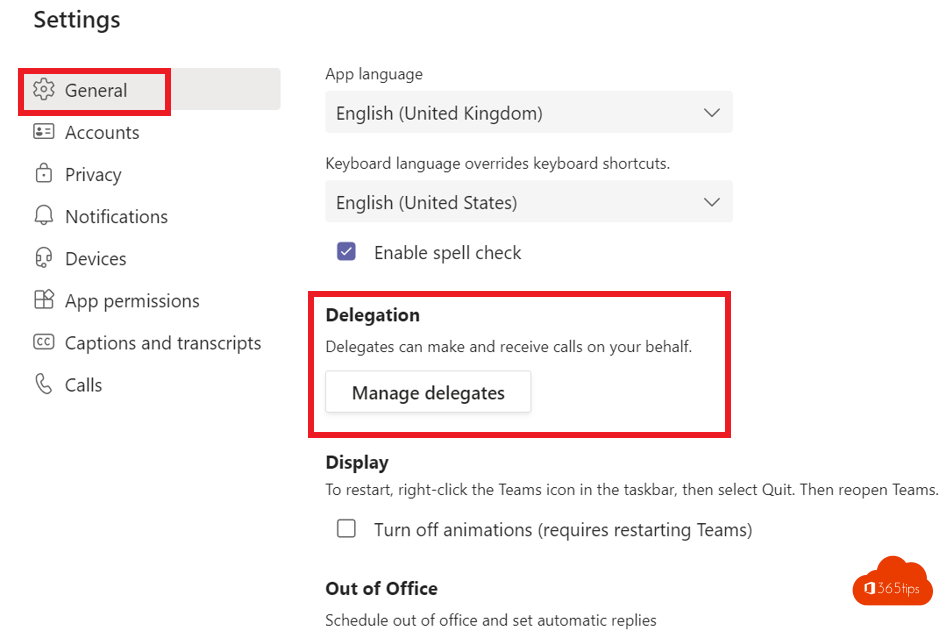
- Go to Settings > Calls > Manage delegates.
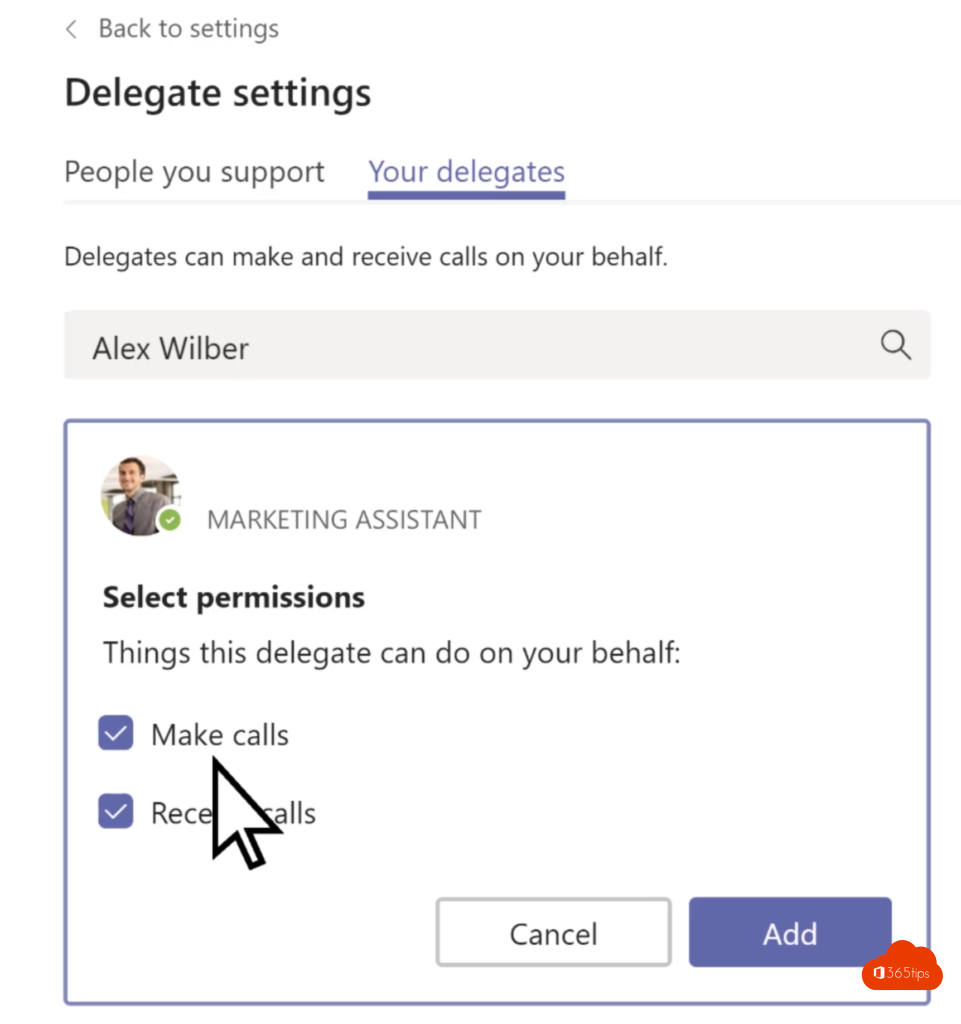
- On the Your delegates tab, select Add delegate.
- Search for the colleague and choose the permissions: Make calls, Receive calls and/or Change call settings.
- Select Save.

Route calls to your delegate
In Settings > Calls, choose My delegates under Also ring or Forward. Your phone then rings for you and your delegate, or only for your delegate.

As a delegate
In the Calls app you see the line of the person you work for. You can answer calls, put them on hold and call back on their behalf. The other party sees you're calling for that person.
Also see make phone calls with Microsoft Teams and status and out-of-office in Teams.
Read also
Phone calls with Microsoft Teams: everything you need to know
How to set out of office and a status message in Microsoft Teams
Set your status in Microsoft Teams: available, busy or do not disturb
Nederlandstalige versie: Een gemachtigde (delegate) instellen voor gesprekken in Teams