A good email signature tells people at a glance who you are, what you do and how to reach you. This article shows how to set up a signature in the new Outlook, on the web, in classic Outlook and on your phone, and how an organisation can use the same signature everywhere.
In the new Outlook and on the web
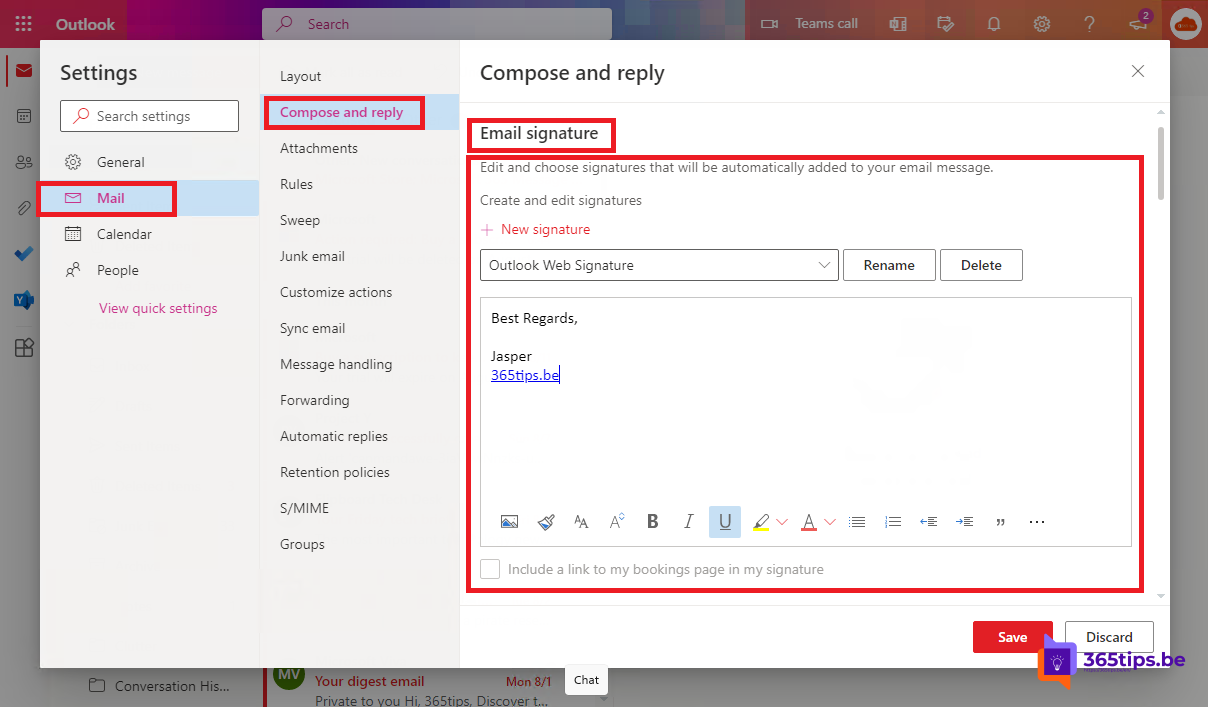
- Select Settings > Account > Signatures.
- Select New signature, give it a name and type your signature. Optionally add a logo or link.
- Under Default signatures, choose which signature to use for new messages and for replies and forwards.
- Select Save.
Your signatures are stored in the cloud and also appear in the new Outlook on your other computers.

In classic Outlook
Go to File > Options > Mail > Signatures. Select New, create your signature and choose the defaults for new messages and replies on the right.

On your phone
In the Outlook app, tap your profile picture > Settings > Signature. On mobile it's plain text only.
What should it include?
- Name, job title and organisation.
- One phone number and perhaps your website.
- A small logo (not too heavy) or no image at all: many recipients block images.
- A link to chat with you in Teams.
- No long legal disclaimer; an admin is better off adding that centrally.
For admins
Want everyone to have the same signature or disclaimer? In the Exchange admin center > Mail flow > Rules, create a rule that adds a disclaimer to outgoing email. For full signatures with photos and data from Entra ID, many organisations use a dedicated tool.
More Outlook tips: set an out-of-office reply and schedule or delay sending.
Read also
Set an automatic reply (Out of Office) in Outlook
Turn on dark mode in Outlook on the web, Windows and mobile
Show and use the BCC field in Outlook
Nederlandstalige versie: Een e-mailhandtekening instellen of wijzigen in Outlook