Emails from a customer or supplier keep landing in Junk or quarantine? Then you can allow (whitelist) that domain in Microsoft 365. Do it carefully, though: an overly broad allow rule is an open door for phishing. This article covers the safe ways.
First: why is the email blocked?
Find the message in security.microsoft.com > Email & collaboration > Explorer or Message trace. Check the reason: spam, phishing, spoofing or a failed SPF/DKIM check. If the sender's domain is misconfigured, ask them to fix SPF, DKIM and DMARC. Read enable DKIM.
The best way: a submission
- Go to security.microsoft.com > Actions & submissions > Submissions.
- Choose the Emails tab > Submit to Microsoft for analysis.
- Add the message, choose It shouldn't have been blocked (False positive) and tick Allow this message.
Microsoft learns from the submission and automatically creates a temporary allow entry in the Tenant Allow/Block List.
The Tenant Allow/Block List
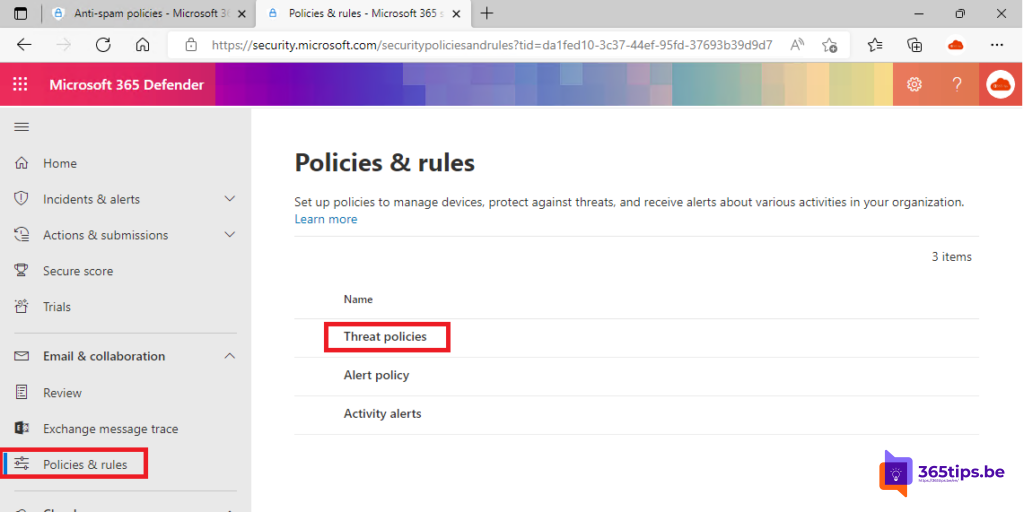
Go to Email & collaboration > Policies & rules > Threat policies > Tenant Allow/Block Lists > Domains & addresses. Here you view and manage allow and block entries, with an expiry date.
Better avoided
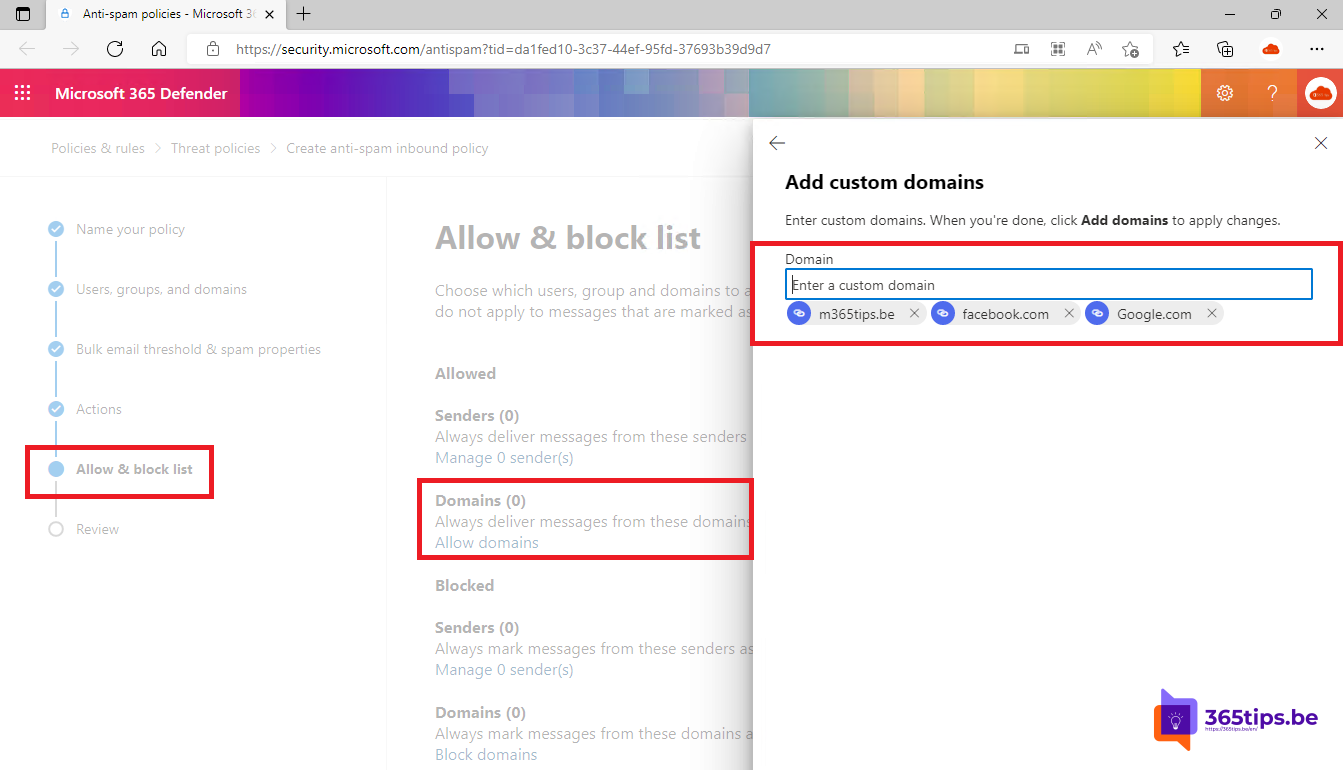
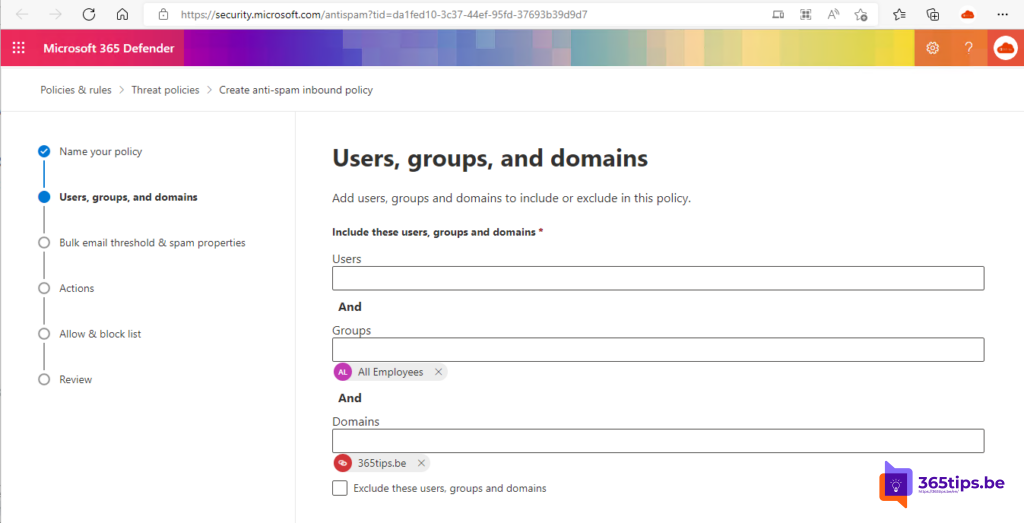
- Allowed senders and domains in the anti-spam policy: they skip many checks and are often abused with spoofed senders.
- A mail flow rule that sets SCL to -1 for a whole domain, without checking SPF or DKIM.
- Allowing your own domain: phishers love to pose as your own colleagues.
For users
In Outlook, you can add a sender to Safe senders yourself: Settings > Mail > Junk email. It only applies to your own mailbox and not to quarantine. Related: block automatic forwarding.
Read also
Enable DKIM in Microsoft 365 for your own domain
Block automatic forwarding and outgoing email in Microsoft 365
Set up Data Loss Prevention (DLP) in Microsoft Teams with Purview
Nederlandstalige versie: Een e-maildomein veilig toestaan in Microsoft 365