In Exchange Online, automatic forwarding of email to external addresses is blocked by default. That's a good thing: attackers who take over an account often set up a forwarding rule unnoticed. Still, a colleague sometimes has a good reason to forward mail externally for a while. In this article you learn how to allow that for specific users, and how to make that exception expire automatically.
Automatic external forwarding is controlled by the outbound spam policy in Microsoft Defender. You create a temporary exception with a separate outbound policy for a group. With an access package in Microsoft Entra ID Governance, users can join that group themselves for a limited time.
How does it work?
- The default outbound spam policy has the setting Automatic forwarding rules with three values: Automatic - System-controlled (which means off), On and Off.
- Leave the default policy on Automatic or Off for everyone.
- Create a second outbound policy with forwarding set to On, and apply it only to a group, for example Forwarding-allowed.
- Members of that group can forward externally. Remove someone from the group and the exception ends.
Note: remote domains and mail flow rules can also block forwarding. The most restrictive setting wins.
Step 1: Create a group
- In the Microsoft 365 admin center, create a Microsoft 365 group, for example Forwarding-allowed, with an owner from IT.
- Don't add members yet, or only a test user.
Planning to use access packages? Then choose a Microsoft 365 group: access packages don't support mail-enabled security groups or distribution lists.
Step 2: Create a separate outbound spam policy
- Go to security.microsoft.com > Email & collaboration > Policies & rules > Threat policies > Anti-spam.
- Select Create policy > Outbound.
- Enter a name, for example Temporary external forwarding.
- Under Groups, choose the Forwarding-allowed group.
- Set Automatic forwarding rules to On - Forwarding is enabled.
- Save the policy. A custom policy always takes precedence over the default policy.
Prefer PowerShell? Connect to Exchange Online PowerShell and run:
New-HostedOutboundSpamFilterPolicy -Name "Temporary external forwarding" -AutoForwardingMode On
New-HostedOutboundSpamFilterRule -Name "Temporary external forwarding" -HostedOutboundSpamFilterPolicy "Temporary external forwarding" -FromMemberOf "forwarding-allowed@contoso.com"
Step 3: An access package with an expiry
With an access package in Microsoft Entra ID Governance, users request access themselves, a manager approves, and membership expires automatically. This requires a license such as Entra ID P2 or Entra ID Governance.
- Go to entra.microsoft.com > Identity Governance > Entitlement management > Access packages.
- Select New access package and enter a clear name, for example Temporary external email forwarding.
- Under Resource roles, add the Forwarding-allowed group with the Member role.
- Under Requests, set who can request (for example all internal employees, no guests) and who approves (for example the requester's manager, or an IT team).
- Under Lifecycle, set the assignment to expire after a number of days, for example 5 days.
- Select Create.


Step 4: Users request access
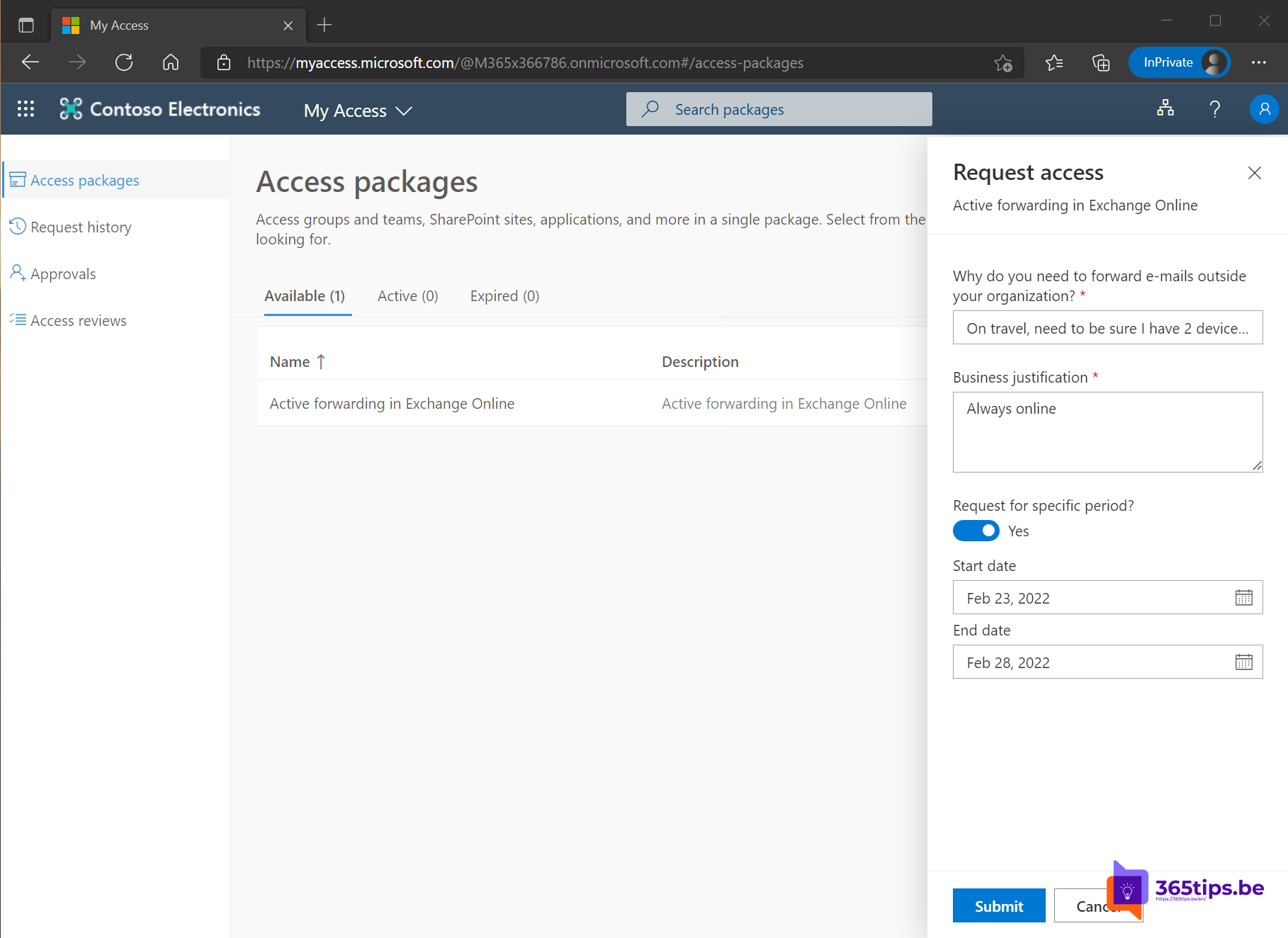
- The user goes to myaccess.microsoft.com. Share that link on your intranet or in Teams.
- They find the access package, select Request and enter a reason.
- After approval they become a member of the group and can forward externally.
- After the set period, membership expires automatically and forwarding is blocked again.
No Entra ID Governance? Then add the user to the group manually and set a calendar reminder to remove them after the agreed period.
Tips
- It can take a while (up to an hour or more) before a group change affects forwarding.
- Regularly check which forwarding rules exist, for example with the auto-forwarded messages report in the Exchange admin center.
- Watch the Microsoft Defender alerts about suspicious forwarding activity.
Also see block automatic email forwarding and email forwarding in Exchange Online.
Read also
Block automatic forwarding and outgoing email in Microsoft 365
Set up email forwarding in Exchange Online
Automatically review guests in Microsoft Teams with access reviews
Nederlandstalige versie: Gebruikers tijdelijk e-mail extern laten doorsturen in Exchange Online