Should users in Microsoft 365 change their password every 90 days, or never? Regular changes used to be the norm. Today Microsoft, the US NIST and many security guidelines advise against it: users then pick weak, predictable passwords like Spring2026! and Summer2026!. This article shows how to set the password expiration policy in Microsoft 365, what the default is, and what works better to protect accounts.
What is the default?
In Microsoft 365, passwords never expire by default. In the admin center the option Set passwords to never expire (recommended) is ticked. Microsoft recommends keeping it that way and using multi-factor authentication (MFA) instead.
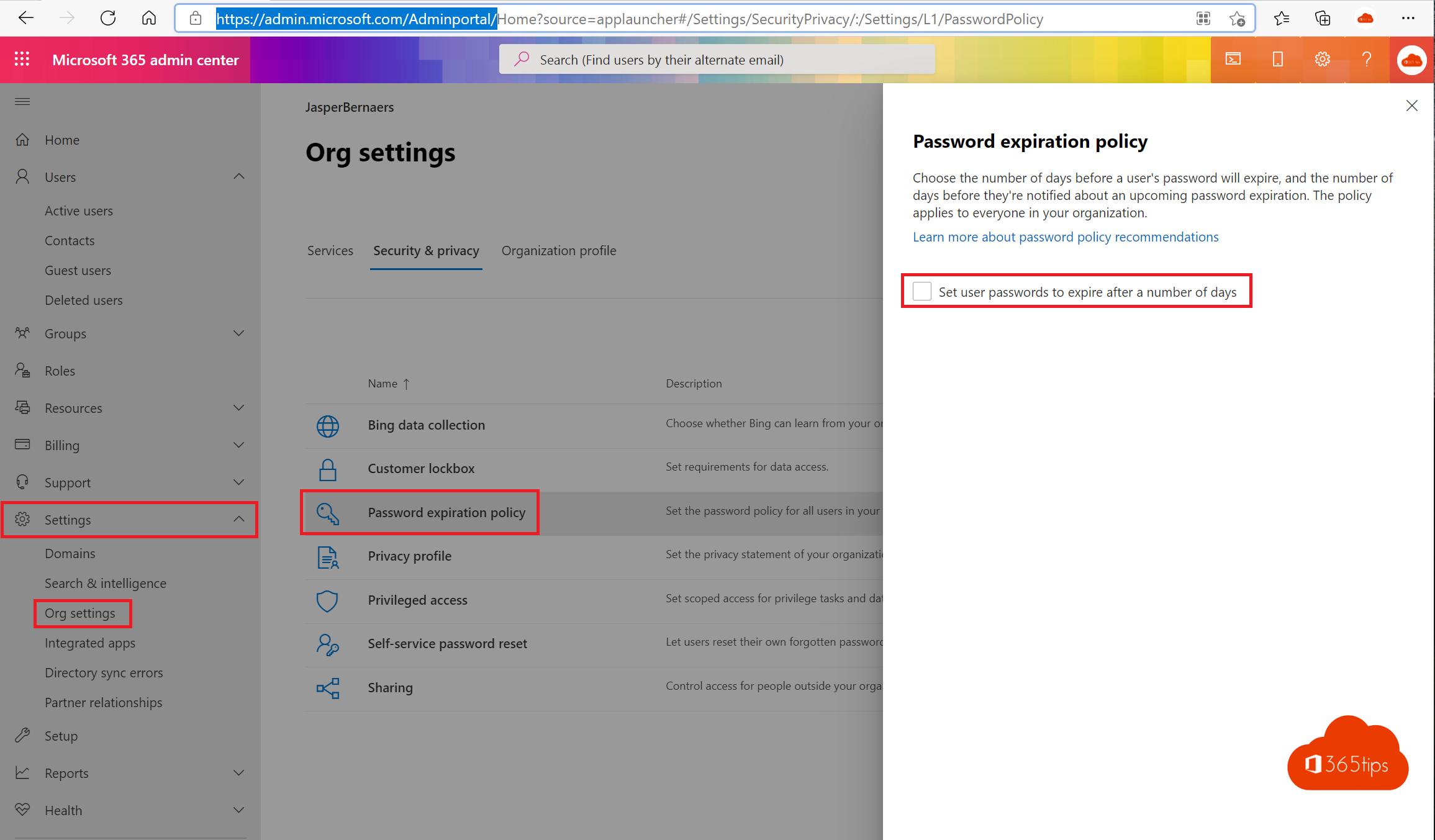
Set the policy in the admin center
You need at least the User Administrator role.
- Sign in to the Microsoft 365 admin center.
- Click ... Show all > Settings > Org settings.
- Open the Security & privacy tab and click Password expiration policy.
- Still want passwords to expire? Untick Set passwords to never expire (recommended).
- Under Days before passwords expire, enter a value between 14 and 730 and click Save.

You can no longer set an advance notification that a password is about to expire: the admin center and Microsoft 365 apps no longer support those notifications.
Note for synced accounts
This policy only applies to cloud-only accounts in Microsoft Entra ID. If you use Microsoft Entra Connect with password hash sync, pass-through authentication or AD FS, your on-premises Active Directory policy decides when passwords expire. You set that through Group Policy (Default Domain Policy) or with Fine-Grained Password Policies.
Why passwords are better off not expiring
- Weaker passwords: people who must change often pick passwords that are easy to guess, or just bump a number.
- More helpdesk calls: forgotten passwords and locked accounts cost time.
- No protection against phishing: a stolen password is usually abused within hours, long before it expires.
Do change a password immediately if you suspect it has leaked.
What works better than expiring passwords?
- MFA for everyone, through security defaults or Conditional Access.
- Passwordless sign-in with passkeys, Windows Hello for Business or the Microsoft Authenticator app.
- Microsoft Entra Password Protection: blocks common and weak passwords, plus your own banned words such as your company name.
- Self-service password reset (SSPR), so users can set a new password themselves.
- Risk-based policies (Entra ID P2): only force a password change when Microsoft detects a leaked password or suspicious sign-in.
With PowerShell (Microsoft Graph)
The old MSOnline module (Set-MsolPasswordPolicy) is gone. With Microsoft Graph PowerShell you set the validity per domain:
Connect-MgGraph -Scopes "Domain.ReadWrite.All"
Get-MgDomain | Select-Object Id, PasswordValidityPeriodInDays
# Expire passwords after 365 days:
Update-MgDomain -DomainId "yourcompany.com" -PasswordValidityPeriodInDays 365
# Never expire:
Update-MgDomain -DomainId "yourcompany.com" -PasswordValidityPeriodInDays 2147483647
To turn off expiration for one user:
Update-MgUser -UserId "jan@yourcompany.com" -PasswordPolicies DisablePasswordExpirationUse that for a service account, for example, but better still: replace service accounts with managed identities or app registrations.
Read also
Security defaults in Microsoft Entra ID: what they do and how to enable them
How to remove a device from your Microsoft account or Microsoft 365 account
All Microsoft 365 admin portals in one list: the right URLs in 2026
Nederlandstalige versie: Het beleid voor het verlopen van wachtwoorden instellen in Microsoft 365