The helpdesk asks for your IP address, you're setting up a printer or want to know which network you're on? On an iPhone, iPad or Mac you find the IP address in a few taps. This article shows where, and the difference between your local and public IP address.
Local or public?
- Local IP address: your device's address on your own network, such as 192.168.1.23. You need it for printers or network troubleshooting.
- Public IP address: the address your whole network has on the internet. You see it on a site like whatismyip.com, or by searching "what is my IP" in Bing.
On an iPhone or iPad
- Open Settings > Wi-Fi.
- Tap the (i) next to the network you're connected to.
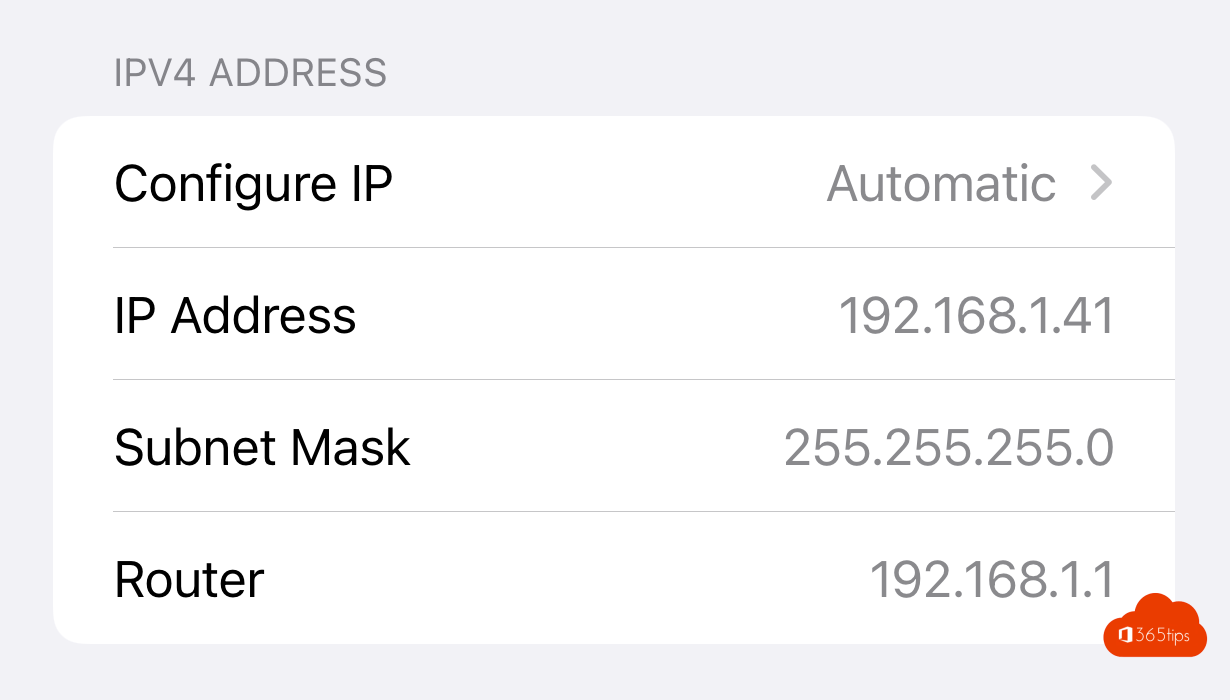
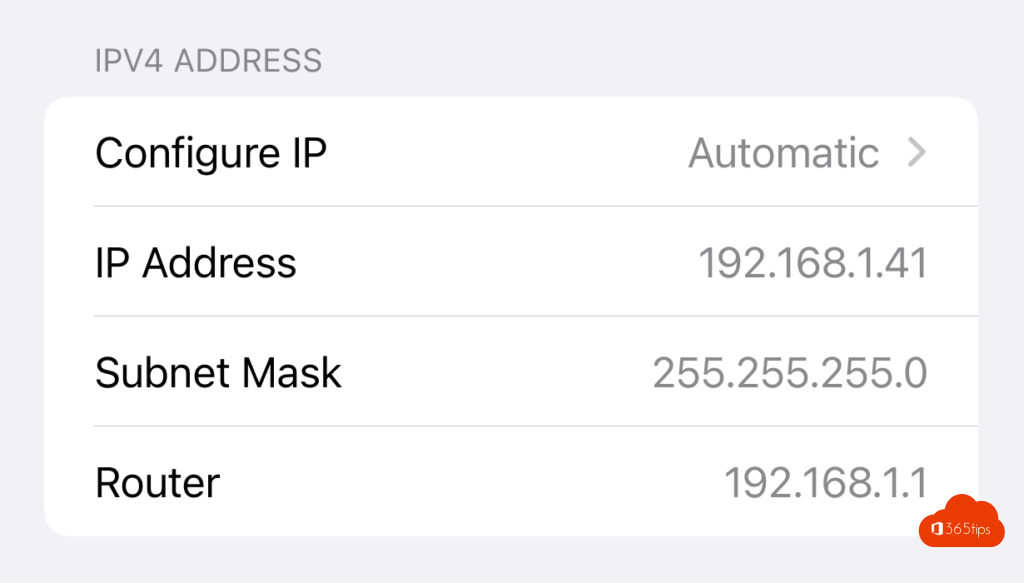
- Under IPv4 Address you see your IP Address, with the subnet mask and router below it.
Private Wi-Fi Address shows the MAC address your device uses for this network. Turn it off if your network admin needs a fixed MAC address.

On a Mac
- Open System Settings > Network.
- Choose Wi-Fi (or Ethernet) and select Details next to your network.
- Open TCP/IP. Your address is next to IP address.
Faster with Terminal: ipconfig getifaddr en0 (usually Wi-Fi). Or hold Option and click the Wi-Fi icon in the menu bar.
And on Windows?
Go to Settings > Network & internet > Wi-Fi > the network, or type ipconfig in a terminal.
Tip
Need a fixed local IP address, for a printer or NAS? Set it on your router (DHCP reservation) rather than on the device. Related: take a screenshot on a Mac or iPhone and edit the hosts file.
Read also
Take a screenshot or screen recording on a Mac, iPhone or iPad
How to use an iPad as a second screen for your Mac with Sidecar
How to edit the hosts file in Windows 11 and Windows 10
Nederlandstalige versie: Het IP-adres van je iPhone, iPad of Mac opzoeken