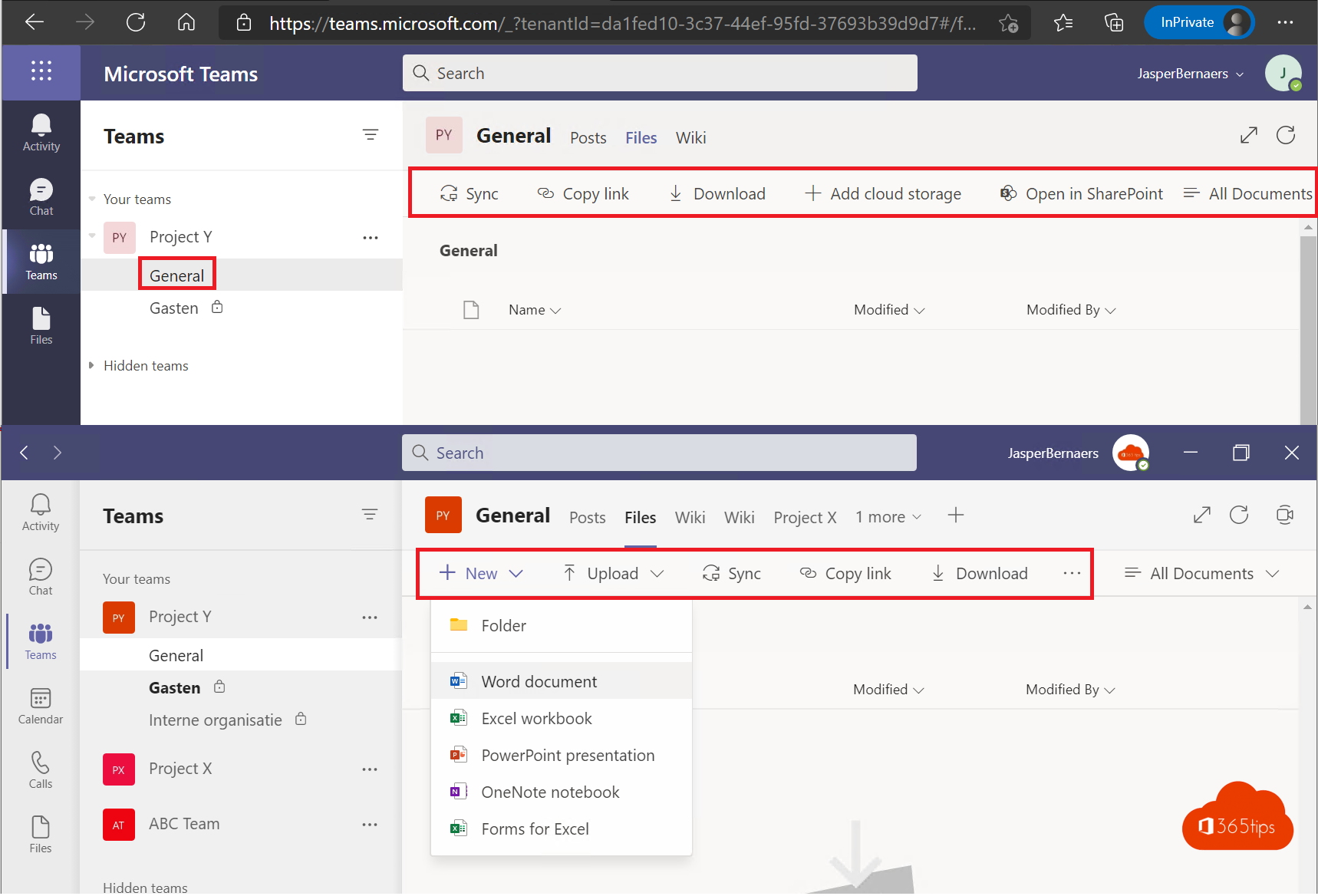
Do you work with customers or partners in a separate guest team? Then you often want the General channel to be for announcements only. That keeps things tidy and guests post their questions in the right channels. In this article you make the General channel read-only for members and guests.
A team for guests
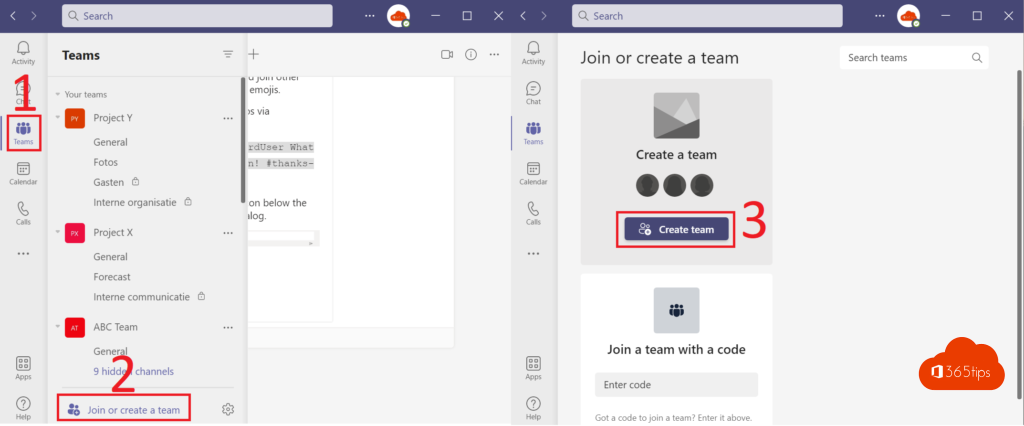
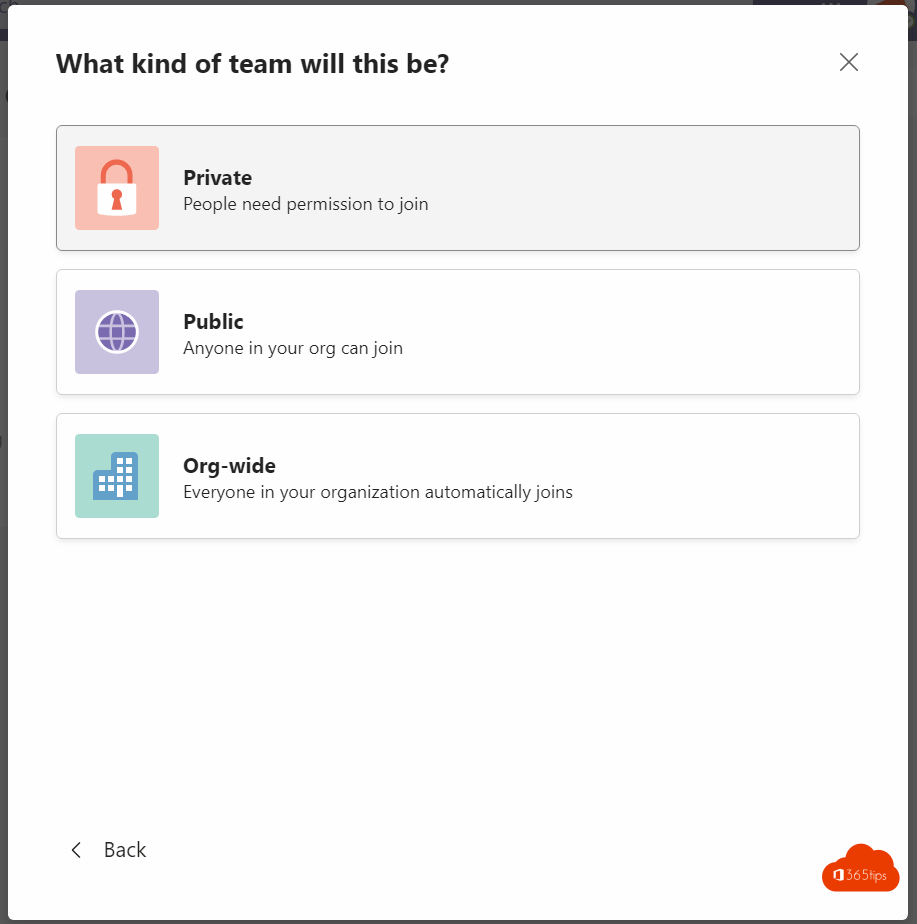
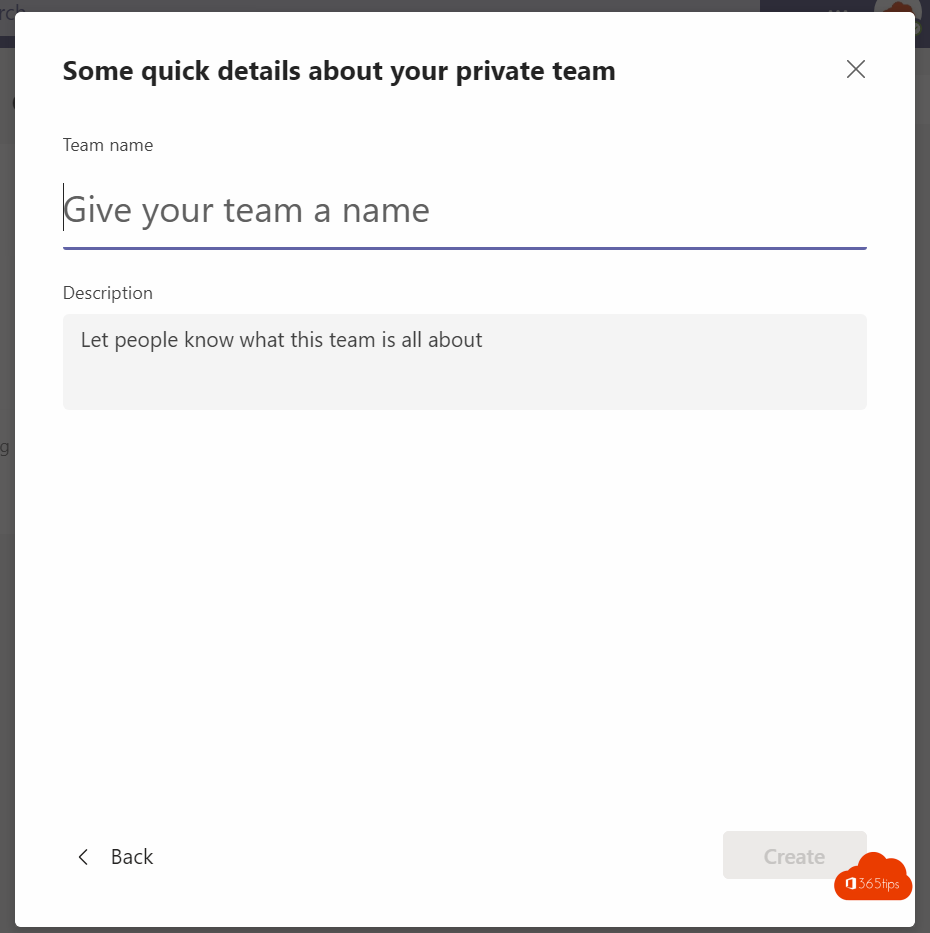
- Create a new team with a clear name, such as Customer X - project.
- Add the guests via Add members with their email address. Read add guests to Teams.
- Create channels per topic, such as Questions and Documents.
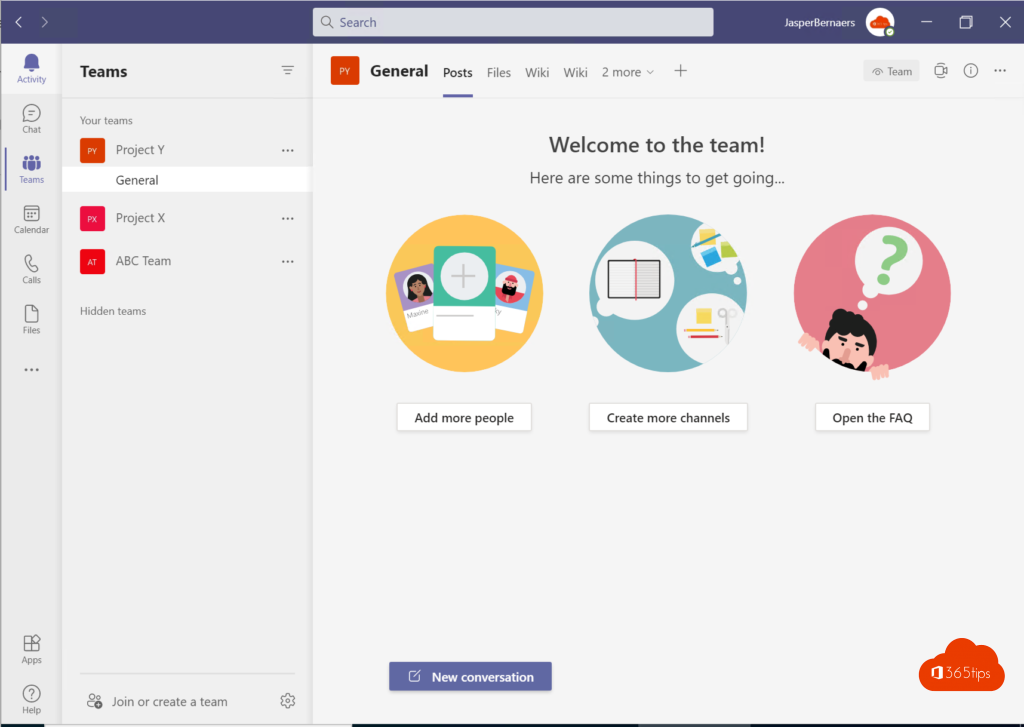
Restrict the General channel
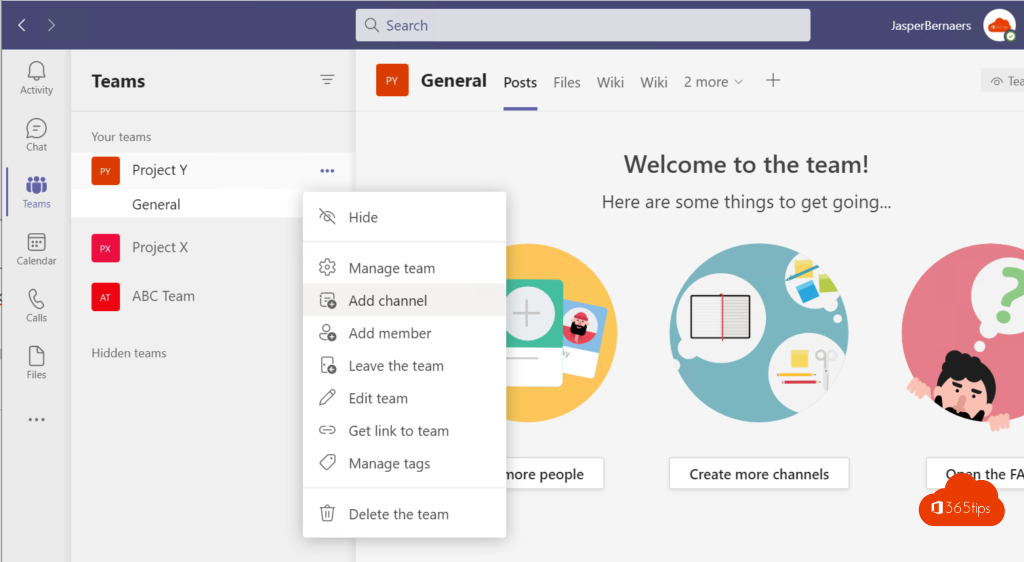
- Hover over the General channel > More options (...) > Manage channel.
- Under Settings, at Choose who can post messages, choose:
- Anyone can post messages (default),
- Anyone can post; show alert that posting will notify everyone, or
- Only owners can post messages.
Choose the last option. Members and guests can still read and reply to owners' posts, but can't start new conversations.

Moderate other channels
For other standard channels, turn on channel moderation in the same settings. There you pick moderators and decide whether members can reply. Limit guests further via Manage team > Settings > Guest permissions. See what owners, members and guests can do.
Read also
Owners, members and guests in Microsoft Teams: who can do what?
Disable guest access for one Microsoft Teams team
How to add external guests in Microsoft Teams
Nederlandstalige versie: Een gastteam maken en het kanaal Algemeen alleen-lezen maken