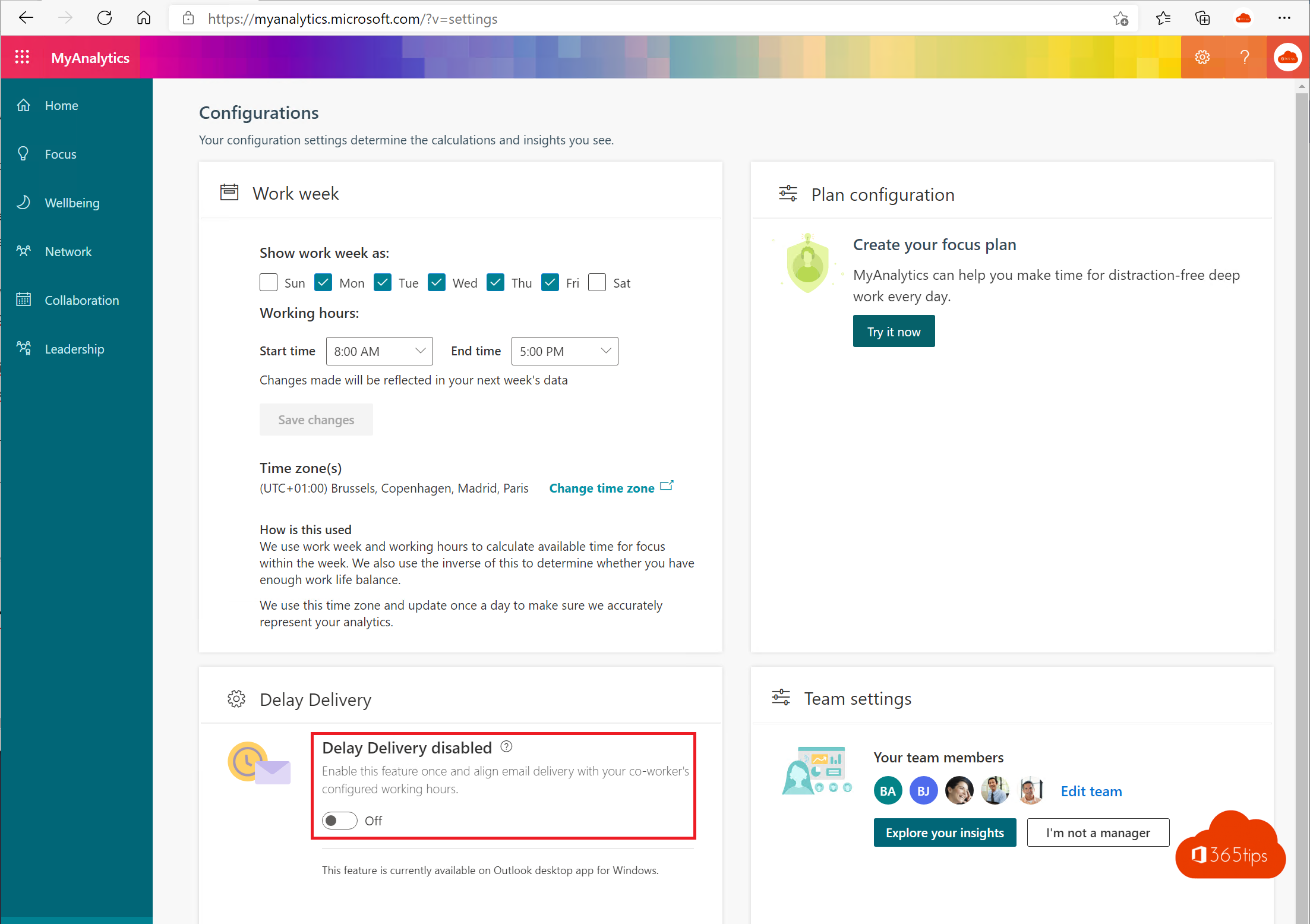
Sending an email late in the evening to a colleague in another time zone, or to someone who works part-time? Outlook suggests delivering the email later, when that colleague starts work again. That way you respect each other's working hours without setting a reminder yourself. MyAnalytics no longer exists: these suggestions now come from Microsoft Viva Insights in Outlook.
How does it work?
While you write an email, Viva Insights looks at the working hours and time zone of your recipients within your organization. Does the message fall outside their working hours? Then you see a suggestion to schedule it for a later time. If you accept, the email waits in your Outbox or Scheduled folder until then.
This only works for colleagues in your own organization, because Outlook needs to know their working hours.
What do you need?
- A Microsoft 365 license with Viva Insights. The personal Viva Insights features are included in most business plans. Check which license you have.
- Your admin hasn't turned off personal insights in Viva Insights.
- Your colleagues have set their working hours in Outlook.
Set your working hours
The suggestions only work well if everyone sets their working hours correctly.
New Outlook or Outlook on the web:
- Open Settings (the gear).
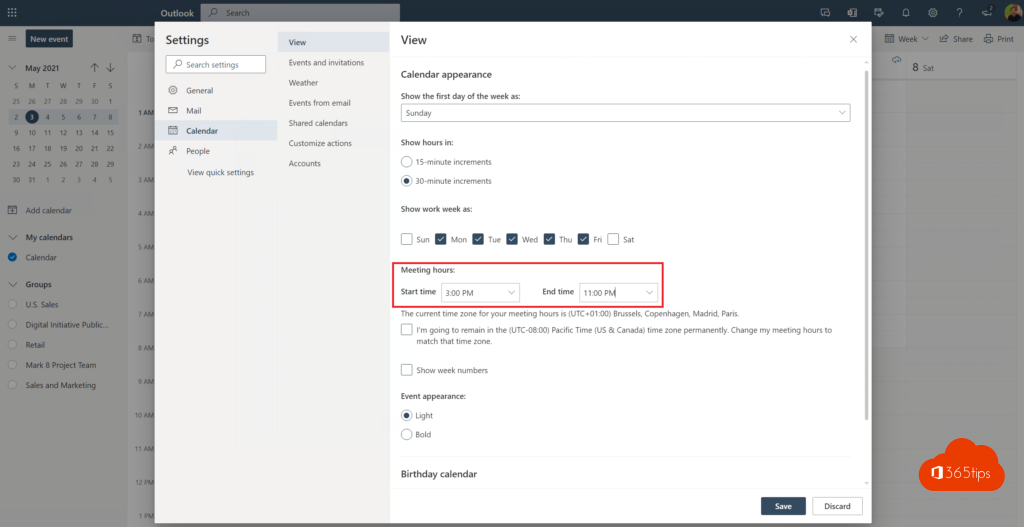
- Go to Calendar > Work hours and location.
- Choose your work days, hours and time zone.
- Select Save.
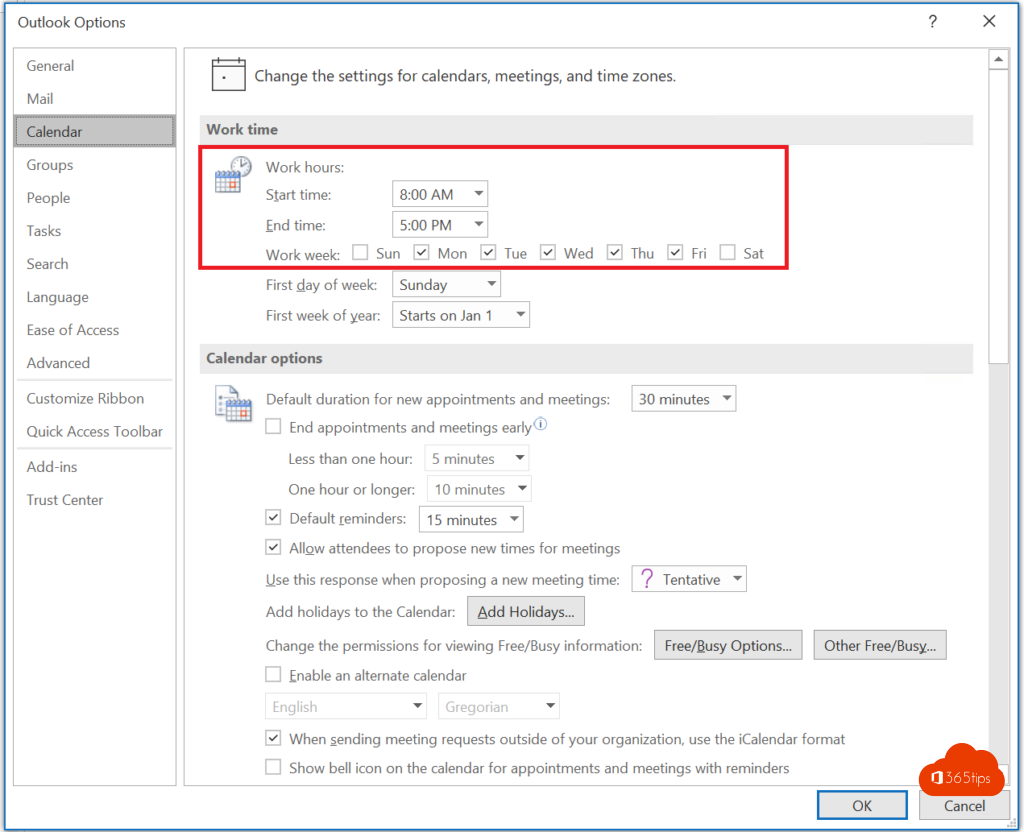
Classic Outlook: go to File > Options > Calendar and fill in your hours and work days under Work time.
Use delayed delivery
- Write your email as usual.
- See a Viva Insights suggestion with a proposed time, for example tomorrow 9:00 AM? Choose Schedule send.
- The email is sent automatically at that time.
Turn off the suggestions
Don't want these suggestions anymore? Open the Viva Insights app in Teams or on the web, go to settings and turn off the schedule send suggestions. The exact name of the option may differ per version.
Also see measure your productivity with Viva Insights, schedule or delay sending in Outlook and set work hours and location.
Read also
Track your personal productivity with Viva Insights (formerly MyAnalytics)
Schedule, delay or undo sending an email in Outlook
Set your work hours and work location in Outlook and Teams
Nederlandstalige versie: E-mails bezorgen tijdens de werkuren van je collega's