By default Windows hides the file extension: you see invoice instead of invoice.pdf. That looks tidier, but it is awkward when you want to change an extension, when two files have the same name, or when you want to know what you are actually opening. It is also a security risk: an attachment called invoice.pdf.exe shows up as invoice.pdf. This article shows four ways to show file extensions in Windows 11 and Windows 10, and how to show hidden files too.
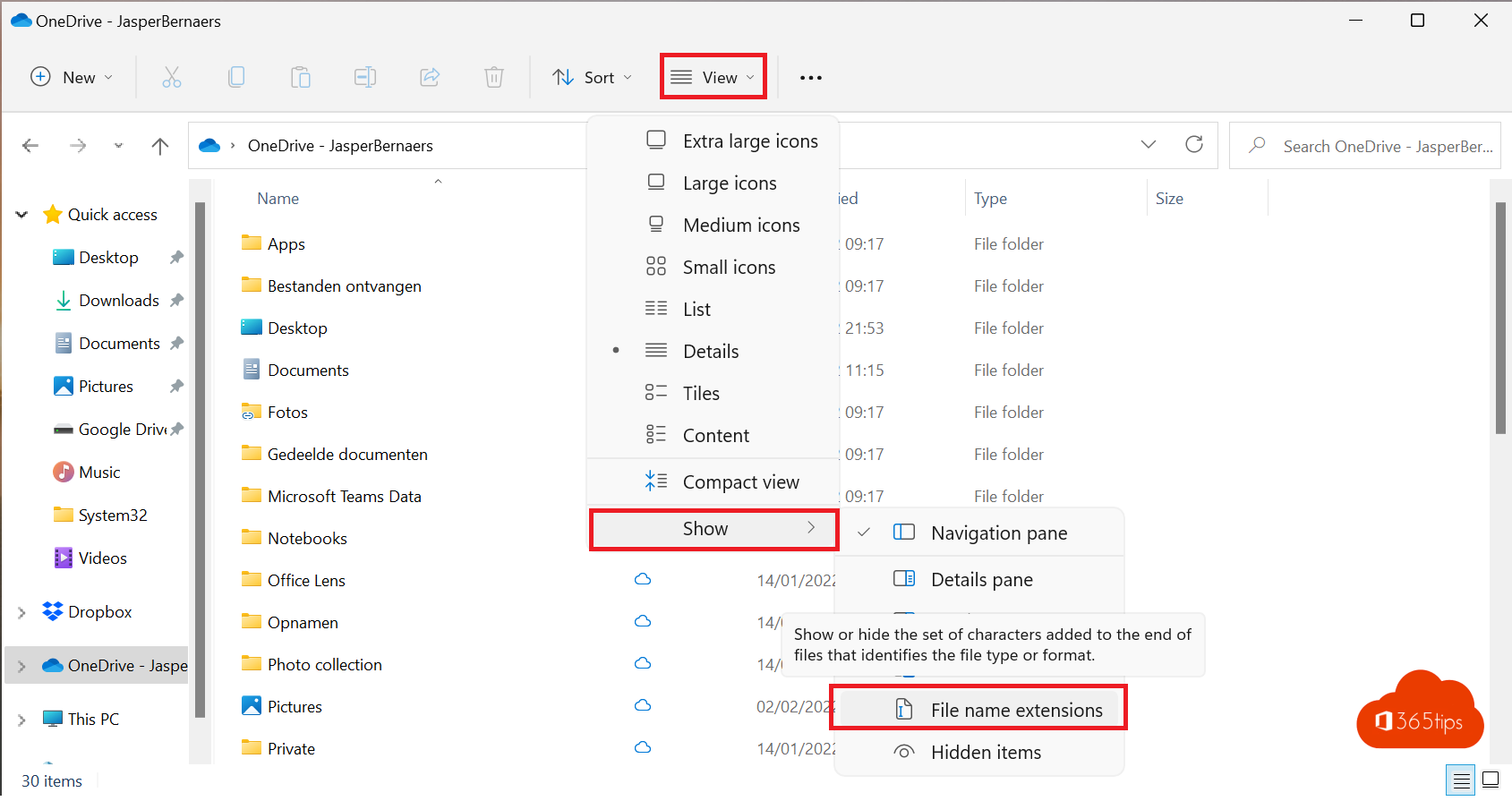
Method 1: the View menu in File Explorer
- Open File Explorer with Windows + E.
- Click View at the top.
- Go to Show and click File name extensions. A check mark appears.
Extensions now show in every folder. Click again to hide them.
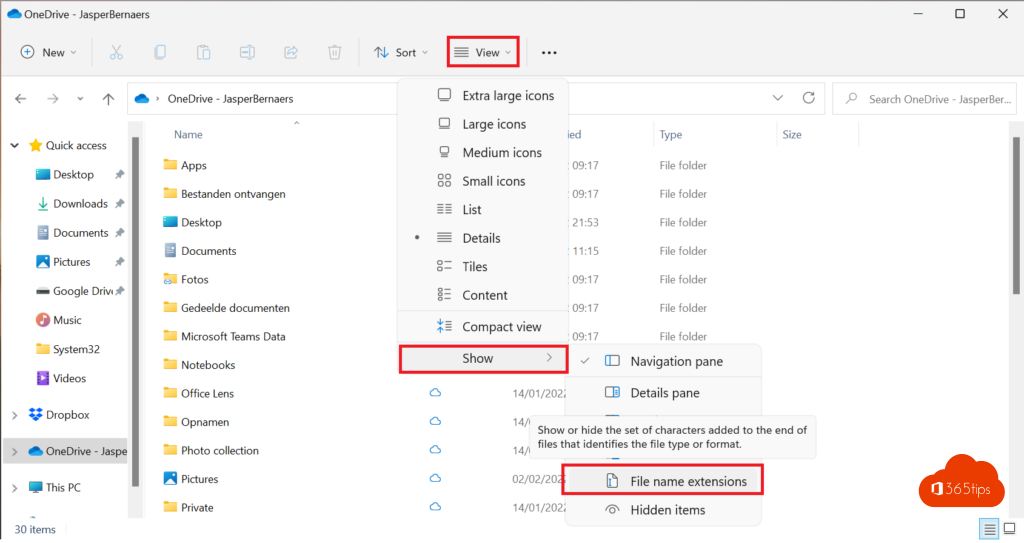
In Windows 10
Open File Explorer, click the View tab and tick File name extensions in the Show/hide group.
Method 2: Folder Options
The classic way works in every Windows version:
- In File Explorer click ... (See more) > Options. In Windows 10: View > Options. Or press
Windows + Rand typecontrol folders. - Open the View tab.
- Untick Hide extensions for known file types.
- Click OK.

Method 3: Settings (Windows 11)
In recent versions of Windows 11 the option is also in Settings:
- Open Settings > System > For developers.
- Expand File Explorer.
- Turn on Show file extensions. In the same place you can also show hidden and system files and the full path in the title bar.
Method 4: PowerShell or the registry
Handy in a script or for several users. This setting applies to the signed-in user:
Set-ItemProperty -Path "HKCU:\Software\Microsoft\Windows\CurrentVersion\Explorer\Advanced" -Name HideFileExt -Value 0Then restart File Explorer. -Value 1 hides extensions again. Administrators can roll out the same setting through Intune or Group Policy.
Show hidden files
Can't see a folder like AppData? It is hidden. In File Explorer go to View > Show > Hidden items. Windows system files stay hidden unless you also untick Hide protected operating system files in Folder Options > View. Only do that temporarily, and don't delete anything there.
Changing a file extension
With extensions visible you can change one: click the file, press F2 and edit the part after the dot. Windows asks you to confirm.
Note: changing the extension does not convert a file. A .heic photo doesn't become a real .jpg by renaming it; you need a converter for that, such as the free HEIC to JPG converter. Renaming is useful when an extension is wrong, for example a .txt that is really a .csv.
Why showing extensions is safer
Attackers hide malware in attachments with a double extension, such as quote.pdf.exe or scan.docx.js. With extensions hidden you only see quote.pdf and it looks like a normal document. With extensions visible it stands out immediately. Never open files ending in .exe, .js, .vbs, .scr, .bat or .lnk that you don't expect. That is why many security guidelines recommend showing extensions by default.
Read also
How to get the full (classic) right-click menu back in Windows 11
Find and delete large files in Windows 11 and 10: 5 ways
How to edit the hosts file in Windows 11 and Windows 10
Nederlandstalige versie: Bestandsextensies weergeven in de Verkenner van Windows 11 en 10