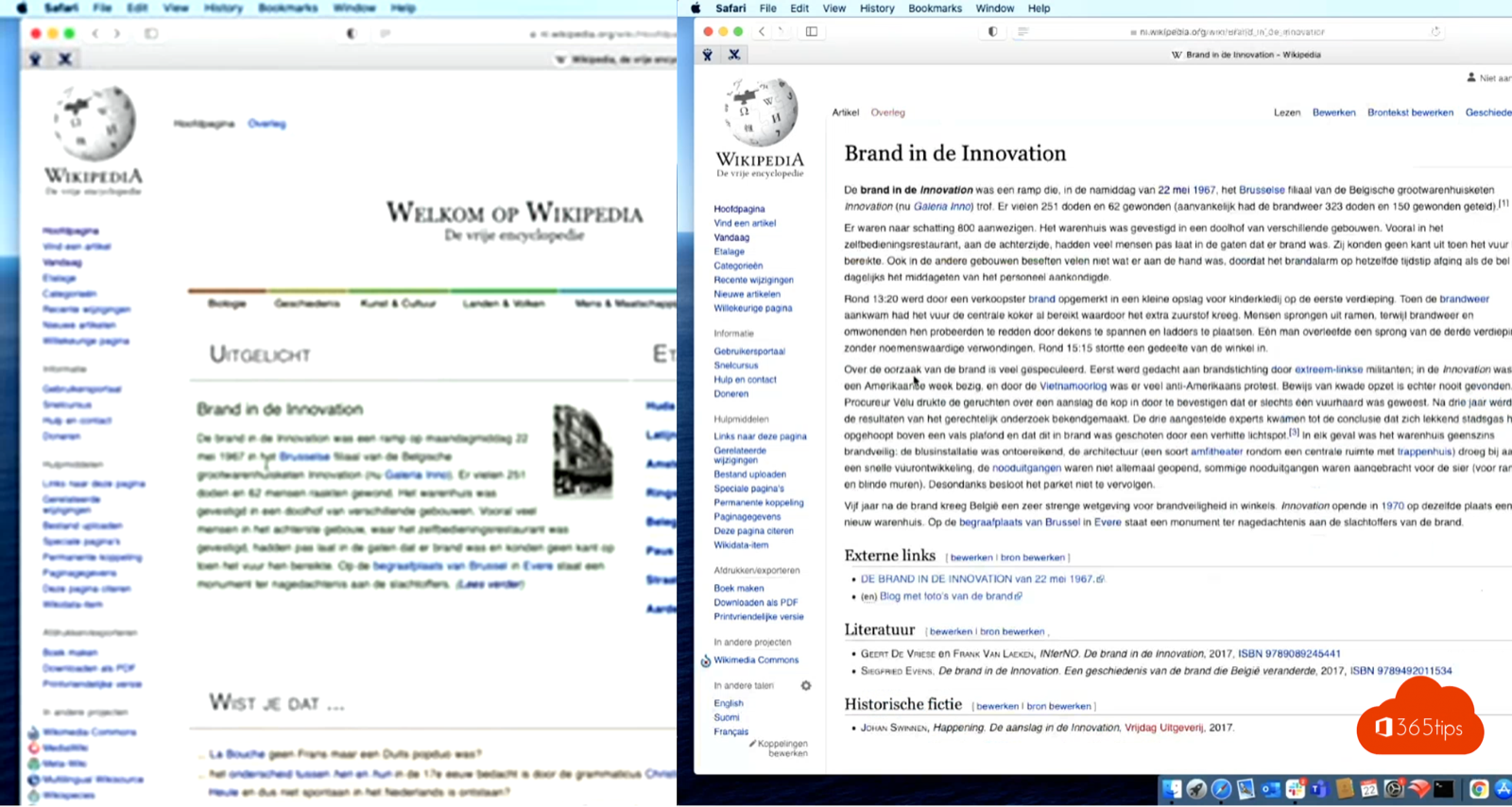
You recorded a Teams meeting, but the shared slides or your screen look blurry in the recording. That's usually down to how you share, not the recording itself. These tips get you a sharper recording.
Why is the recording blurry?
Teams records what attendees see. If you share a large, high-resolution screen or lots of movement, Teams lowers the quality to keep the connection stable. Small text quickly becomes unreadable.
Tips for a sharp recording
- Use PowerPoint Live instead of sharing your screen. Teams then sends the slides themselves. Read present PowerPoint in Teams the right way.
- Share one window instead of your whole screen.
- Lower the resolution of a 4K screen, or share from a regular display (1920 x 1080).
- Make text bigger: zoom in in your browser or app so text is large enough.
- Use a wired connection or stable Wi-Fi.
- Let someone with a good connection do the recording.
Need a high-quality recording?
For a training video, record locally instead, for example with screen recording in Windows 11 or Clipchamp. Then share the video in Teams or Stream. Also see record a Teams meeting and change recording playback speed.
Read also
Record, find and share a Microsoft Teams meeting
Present a PowerPoint in Teams with PowerPoint Live
Record your screen in Windows 11 without extra software
Nederlandstalige versie: Een scherpere opname van een Teams-vergadering maken