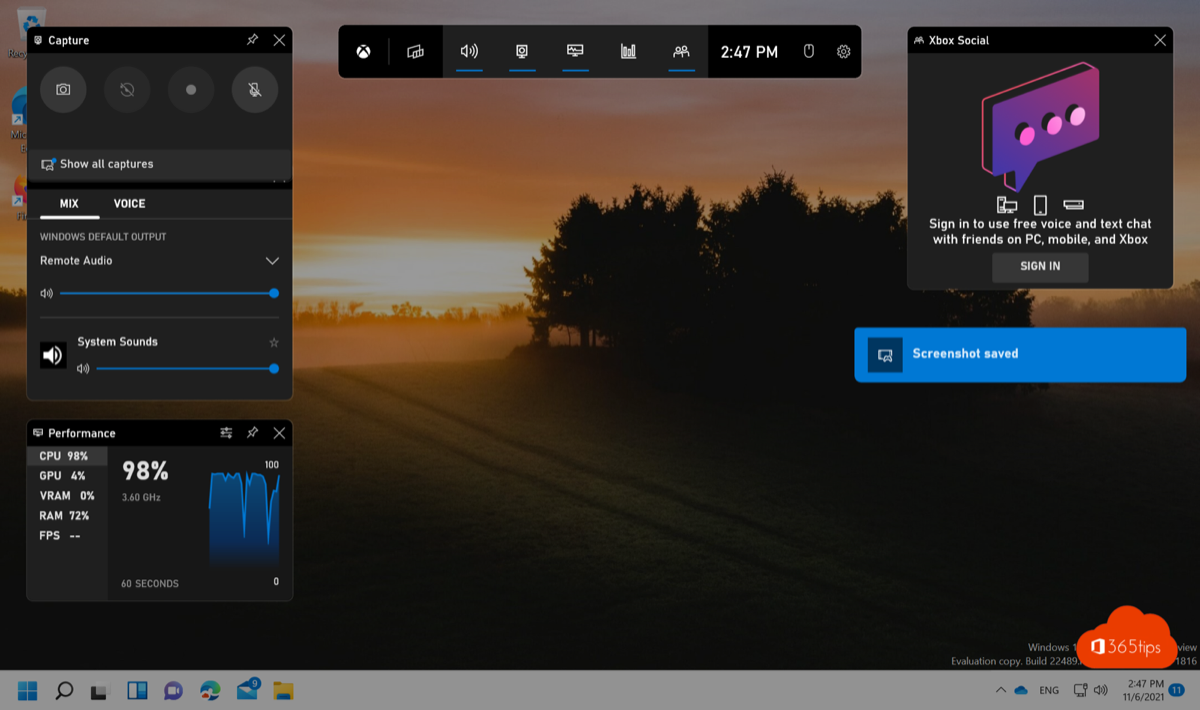
Need a short screen recording of an error, an explanation for a colleague or a piece of a game? In Windows 11 you don't need to install anything. There are two built-in tools: the Xbox Game Bar (Windows key + G) and the Snipping Tool, which records video too. This article covers which one to use, the shortcuts, where recordings are saved and how to trim them.
Game Bar or Snipping Tool?
| Xbox Game Bar | Snipping Tool | |
|---|---|---|
| Shortcut | Windows + Alt + R (start/stop recording) | Windows + Shift + R |
| What it records | One app window or game | Any part of the screen, including the desktop and File Explorer |
| Sound | System sound and microphone | System sound and microphone (configurable) |
| Saved in | Videos\Captures | Videos\Screen Recordings |
| Best for | Games, one program | Explanations, error messages, demos |
Record with the Snipping Tool
- Press Windows + Shift + R, or open the Snipping Tool and choose the video icon.
- Drag a frame around the part of the screen you want to record.
- Choose whether to record your microphone and system audio.
- Select Start. After a short countdown recording begins.
- Select Stop. The recording opens in the Snipping Tool, where you can watch, copy or save it.
Record with the Game Bar
- Open the app or game you want to record.
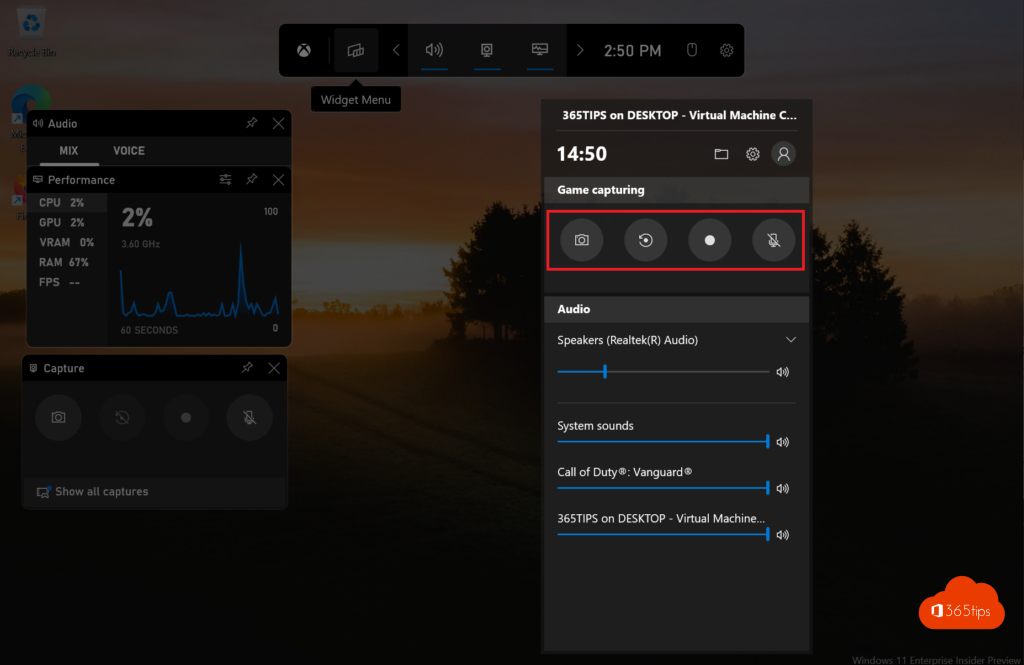
- Press Windows + G to open the Game Bar and select the record button in the Capture widget. Or press Windows + Alt + R directly.
- A small window with the recording time appears at the top right. Stop with the same shortcut or the stop button.
Windows + Alt + G saves the last 30 seconds when background recording is on under Settings > Gaming > Captures.
Why doesn't the Game Bar work?
- The Game Bar doesn't record the desktop or File Explorer, or several windows at once. Use the Snipping Tool instead.
- If the Game Bar is off, turn it on under Settings > Gaming > Xbox Game Bar.
- On managed company PCs your admin may have disabled the Game Bar.
Trim and share
Open the recording in Clipchamp (included with Windows 11) to cut the start and end, add text or blur part of it. Share videos with colleagues through OneDrive or a Teams chat rather than as an email attachment. See also clipboard history in Windows 11 and snap windows side by side.
Read also
How to view and use clipboard history in Windows 11 and 10 (Windows + V)
How to put windows side by side in Windows 11 with Snap
How to show file extensions in File Explorer in Windows 11 and 10
Nederlandstalige versie: Een schermopname maken in Windows 11 zonder extra software