On holiday, at a training or off sick: with an automatic reply (Out of Office), people emailing you know right away that you're away and who to contact instead. This article shows how to set an out-of-office message in the new Outlook, on the web, in classic Outlook and on your phone.
In the new Outlook and on the web
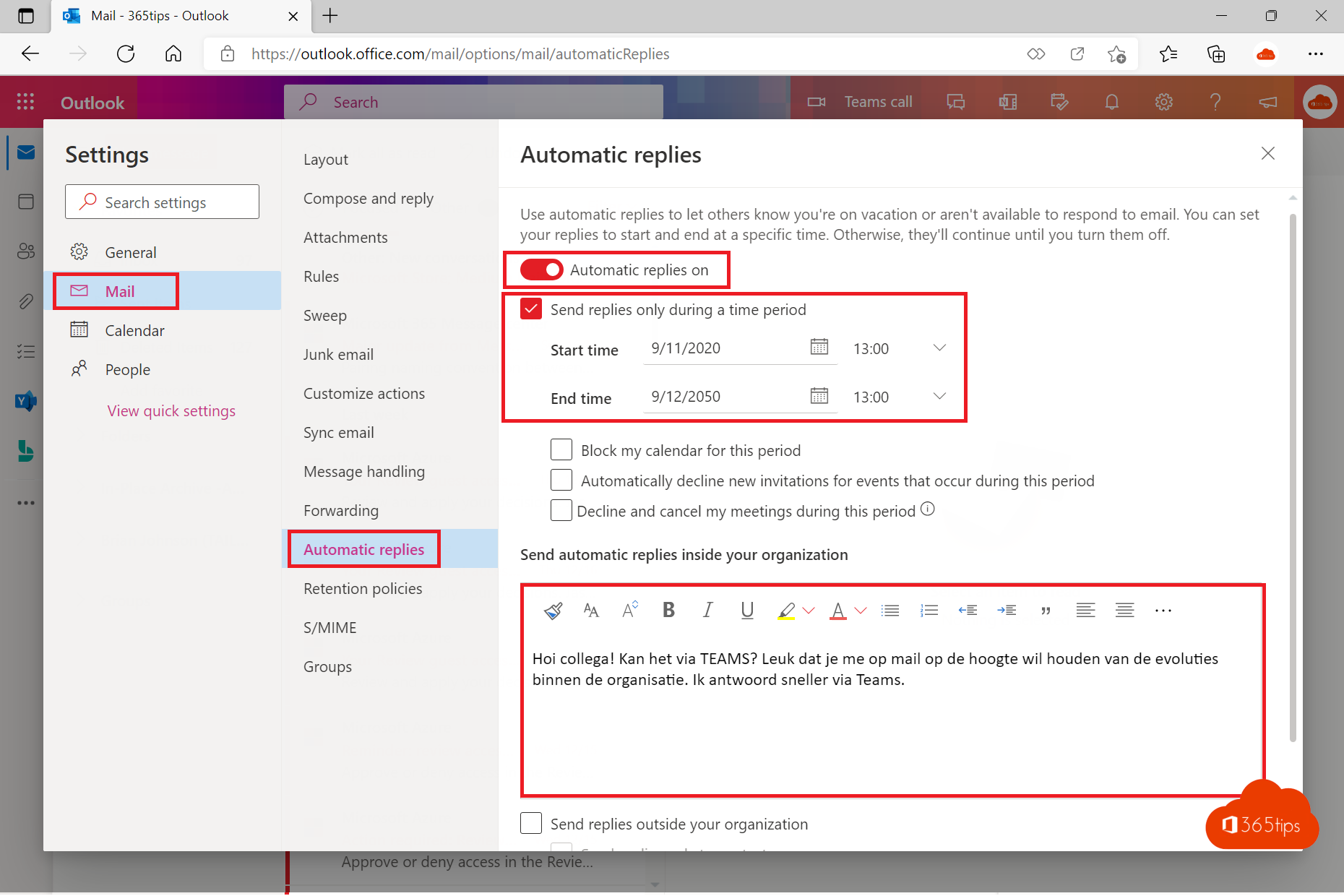
- Select Settings (gear) > Accounts > Automatic replies.
- Turn on Turn on automatic replies.
- Tick Send replies only during a time period and choose the start and end dates.
- Optionally tick Block my calendar, Automatically decline new invitations and Decline and cancel my meetings.
- Type your message for people inside your organisation, and a separate one for external senders.
- Select Save.
In classic Outlook
Go to File > Automatic Replies > Send automatic replies. Choose the time range and fill in the Inside My Organization and Outside My Organization tabs.
On your phone
In the Outlook app, tap your profile picture > Settings > your account > Automatic Replies.
And in Teams?
Your out-of-office message also shows up automatically next to your name in Teams. You can set it there too: select your profile picture > Set status message > Schedule out of office. Read how to set out of office in Teams.
Example text
Thank you for your email. I'm out of the office until Monday 3 November and won't be reading email. For urgent questions, please contact Sarah Peters (sarah@contoso.com). I'll reply as soon as possible after my return.
Tips
- Don't share details about why or where you are with external senders.
- Managing a shared mailbox like info@? Read set an automatic reply on a shared mailbox.
- Admins can set an automatic reply for a colleague in the Microsoft 365 admin center > Users > Mail > Automatic replies.
Read also
How to set out of office and a status message in Microsoft Teams
How to set out of office on a shared mailbox in Microsoft 365
Share your Outlook calendar with colleagues or external people
Nederlandstalige versie: Een automatisch antwoord (Out of Office) instellen in Outlook