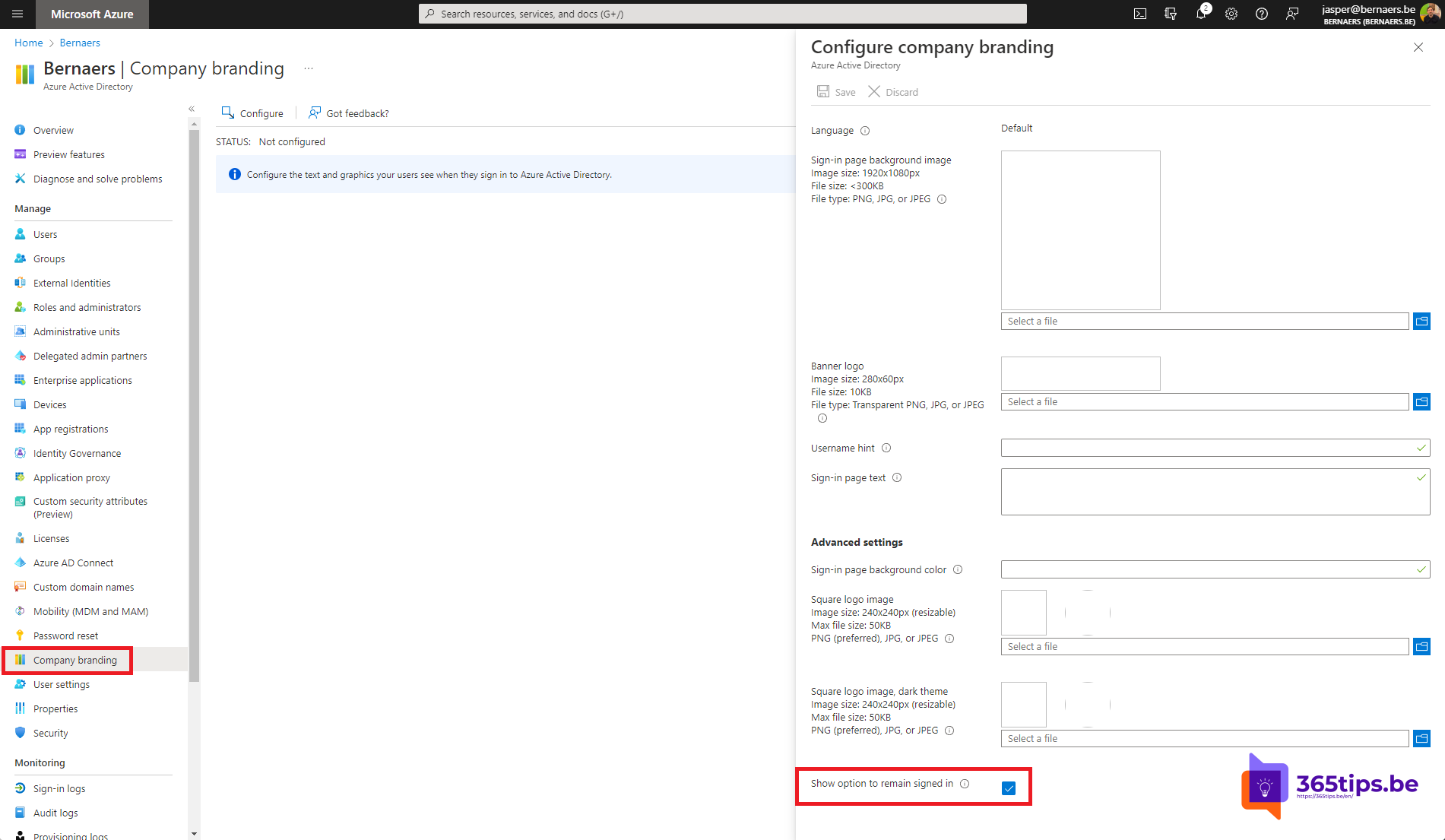
After signing in to Microsoft 365 you often get the question "Stay signed in?". Choose Yes and that browser asks you to sign in less often. For some organizations that's convenient, for others it's a risk, for example on shared PCs or in classrooms. This article explains what the prompt actually does, how to hide it for everyone with company branding in Microsoft Entra ID, and which alternatives you have.
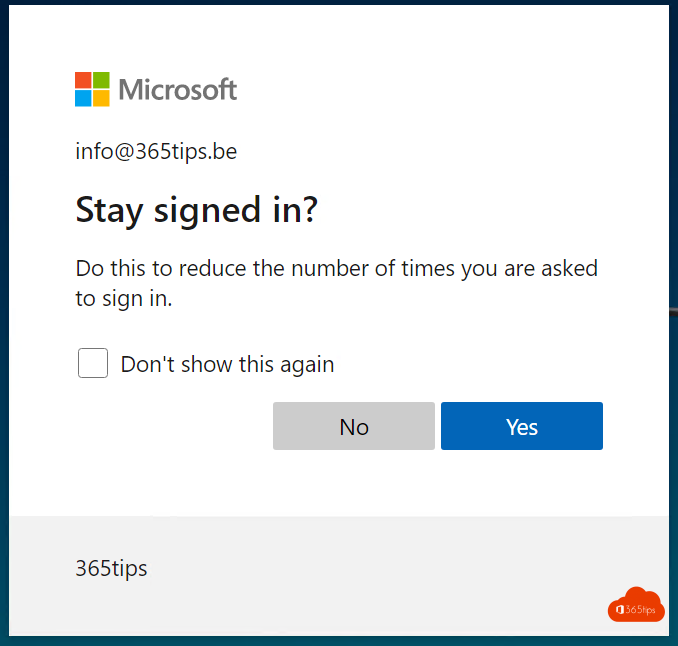
What does "Stay signed in?" do?
- Choose Yes and the browser keeps a persistent cookie. After closing and reopening the browser you're still signed in.
- Choose No and the sign-in is gone as soon as you close all browser windows.
- The checkbox Don't show this again remembers your choice for that browser.
The prompt doesn't appear when Microsoft detects a risk, or when you're already signed in automatically with single sign-on on an Entra-joined device or in Edge with automatic sign-in.
Hide it or keep it?
| Situation | Advice |
|---|---|
| Shared PCs, kiosks, classrooms | Hide it: nobody stays signed in by accident |
| Managed laptops with single sign-on | Hardly matters: users rarely see the prompt |
| Users complaining about signing in too often, without SSO | Keep it, or better: introduce SSO |
Hide the prompt for everyone
You need the Organizational Branding Administrator or Global Administrator role, and a license that includes company branding: Microsoft Entra ID P1 or P2, or a Microsoft 365 or Office 365 subscription.
- Go to the Microsoft Entra admin center.
- Choose Identity (or Entra ID) > User experiences > Company branding.
- Under Default sign-in experience, select Edit.
- Open the Sign-in form tab.
- Clear the checkbox Show option to remain signed in.
- Select Review + save > Save.
The change shows up after a few minutes to an hour. If you have separate branding per language, check those versions too.

What do users notice?
- They no longer get the prompt and never stay signed in after closing the browser.
- On devices with single sign-on they notice nothing: they're signed in again automatically.
- Users without SSO sign in more often, and so go through MFA more often. Explain that in advance.
Alternative: Conditional Access
With Entra ID P1 you can control this more precisely with Conditional Access. Under Session, choose Persistent browser session: Always persistent or Never persistent. Combined with a condition you can, for example, allow persistent sessions on managed devices and block them everywhere else. With Sign-in frequency you also decide after how many hours or days someone has to sign in again. A Conditional Access policy takes precedence over the branding setting. See also security defaults in Microsoft Entra ID.
Read also
Security defaults in Microsoft Entra ID: what they do and how to enable them
App passwords in Microsoft 365: create, delete and replace them
How to set the password expiration policy in Microsoft 365
Nederlandstalige versie: De vraag "Aangemeld blijven?" uitschakelen in Microsoft 365