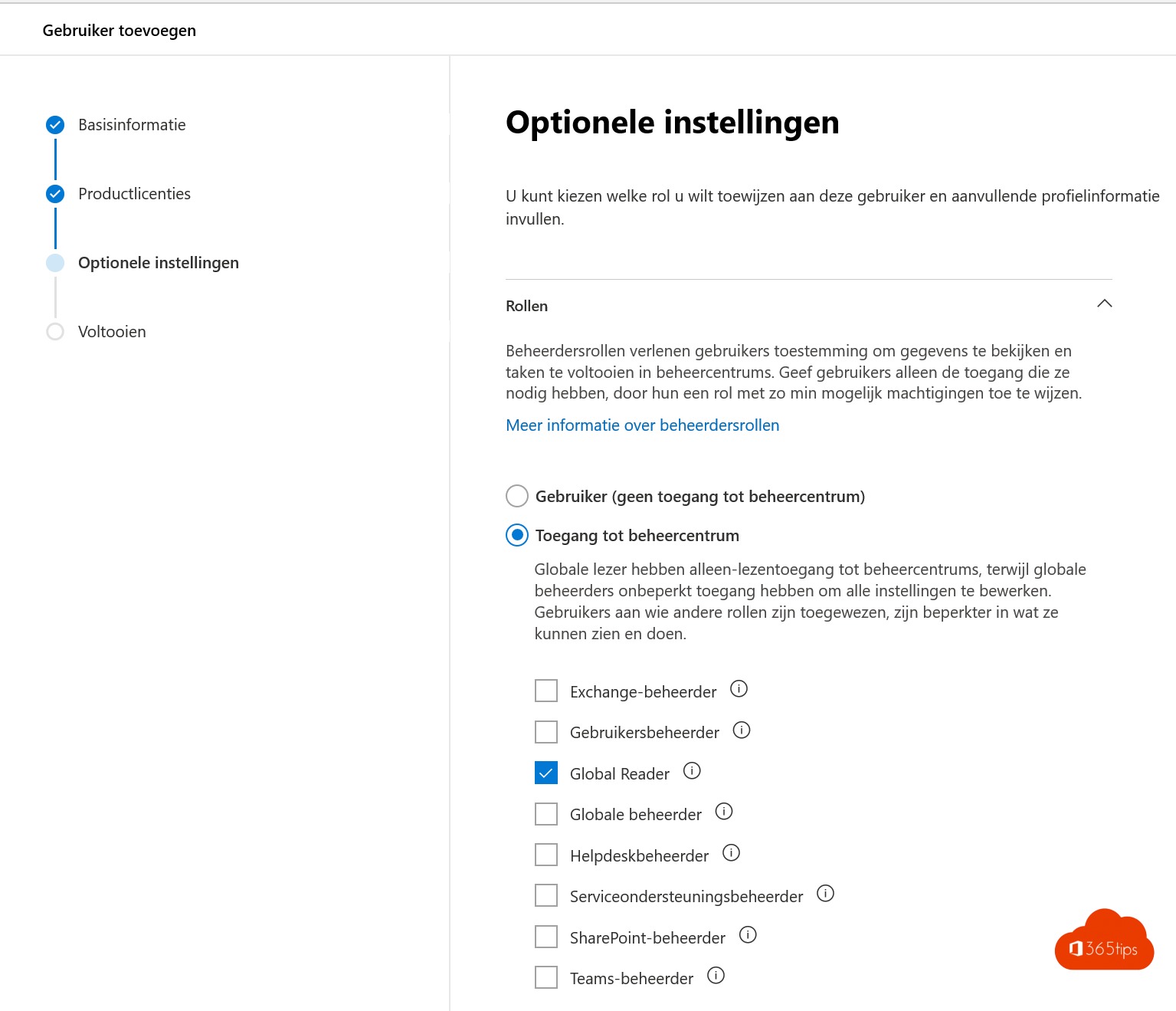
An IT partner or auditor wants to look at your Microsoft 365 environment, but you don't want to hand over full admin rights straight away. That's what the Global Reader role is for. It sees every setting in the admin centers but can't change anything. This article shows how to assign the role and which safer options exist for an external partner.
What can a Global Reader do?
- View all admin settings in Microsoft 365, Entra ID, Exchange, Teams, SharePoint, Intune and Defender.
- View reports, logs and Secure Score.
- Change nothing, reset no passwords, and read no users' email or files.
Not every admin page fully supports the role. Sometimes you'll see a button that doesn't work or a message that you have no access.
Assign the role
- Go to entra.microsoft.com > Identity > Roles & admins.
- Search for Global Reader and select it.
- Select Add assignments and choose the user.
You can also do it in the Microsoft 365 admin center > Users > select the user > Manage roles.
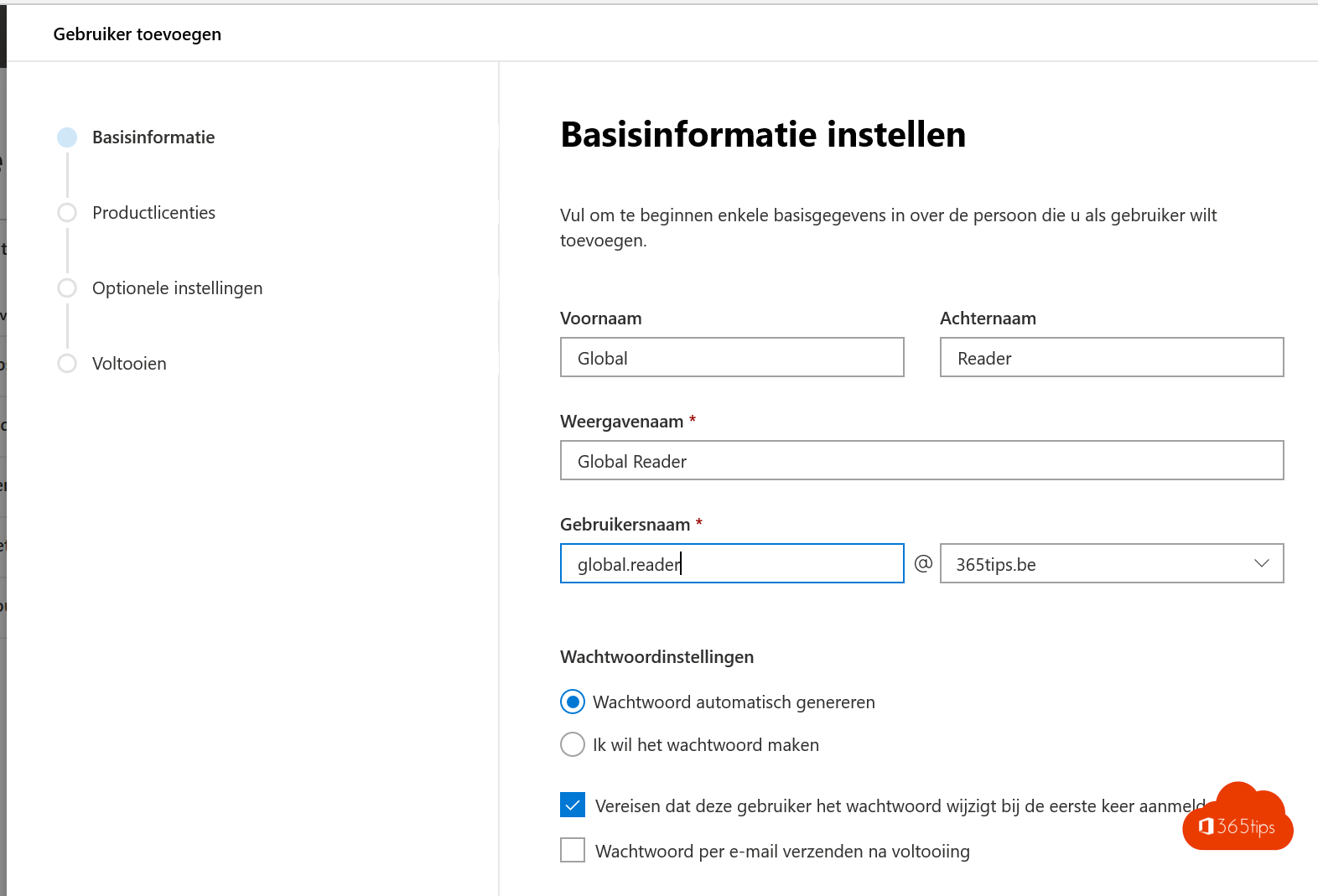
For an external IT partner
- GDAP (Granular Delegated Admin Privileges): if your partner works with Microsoft Partner Center, have them request a GDAP relationship with only the roles needed and an end date. They use their own account.
- Own account in your tenant: create a separate account, require MFA and don't assign a licence unless needed.
- PIM (Privileged Identity Management, Entra ID P2): make the role eligible instead of permanent. The partner activates it only when needed, with a reason and a time limit.
- Remove access as soon as the job is done.
Other roles
If your partner needs more than read access, pick a specific role such as Exchange Administrator or Helpdesk Administrator instead of Global Administrator. See admin roles in Microsoft 365 and all Microsoft 365 admin portals.
Read also
Assign admin roles in Microsoft 365
All Microsoft 365 admin portals in one list: the right URLs in 2026
Security defaults in Microsoft Entra ID: what they do and how to enable them
Nederlandstalige versie: De rol Globale lezer toekennen in Microsoft 365