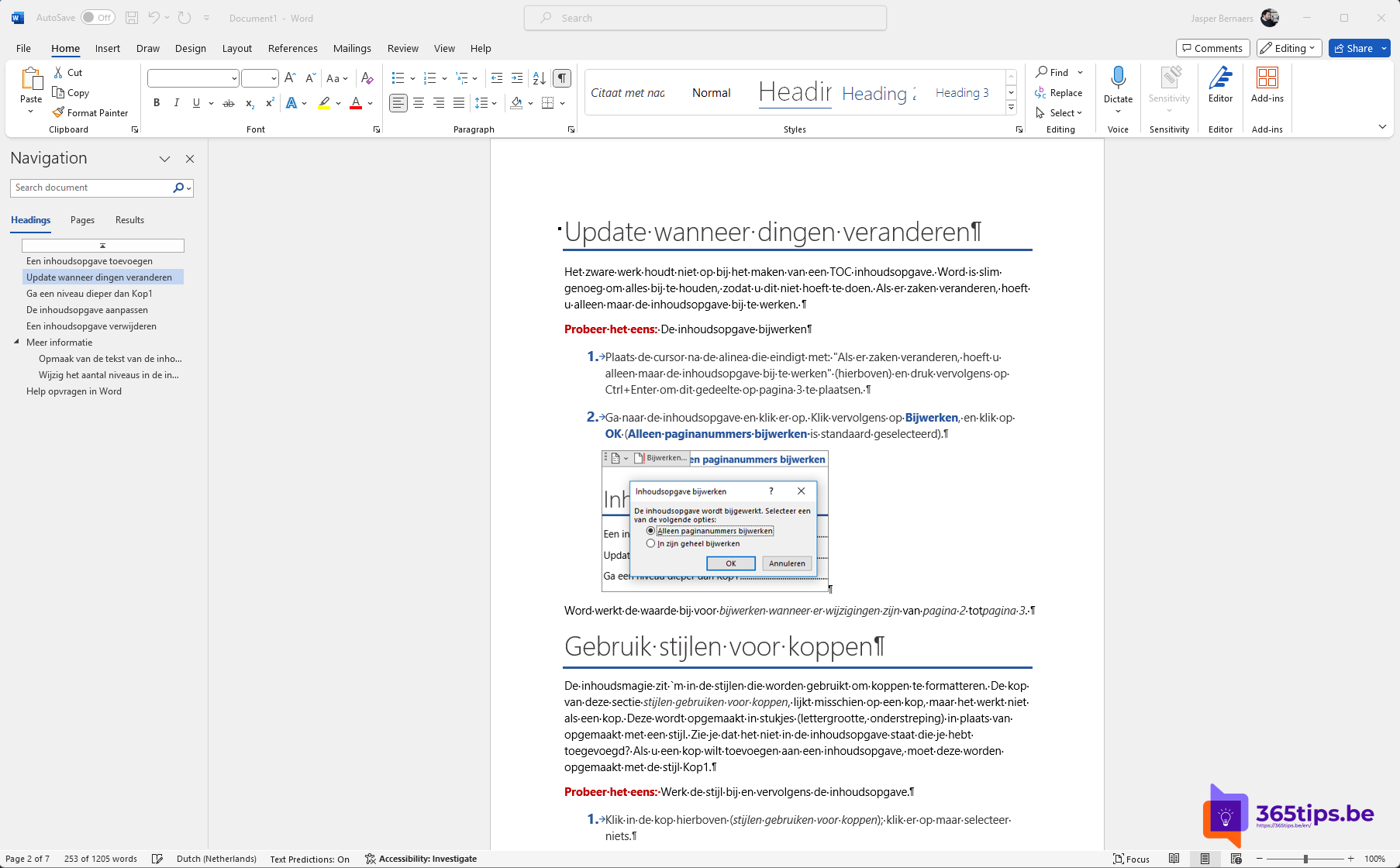
A blank page at the end of your document that just won't go away, or a page of text you want to remove in one go? Word has no Delete page button, but these tricks always work. This article shows how to delete a page with content and how to get rid of a stubborn blank page.
Delete a page with content
- Click anywhere on the page.
- Press Ctrl + G (Go To), type \page and press Enter. Word selects the whole page.
- Select Close and press Delete.
Or select the text with your mouse and press Delete. With View > Navigation Pane > Pages you quickly find the right page.
Delete a blank page
First turn on formatting marks: Ctrl + Shift + 8 (or the ¶ button on the Home tab). Now you can see what causes the blank page.
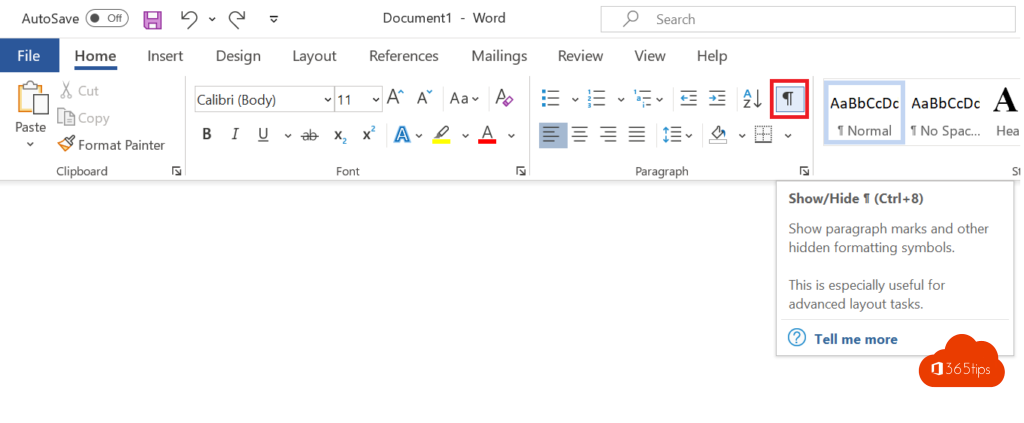
- Empty paragraphs (¶): select them and press Delete.
- Page break: click just before Page Break and press Delete.
- Section break: delete it, but note that the formatting of the following section (such as landscape pages or different headers) may change.
- Table at the end: Word always adds a paragraph after a table. You can't delete it, but you can make it tiny. Select the ¶ mark, set the font size to 1 and the line spacing under Paragraph to exactly 1 pt.
Other causes
- Paragraph settings: Page break before or Keep with next can push text to a new page. Check under Paragraph > Line and Page Breaks.
- Booklet printing or double-sided printing with an odd page count can show an extra blank page in print preview; it isn't in the document itself.
Only in the PDF?
See the blank page only in a PDF? Under Save as PDF > Options, choose a page range without that page. Read save a Word document as PDF. Lost unsaved work? See recover unsaved Word files.
Nederlandstalige versie: Een pagina of lege pagina verwijderen in Microsoft Word