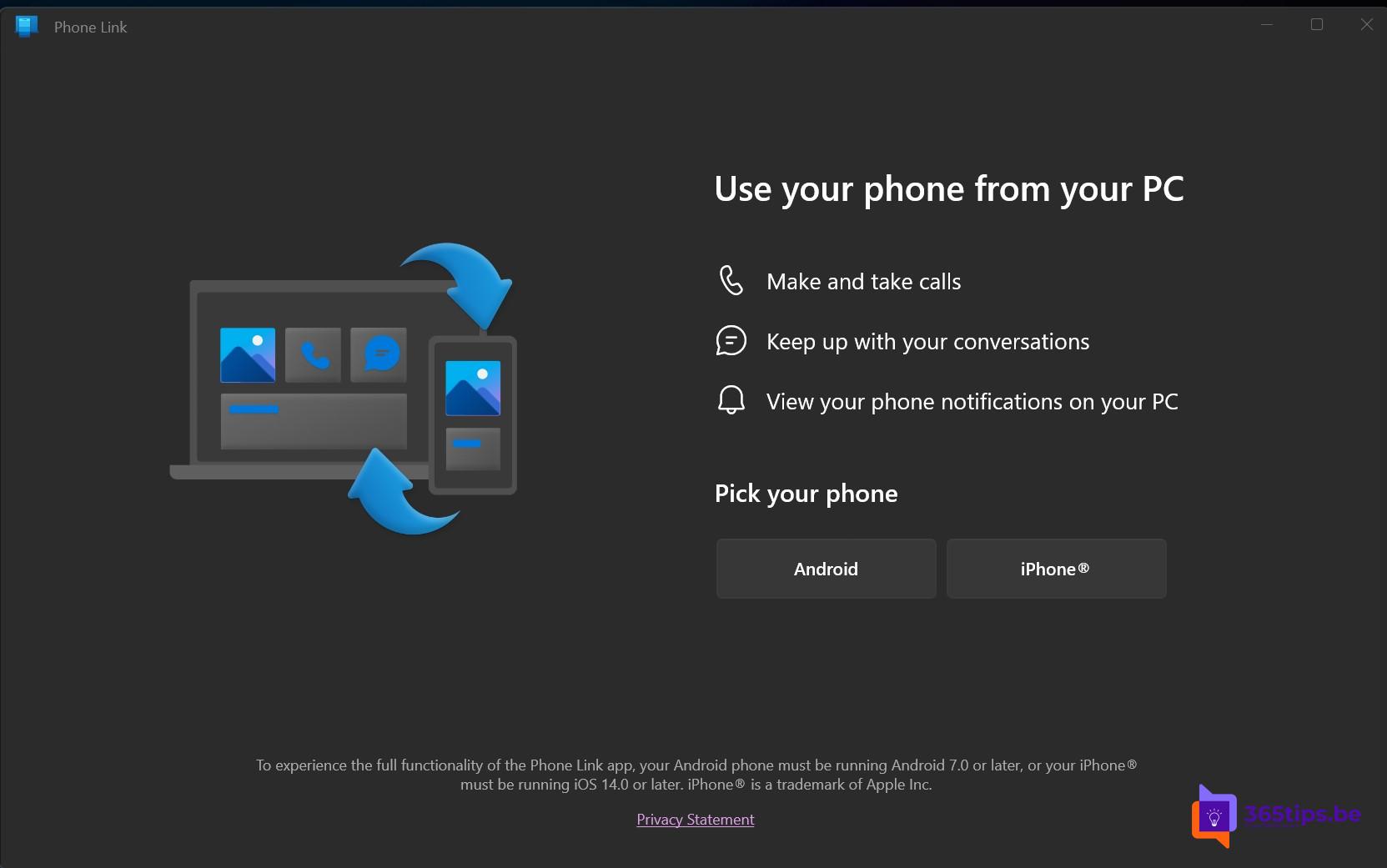
With Phone Link you connect your smartphone to your Windows 11 PC. With an iPhone you can read messages, make calls and see notifications on your computer. Phone Link for iPhone is available to Windows 11 users, but it offers fewer features than with an Android phone. Here is how to set it up and what does and doesn't work.
What can you do with an iPhone?
- Make and take calls through your PC.
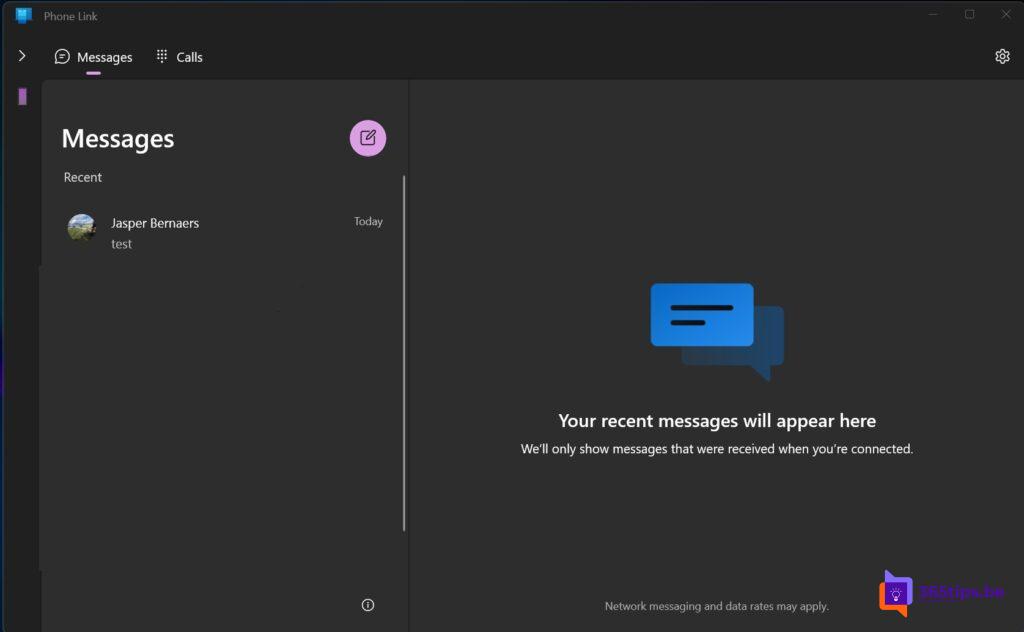
- Read and send messages, with limits: group chats and sending photos or videos are not or only partly supported.
- See your iPhone's notifications on your PC.
- Use your contacts.
With an Android device you can usually do more, such as viewing photos and opening apps on your PC.
Set up Phone Link with your iPhone
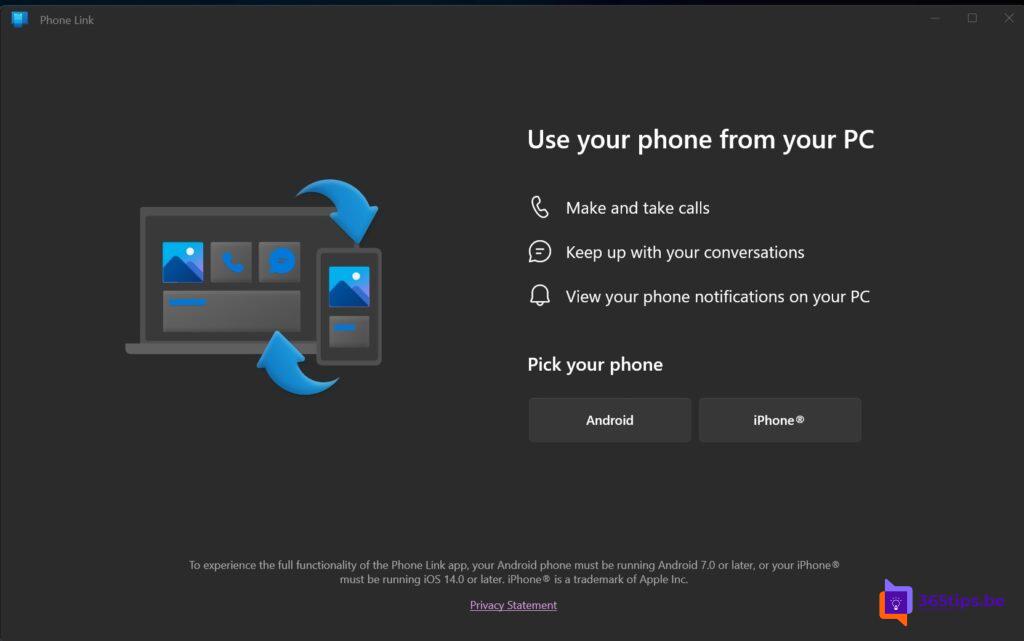
- Open the Phone Link app on your PC. Not there? Install it from the Microsoft Store.
- Choose iPhone.
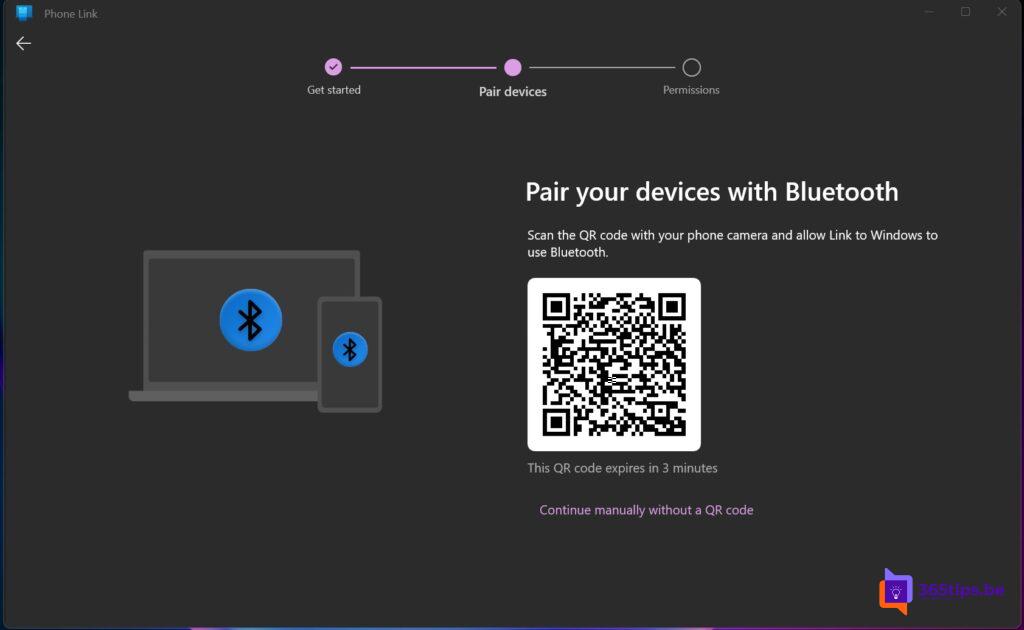
- Scan the QR code with your iPhone camera and follow the steps.
- Pair your iPhone over Bluetooth and confirm the code on both devices.
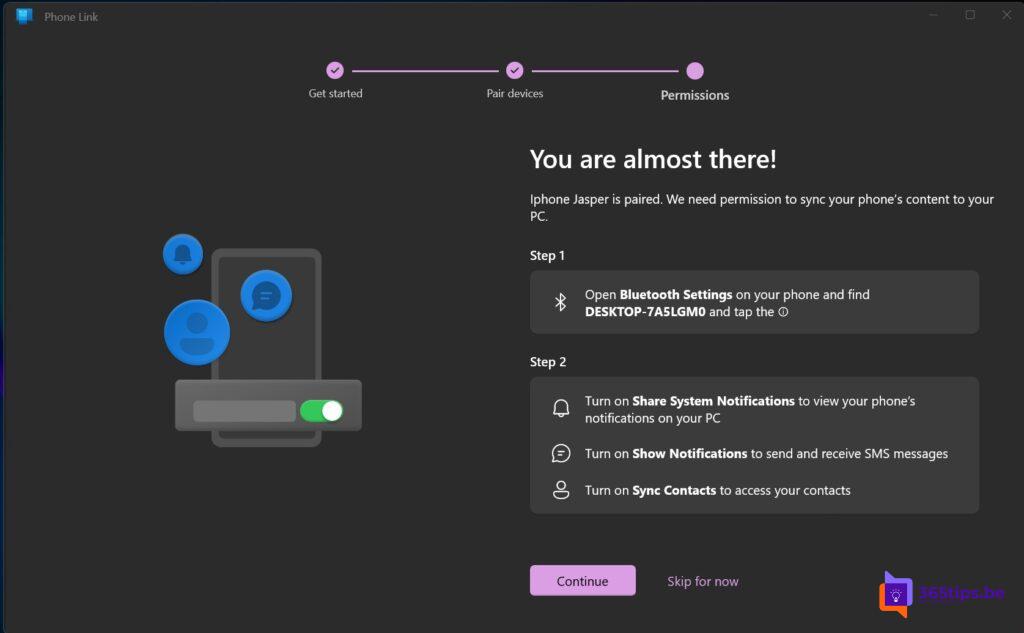
- On your iPhone, allow notifications and contacts in the Bluetooth settings.
Not working?
- Check that Bluetooth is on for both devices and that they're close together.
- Update Windows and the Phone Link app.
- On a work PC, your IT department may have disabled Phone Link.
Also see Windows 11 productivity tips and Android apps on Windows 11.
Read also
Seven tips to work more productively in Windows 11
Android apps on Windows 11: the subsystem is gone, here are the alternatives
The most useful keyboard shortcuts for Windows 11
Nederlandstalige versie: Phone Link (Telefoonkoppeling) met je iPhone gebruiken op Windows 11