With Microsoft Forms you quickly create a form, survey or quiz. You can also use Forms in Microsoft Teams and in PowerPoint. Don't see Forms in PowerPoint? Then your admin probably hasn't made the add-in available yet. Here's how to use Forms and how an admin turns it on.
Use Forms in Teams
A form as a channel tab
- Open the channel and select the plus sign at the top (Add a tab).
- Choose Forms.
- Create a new form or pick an existing one.
- Choose whether team members can fill in the form, edit it, or only see the results.
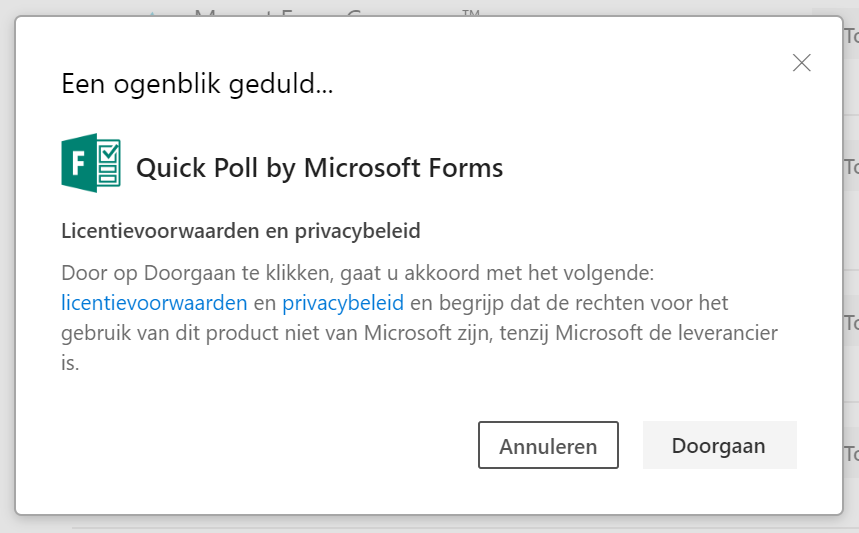
A quick poll
In a chat, channel or meeting, use the Polls app, which replaces the older Forms polls in Teams. More in polls in Microsoft Teams.
Forms in PowerPoint
With Forms in PowerPoint you put a quiz or survey right into your presentation.
- Open your presentation in PowerPoint.
- Select Insert > Forms. If the button isn't there, search for Microsoft Forms under Add-ins.
- Pick an existing form or create a new one, and insert it on a slide.
Can't find Forms anywhere, or get a message that add-ins are blocked? Then your admin needs to make the add-in available.
Make Forms available as an admin
- Go to the Microsoft 365 admin center (admin.microsoft.com).
- Open Settings > Integrated apps. This used to be called Add-ins or centralized deployment.
- Select Get apps or Upload custom apps and look for Microsoft Forms.
- Choose who the add-in is available to: everyone, specific users or groups.
- Finish the deployment.
It can take a few hours before the add-in shows up for users. Sometimes they need to restart PowerPoint.
Get started with Forms
Go to forms.office.com to create forms, view responses and export them to Excel. Also see create and share a form with Microsoft Forms.
Read also
Create and share a form or quiz with Microsoft Forms
Create polls in Microsoft Teams with Polls and Microsoft Forms
How to create an instant poll in a Teams meeting
Nederlandstalige versie: Microsoft Forms gebruiken in Teams en PowerPoint