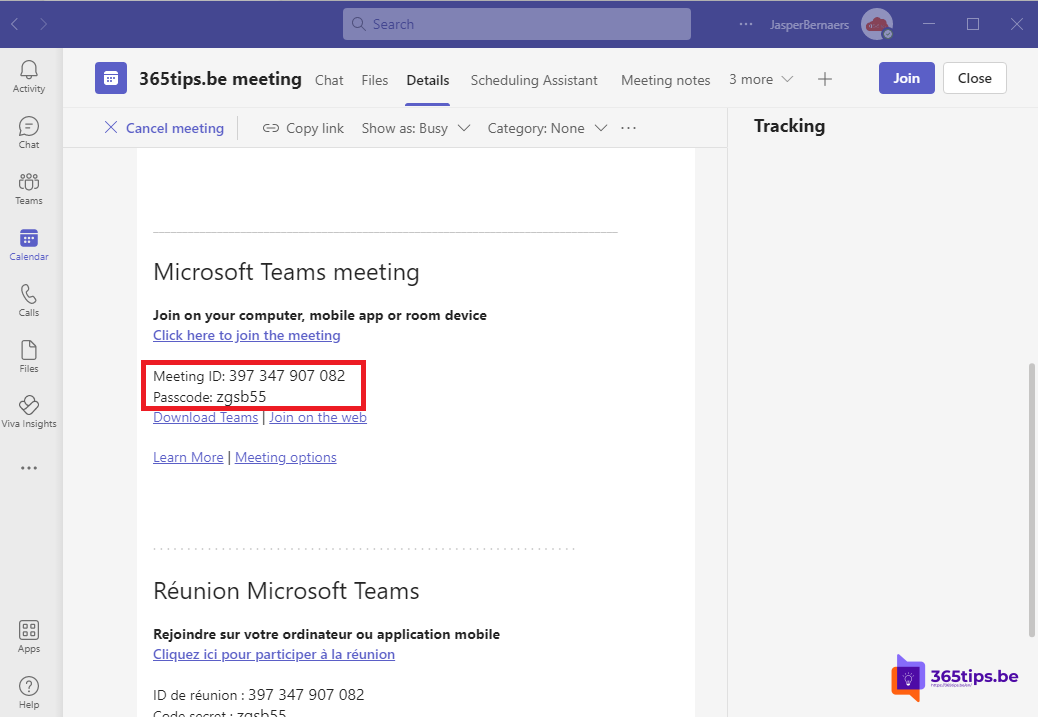
No link at hand, but you do have a meeting ID and passcode? Every Teams meeting has them, at the bottom of the invitation. Use them to join from the app, the browser or a meeting room with Teams Rooms. This article shows how.
Where's the ID?
At the bottom of every invitation, under the link, you'll find Meeting ID (a series of digits) and Passcode (letters and numbers). Organisers also see them in the meeting details in their calendar.

Join in the Teams app
- Open Calendar in Teams.
- Select Join with an ID at the top.
- Type the meeting ID and passcode.
- Select Join meeting.

In the browser
Go to teams.microsoft.com/meet (or Microsoft's join page), type the ID and passcode and choose whether to join in the browser or the app. No account needed; you'll wait in the lobby first.
In a Teams Rooms meeting room
On the room's screen, tap Join with an ID, type the ID and passcode and tap Join. Handy for meetings that aren't on the room's calendar.
Dial in
If the meeting has a dial-in number (with an Audio Conferencing licence), it's in the invitation too, with its own phone conference ID. That's a different number from the meeting ID.
Tips
- Only share the ID and passcode with people who may join, just like the link. Read prevent forwarding.
- Scheduling a meeting yourself? Read schedule a Teams meeting.
- External? See join as an external guest.
Read also
Join a Microsoft Teams meeting as an external participant
Schedule a Microsoft Teams meeting in your calendar
Prevent a Teams meeting invite from being forwarded
Nederlandstalige versie: Deelnemen aan een Teams-vergadering met een vergader-ID en wachtwoordcode