Every device in Intune has a primary user: usually the person who enrolled it. When a laptop moves to a colleague, that's no longer right. It matters, because the primary user determines who sees the device in Company Portal and which apps it gets. This article shows how to change the primary user.
Why does it matter?
- The primary user sees the device in Company Portal and can install apps on it.
- Reports and the helpdesk see who uses the device.
- User-targeted assignments (apps, profiles) follow the user.
Change the primary user
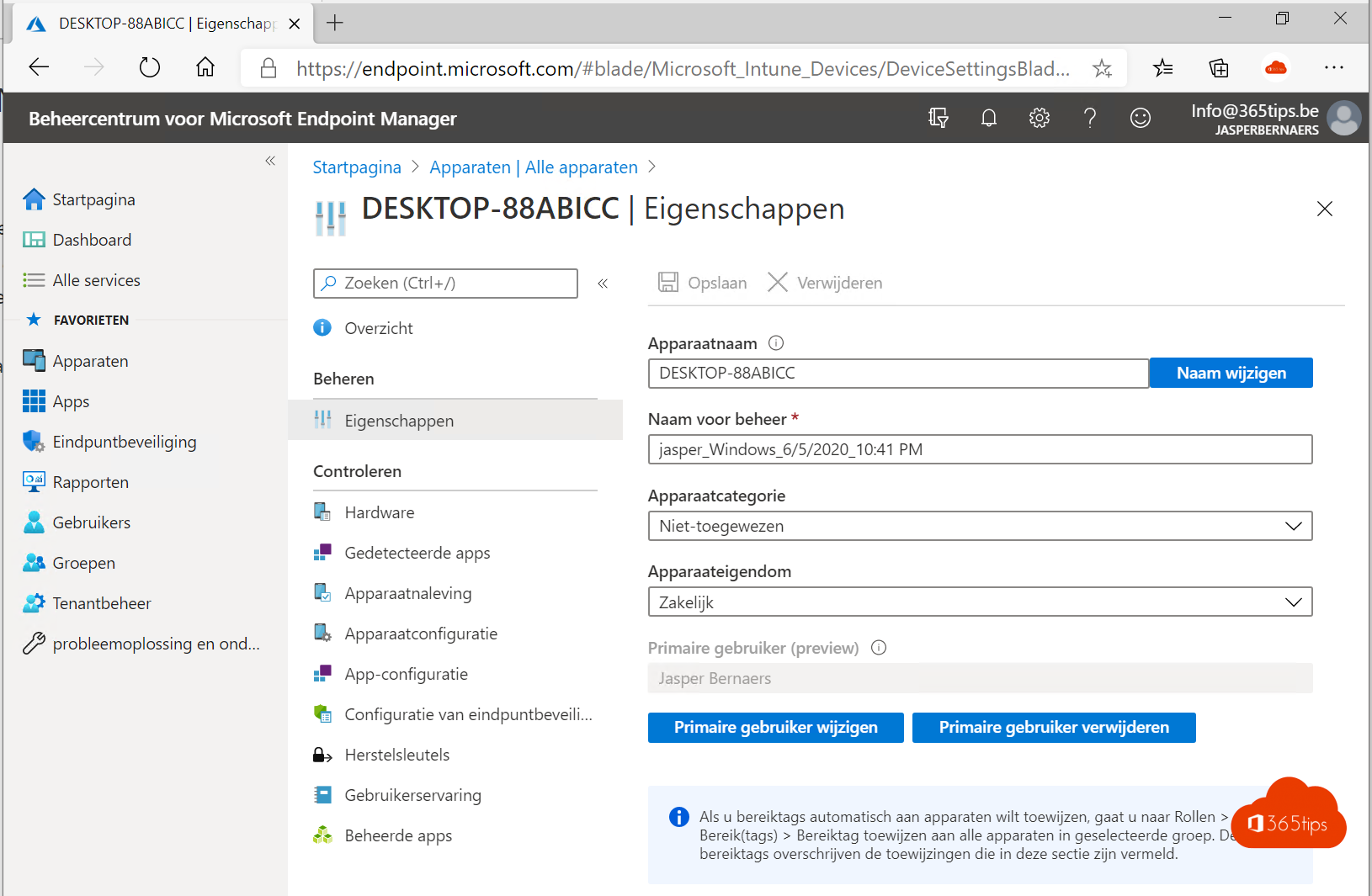
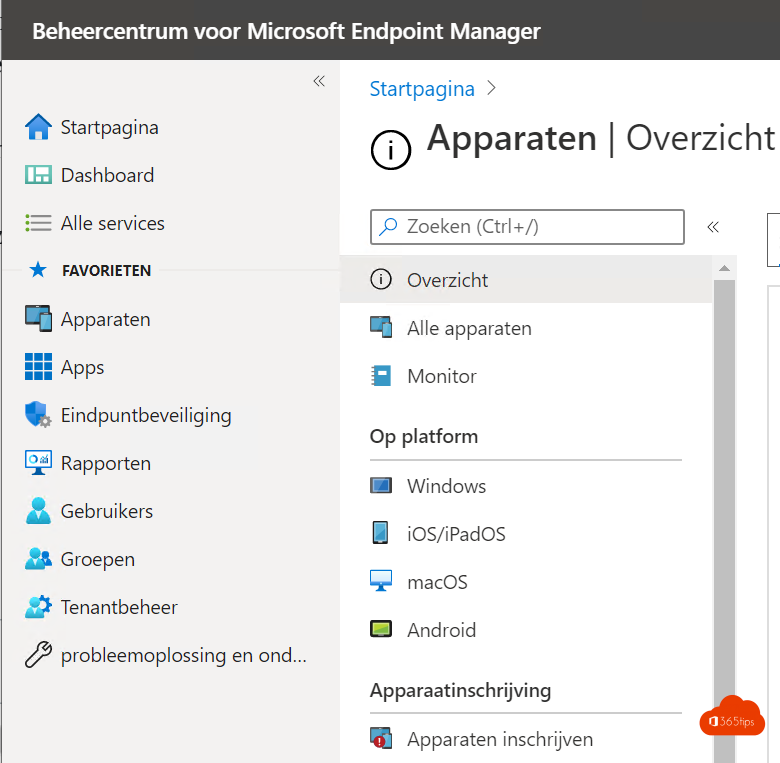
- Go to intune.microsoft.com > Devices > Windows and select the device.
- Select Properties.
- Under Primary user, select Change primary user.
- Choose the new user and select Select > Save.
Shared devices
For a meeting room or classroom PC, choose Remove primary user. The device is then treated as shared. Assign apps and policies to device groups instead of user groups.
With PowerShell
For many devices at once, use Microsoft Graph PowerShell with the Intune cmdlets, or a script that sets the primary user to the last signed-in user. Always test such a script on a few devices first.
Tips
- Device going to someone else for good? Do an Autopilot Reset first.
- Changing the primary user doesn't change who can sign in to the device.
- Also check the device owner in Entra ID. See deploy the Company Portal.
Read also
Reset a Windows device with Autopilot Reset in Intune
Install the Intune Company Portal automatically on all computers
The basic settings to start using Microsoft Intune
Nederlandstalige versie: De primaire gebruiker van een toestel wijzigen in Microsoft Intune