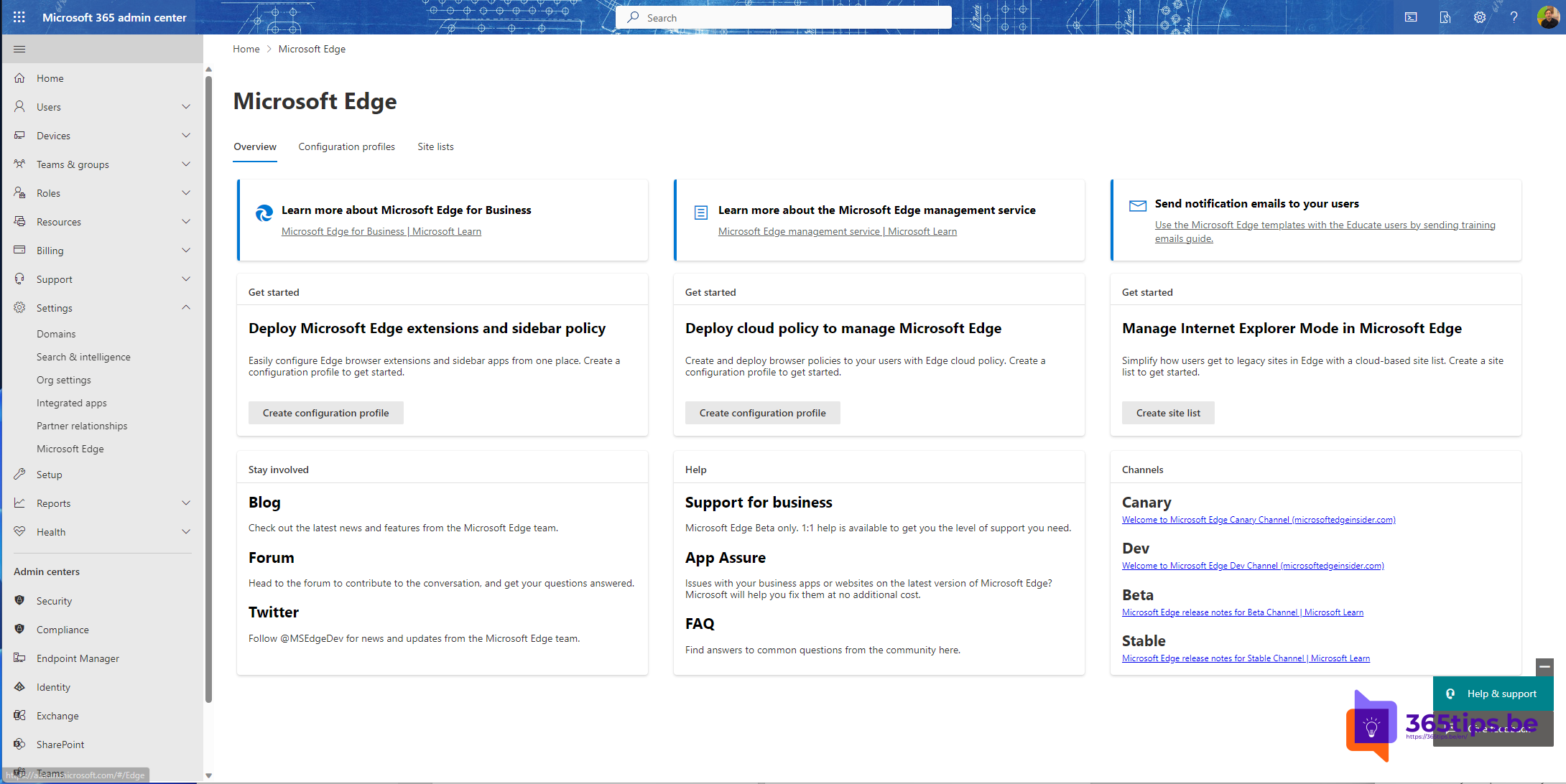
Want to manage Microsoft Edge without Group Policy or complex Intune profiles? With the Microsoft Edge management service in the Microsoft 365 admin center you configure policies and extensions with simple toggles and drop-downs. You assign them to groups, and Edge picks up the settings as soon as the user is signed in with their work account. The service is an extra option alongside Intune and Group Policy, not a replacement.
What can you do with it?
- Create configuration policies with toggles instead of JSON or registry values.
- Search, allow, block or force-install extensions.
- Review and approve extension requests from users.
- Assign policies to Microsoft Entra groups.

Requirements
- The Global Administrator or Edge Administrator role.
- Users sign in to Edge with their work or school account.
- A recent version of Edge.
1. Create a configuration policy
- Go to admin.microsoft.com > Settings > Microsoft Edge.
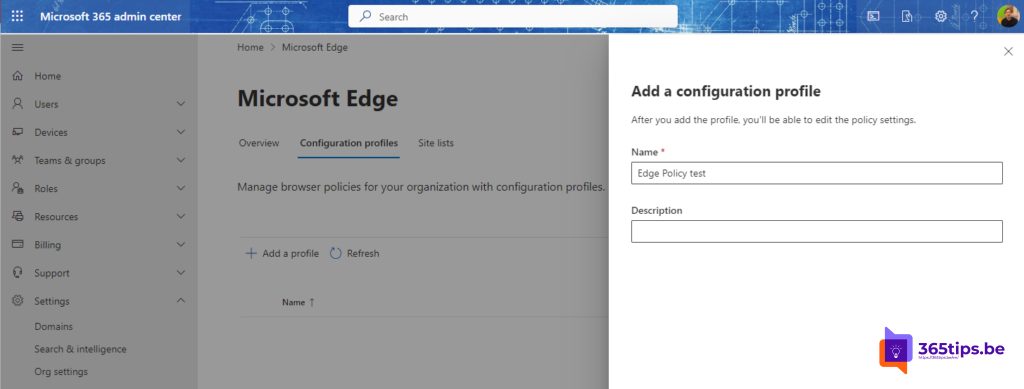
- Open the Configuration policies tab and select Create policy.
- Enter a name and choose the platform.
- Add the settings you want to enforce, for example the start page, search engine or password manager.
- Assign the policy to a group and save.

2. Manage extensions
- In the same policy or on the Extensions tab, go to the list of Edge add-ons.
- Find an extension, check its rating and choose whether it's allowed, blocked or force-installed.
- Review user requests regularly.

3. Check
It can take a while before Edge picks up the new policy. On a device, open edge://policy and select Reload policies. You'll see which settings are active and where they come from.

Edge management service or Intune?
If you manage all your devices with Intune, Intune remains the logical place. The Edge management service is handy for organizations without Intune, for admins who only manage Edge, or to sort out extensions quickly. Don't configure the same setting in two places, to avoid conflicts.
Also see deploy and manage Edge with Intune and enhanced security in Microsoft Edge.
Read also
Deploy and manage Microsoft Edge with Microsoft Intune
Enhanced security mode in Microsoft Edge
Set Google as the default search engine in Microsoft Edge, also via Intune
Nederlandstalige versie: Microsoft Edge beheren met de Edge-beheerservice in het Microsoft 365-beheercentrum